
USB Port Not Working? Simple Fixes to Try First
A USB port that suddenly stops working can interrupt charging, data transfers, and essential accessories. Follow a practical troubleshooting process to isolate cable, device, software, power, and physical port problems before paying for repair.
Table of contents
- Start by Identifying the Exact Symptom
- Rule Out the Cable, Device, and Adapter
- Test with a known-good setup
- Inspect and Clean the USB Port Safely
- Restart and Reset the Computer’s USB Power State
- Power reset for a desktop or laptop
- Fix USB Port Problems in Windows
- Check Device Manager
- Review power-saving settings
- Fix USB Port Problems on a Mac
- Check System Information and charging limits
- Understand Power, Speed, and Compatibility Limits
- When the USB Port Needs Repair
- Choose the practical repair path
- A 10-Minute USB Troubleshooting Checklist
- Frequently Asked Questions
- Why does my USB port charge my phone but not transfer files?
- Can I use a USB hub to fix a broken USB port?
- Why does my USB device disconnect when I move the cable?
- Is it safe to clean a USB port with rubbing alcohol?
- Why does one USB-C port work for charging but not for a monitor?
- Conclusion
- References
When a USB port is not working, the cause may be as simple as lint inside the connector or as complex as a failed motherboard component. The good news is that most problems can be narrowed down without opening your computer or buying replacement parts. A systematic test prevents a common mistake: blaming the port when the real issue is the cable, the accessory, or the operating system.
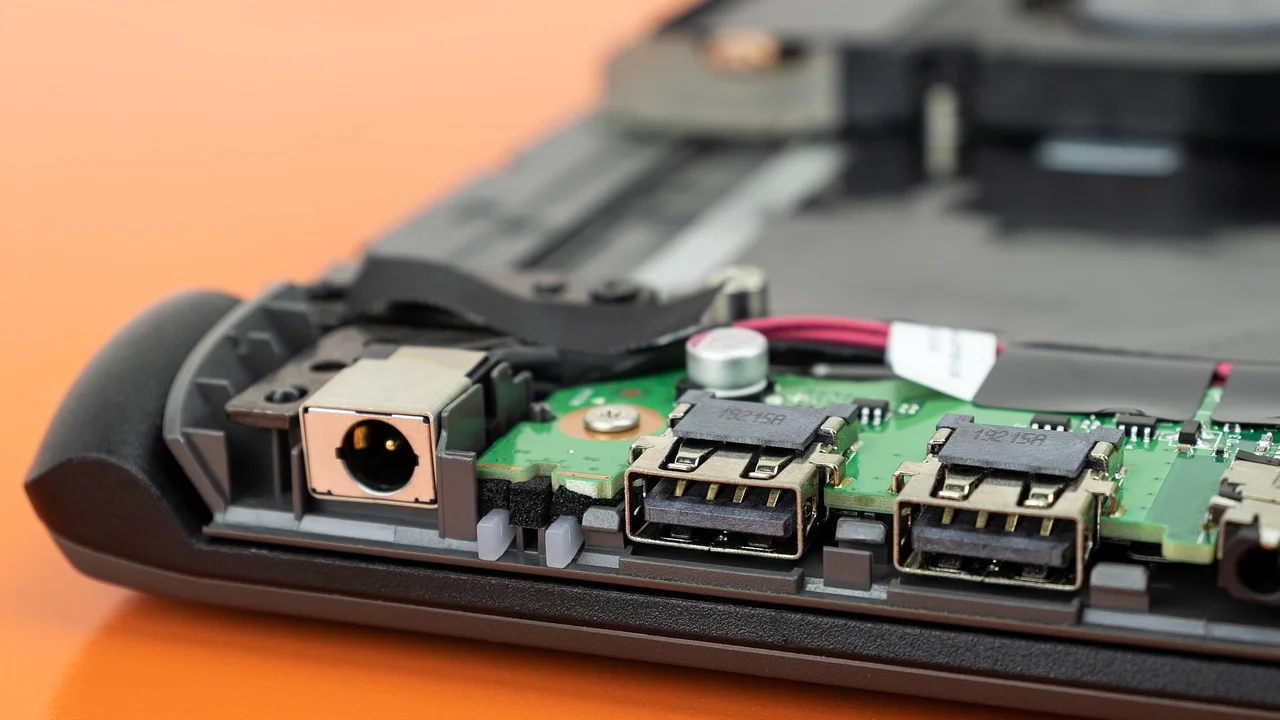
USB ports handle two separate jobs: supplying power and moving data. A phone may charge but not appear in File Explorer, or a flash drive may be detected on one side of a laptop but not another. Those details matter because they point to different likely faults. Use the steps below to identify what has failed and decide when professional service makes sense.
Start by Identifying the Exact Symptom
Before changing settings, observe what happens when you connect an accessory. Test one known-good device, such as a basic wired mouse or a flash drive, and then test a second device. If possible, test the same device and cable on another computer.
- No power and no recognition: The device does not light up, charge, or appear in the operating system.
- Power but no data: A phone charges, but files cannot be transferred; a drive spins up but never mounts.
- Intermittent connection: The device repeatedly disconnects, often when the cable moves.
- Only one port fails: This often suggests debris, wear, or physical damage localized to that connector.
- Every port fails: Look first at system settings, drivers, power state, or a broader hardware issue.
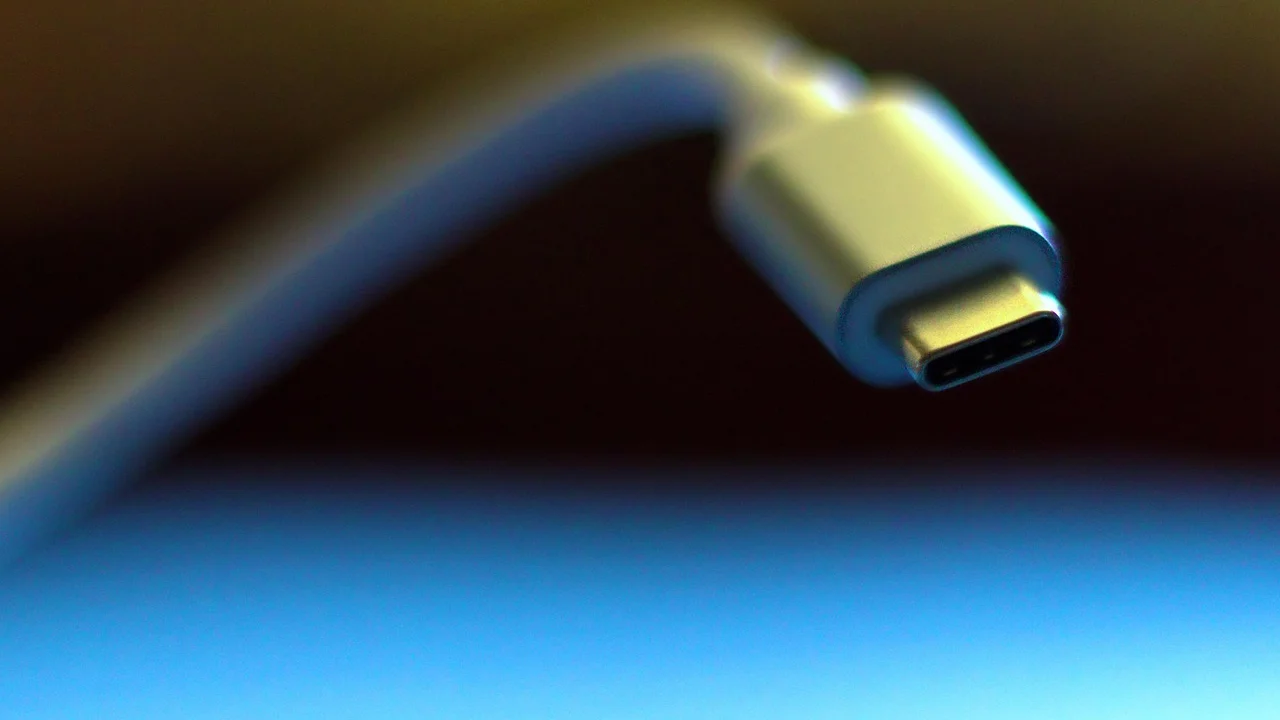
Also note the connector type. USB-A is the rectangular connector found on many desktops and older laptops. USB-C is the small, reversible oval connector. USB-C ports can support different combinations of charging, data, displays, and Thunderbolt, so not every USB-C port has identical capabilities.
Rule Out the Cable, Device, and Adapter
Test with a known-good setup
Do not begin with driver changes until you test the simplest components. A damaged cable is one of the most frequent reasons a USB accessory appears dead. USB charging cables can also be power-only cables, meaning they charge a device but cannot transfer data.
- Unplug the USB device and inspect the cable for kinks, exposed wire, bent connectors, or looseness.
- Connect the same device with a different cable, if the device uses a removable cable.
- Try the device in a different USB port on the same computer.
- Try it on another computer or a compatible wall charger, depending on the accessory.
- Connect a different, known-working device to the suspect port.
If multiple devices work in other ports but nothing works in one particular port, the problem is likely the port. If one device fails everywhere, focus on that device, its cable, or its software. Avoid repeatedly forcing a connector into a port; USB-C plugs should slide in smoothly, while USB-A plugs fit in only one orientation.
Inspect and Clean the USB Port Safely
Pocket lint, dust, and pet hair can prevent a plug from reaching the contacts, especially in USB-C ports on laptops and phones. Turn off the computer, disconnect external power, and remove the battery only if your device is designed for user removal.
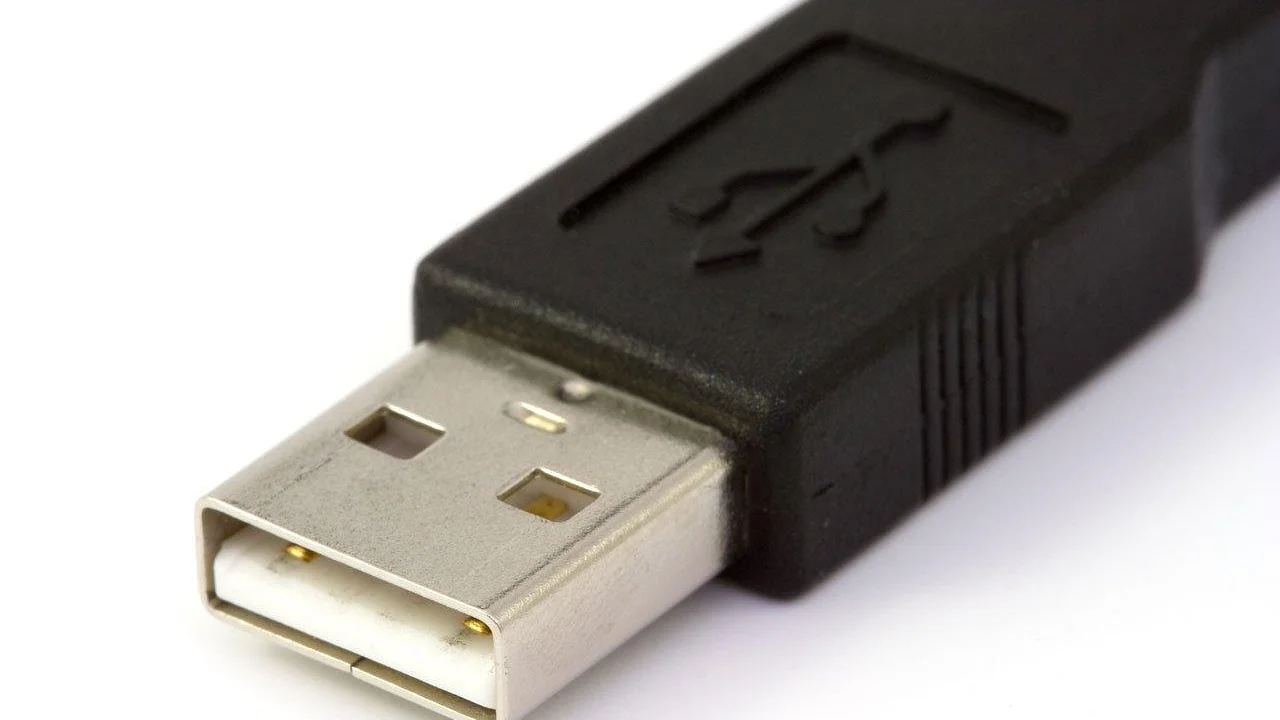
Use a flashlight to look inside the port. You are checking for compacted debris, a bent center tongue in a USB-A port, corrosion, or a connector that visibly shifts inside the chassis. Use a dry, nonmetallic tool such as a plastic pick or a soft brush to remove loose debris gently. A hand-operated air blower can help, but do not use high-pressure compressed air at close range because it can drive debris deeper or introduce moisture.
The U.S. Consumer Product Safety Commission advises consumers to stop using electrical products that are damaged or overheating and to contact the manufacturer when a safety concern is suspected.
U.S. Consumer Product Safety Commission, electrical safety guidance
Do not pour liquid into a port, scrape contacts with a paper clip, or use a wet cotton swab. If you notice a burning smell, melted plastic, unusual heat, sparking, or discoloration, stop using that port immediately. Disconnect power and arrange an evaluation by the manufacturer or a qualified repair provider.
Restart and Reset the Computer’s USB Power State
USB controllers can occasionally remain in an error state after a power surge, a crash, or a device that drew more power than the port could provide. A normal restart often resolves temporary problems, but a complete power reset can be more effective.
Power reset for a desktop or laptop
Save your work, shut down the computer completely, and unplug its power cable. On a laptop, disconnect the charger and any docking station. Hold the power button for about 15 seconds, then reconnect power and start the computer. This drains residual electricity and prompts the system to initialize its USB controller again.
If a USB hub is involved, bypass it for testing. Plug the device directly into the computer. Unpowered hubs share a limited amount of power among connected devices, so external hard drives, webcams, capture devices, and charging phones may exceed what the hub can reliably deliver. A powered hub with its own AC adapter is usually a better choice for several power-hungry devices.
Fix USB Port Problems in Windows
Windows normally installs USB drivers automatically, but an update, sleep-state issue, or corrupted driver entry can interfere with detection. Before modifying anything, disconnect the accessory and restart the PC once. Then use Device Manager to check the USB controller list.
Check Device Manager
Right-click the Start button and choose Device Manager. Expand “Universal Serial Bus controllers.” Look for an entry with a yellow warning icon or an “Unknown USB Device” label. Right-click the affected entry and select “Uninstall device,” then restart Windows. Windows should reinstall the controller or device driver during startup.
You can also choose “Scan for hardware changes” from the Action menu after reconnecting the device. For laptops and prebuilt desktops, install chipset and USB-related updates from the computer manufacturer’s support page rather than relying only on generic driver download sites. Microsoft’s Windows support resources provide additional steps for device and driver issues.
Review power-saving settings
Windows may suspend USB devices to conserve battery power. In Device Manager, open the properties for a USB Root Hub or Generic USB Hub, select the Power Management tab, and clear “Allow the computer to turn off this device to save power” if the option appears. Test after changing one setting at a time. This can increase battery use slightly, so it is most useful when ports disconnect after sleep or while the computer is idle.
Fix USB Port Problems on a Mac
On a Mac, begin by shutting down, disconnecting all USB devices and hubs, then starting it again with only a keyboard or mouse attached if needed. Reconnect accessories one at a time. This can reveal a problematic hub, drive, or cable that is affecting the whole chain.
Check System Information and charging limits
Choose Apple menu, About This Mac, then More Info or System Report, depending on your macOS version. Under USB, look for the connected device. If it appears there but not in Finder, the issue may be with the drive format, mounting, or the app you are using rather than the port itself.
For USB-C Mac laptops, confirm that the power adapter and cable meet the computer’s requirements. Some cables support only USB 2.0 data speeds, while others support higher-speed data or video. Apple’s official support site has model-specific instructions for startup, charging, and accessory problems. On Apple silicon Macs, a full shutdown followed by a restart generally handles controller resets; avoid outdated online instructions that tell you to reset hardware controllers on every model.
Understand Power, Speed, and Compatibility Limits
Not every USB port provides the same performance. A low-power port may work fine for a mouse but fail with a portable hard drive. Likewise, a device can function through a USB 2.0 connection but transfer files much more slowly than expected.
| Connection type | Typical maximum data rate | Common use | Common limitation |
|---|---|---|---|
| USB 2.0 | 480 Mbps | Keyboards, mice, basic flash drives | Slow for large backups and video drives |
| USB 3.2 Gen 1 | 5 Gbps | External SSDs, webcams, docks | Needs compatible cable and port for full speed |
| USB 3.2 Gen 2 | 10 Gbps | Fast external storage | Not available on every USB-C port |
| USB-C connector | Varies by underlying standard | Charging, data, displays, docks | Connector shape alone does not confirm features |
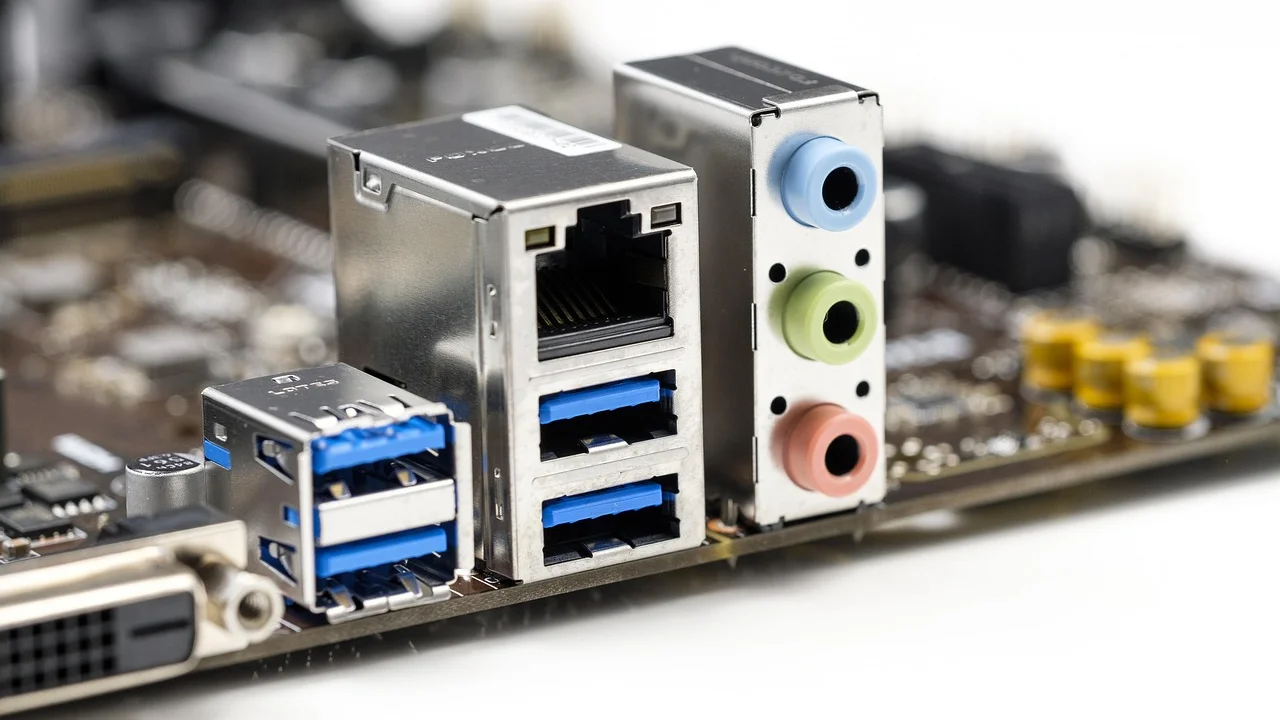
Port labels and colors can be useful hints but are not guarantees. A blue USB-A port often indicates USB 3.x support, while a lightning-bolt symbol may indicate charging capability. Check the computer manual for its exact specifications. For a dock or external display, use the cable supplied by the manufacturer or a certified cable rated for the required data, video, and power load.
When the USB Port Needs Repair
A loose port, bent internal tab, broken solder connection, or liquid damage will not be solved by software troubleshooting. Physical damage is more likely if the plug wiggles excessively, works only at a specific angle, or if the failure began after a drop or a forced connection.
Choose the practical repair path
On a desktop PC, a failed front-panel USB port may be replaceable as a relatively inexpensive part, while a rear motherboard port can require board-level repair or a PCIe USB expansion card. On a laptop, USB-C ports may be soldered directly to the motherboard, making repair more specialized and potentially costly. Some models use a separate daughterboard, which is simpler to replace.
If your computer is under warranty, contact the manufacturer before opening the case or using a third-party repair shop. Back up your data before service, particularly if liquid exposure or motherboard replacement is possible. A reputable technician should explain whether the fault is limited to the port, the charging circuit, the USB controller, or the main logic board.
A 10-Minute USB Troubleshooting Checklist
Use this short plan when you need a fast, repeatable diagnosis:
- Test the accessory with another cable and another computer.
- Test a known-working mouse or flash drive in the suspect port.
- Disconnect hubs, docks, and adapters; connect directly to the computer.
- Shut down fully, disconnect power, wait briefly, and restart.
- Inspect the port under good light and carefully remove dry debris.
- In Windows, check Device Manager; on a Mac, check System Information.
- Install manufacturer-provided operating system, chipset, or firmware updates.
- Stop immediately if the port overheats, smells burned, sparks, or has visible damage.
This sequence establishes whether you have a peripheral issue, a cable issue, an operating system issue, a power limitation, or a physical connector failure. It also gives you clear details to provide to technical support.
Frequently Asked Questions
Why does my USB port charge my phone but not transfer files?
The cable may be designed only for charging, the phone may need to be unlocked and set to file transfer mode, or the computer may have a driver issue. Try a known data-capable cable and another port before changing software settings.
Can I use a USB hub to fix a broken USB port?
Only if another working port is available. A hub cannot repair a failed port, but it can add more connections through a functioning port. Choose a powered hub for external drives, multiple peripherals, or charging-heavy setups.
Why does my USB device disconnect when I move the cable?
This usually indicates a worn cable, debris in the connector, or a loose physical port. Replace the cable first. If the problem continues with several cables and devices, the port may need repair.
Is it safe to clean a USB port with rubbing alcohol?
It is safer to start with dry, nonmetallic cleaning. Liquids can cause damage if they are applied excessively or the device is powered on before fully dry. For corrosion or suspected liquid damage, professional service is the safer option.
Why does one USB-C port work for charging but not for a monitor?
USB-C is a connector shape, not a guarantee of video output. Some USB-C ports support charging and data only, while others support DisplayPort Alt Mode or Thunderbolt. Check your computer’s specifications and the display adapter requirements.
Conclusion
A USB port not working does not automatically mean a costly repair. Start with the device and cable, remove hubs from the equation, reset the computer’s power state, and check the operating system’s hardware tools. If the port is loose, overheats, shows corrosion, or fails every test while other ports work, treat it as a hardware problem and seek qualified service. Careful testing protects your equipment and prevents unnecessary purchases.
References
About the author
Stefano Barcellos
Editor jefe de SaberTec
Editor jefe de SaberTec. Coordina la línea editorial, revisa la precisión de los contenidos y supervisa su publicación en 20 idiomas.
View full profile