
USB Drive Not Showing Up on Computer: Fixes to Try
A USB drive that does not appear can stem from a port, cable, drive-letter, mounting, formatting, or hardware problem. Use these safe checks for Windows and Mac to identify the cause, protect important files, and decide when to seek recovery help.
Table of contents
- Start With the Physical Connection
- Try these low-risk checks
- Understand Where a USB Drive Can Appear
- Fix a USB Drive Not Showing Up in Windows
- Check Disk Management
- Use Device Manager carefully
- Run an error check only when the drive is readable
- Fix a USB Drive Not Showing Up on a Mac
- Mount the volume in Disk Utility
- Use First Aid with restraint
- File Systems, Compatibility, and Encryption
- When Formatting Is Appropriate—and When It Is Not
- Format only after this checklist
- Recognize Signs of Physical Failure
- A Safe 15-Minute Troubleshooting Plan
- FAQ
- Why is my USB drive not showing in File Explorer but visible in Disk Management?
- Why does my computer say I need to format the USB drive?
- Can I use the same USB drive on Windows and Mac?
- Will assigning a new drive letter erase my files?
- Should I put a failing USB drive in the freezer?
- Conclusion
- References
A USB flash drive that does not appear on your computer can be alarming, especially when it contains photos, schoolwork, backups, or tax documents. The good news is that a missing drive is not always a failed drive. A loose connection, a damaged USB port, an absent drive letter, or a mounting issue can all prevent the drive from appearing where you expect it.
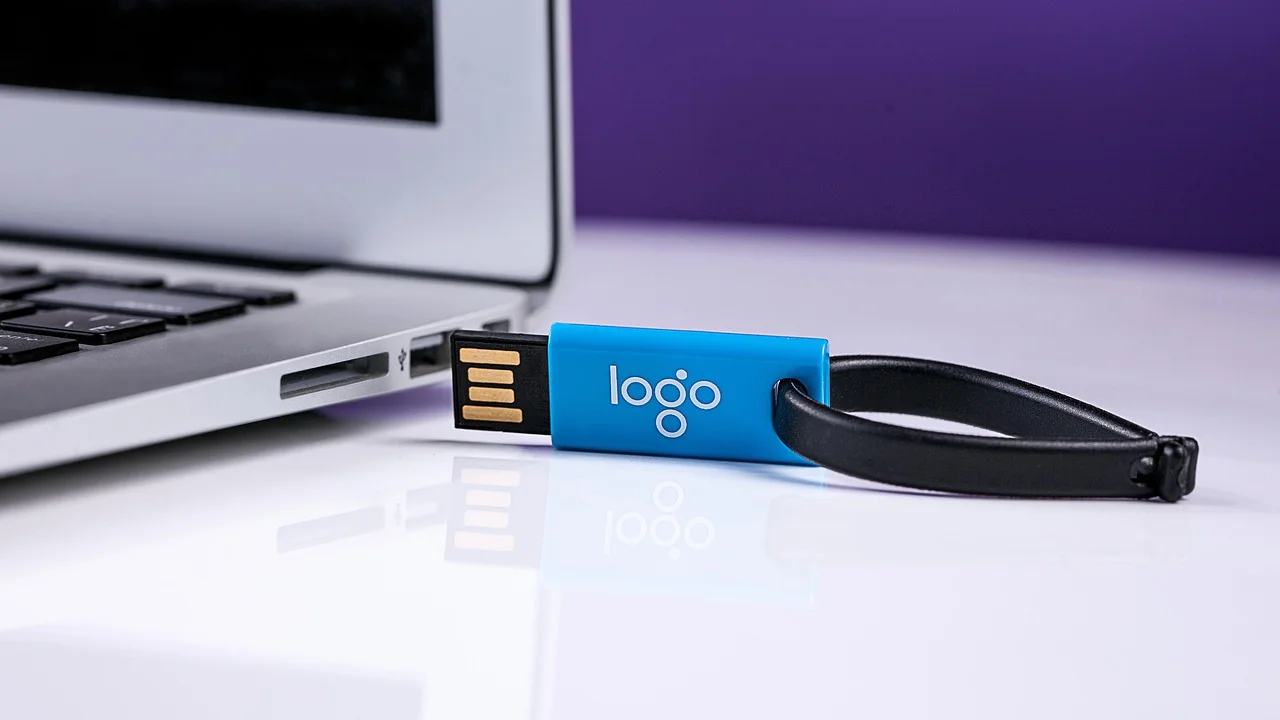
The safest approach is to start with simple, non-destructive checks and avoid formatting the drive until you know whether the files are recoverable. This guide explains how to diagnose a USB drive not showing up on a Windows PC or Mac, what each result means, and when professional data recovery is the sensible next step.
Before troubleshooting, stop saving new files to the USB drive and do not repeatedly unplug it during activity. If the data is irreplaceable, prioritize preservation over quick fixes.
Start With the Physical Connection
First, determine whether the issue follows the flash drive or the computer. A USB drive can fail to appear because of dirt, wear, insufficient power, or a problem with a particular port.
Try these low-risk checks
- Remove the drive safely, wait a few seconds, and insert it firmly into a different USB port.
- Use a port directly on the computer instead of a keyboard, monitor, docking station, or unpowered hub.
- On a desktop PC, test a rear USB port; these are usually connected more directly to the motherboard.
- Restart the computer and try the drive again after it fully starts.
- Test the USB drive on a second computer, ideally one with a different operating system.
- Inspect the connector for bent metal, debris, unusual heat, cracks, or a loose casing.
If other USB devices work in the same port but this drive does not work on any computer, the flash drive itself is the likely source of the problem. If the drive works elsewhere, focus on settings and drivers on the original computer.
Understand Where a USB Drive Can Appear
A drive can be recognized by the operating system without showing in File Explorer on Windows or Finder on a Mac. That distinction is important: it may mean the hardware is still communicating, but the volume is not mounted, assigned, or readable.
| What you see | Likely cause | Best next action |
|---|---|---|
| Drive appears in File Explorer or Finder | Connection is working | Copy important files immediately |
| Appears in Disk Management or Disk Utility only | Missing letter, mount point, or readable volume | Check status before making changes |
| Shown as unallocated or uninitialized | Partition or file-system damage | Do not format if files matter |
| Appears with a capacity of 0 bytes | Serious controller or memory issue | Consider professional recovery |
| Not detected on multiple computers | Physical or electronic failure | Stop repeated attempts and assess recovery options |
A drive that asks to be formatted may still contain data. Formatting creates or replaces file-system structures, which can complicate recovery. Cancel that prompt until you have chosen a recovery plan.
Fix a USB Drive Not Showing Up in Windows
Windows provides several built-in places to check whether a USB device is connected. Begin with Disk Management because it reveals drives that lack a visible letter in File Explorer.
Check Disk Management
- Right-click the Start button and select Disk Management.
- Look through the lower pane for a removable disk with roughly the expected storage size.
- If it says Healthy but has no drive letter, right-click its partition and choose Change Drive Letter and Paths.
- Select Add, choose an unused letter, and confirm.
- Open File Explorer to see whether the drive now appears.
If the drive is listed as Offline, right-click its disk label and select Online. Do not choose “Initialize Disk” for a drive that contains needed files. Initialization is appropriate only for a new, empty drive that you intend to set up.
Use Device Manager carefully
Open Device Manager from the Start menu and expand Disk drives and Universal Serial Bus controllers. If you see an entry with a warning symbol, right-click it and choose Scan for hardware changes. You may also select Update driver and allow Windows to search automatically.
Removing a USB device entry and restarting can refresh a corrupted device configuration, but do this only when you are comfortable reinstalling the connection. Microsoft’s official Windows support resources provide current guidance for device and driver issues.
Run an error check only when the drive is readable
If the drive opens but behaves erratically, Windows can check its file system. In File Explorer, right-click the drive, select Properties, open Tools, and choose Check under Error checking. This is more appropriate when you can already see the drive and have copied essential files. It is not a substitute for recovery when the drive is unallocated, repeatedly disconnects, or makes the computer freeze.
Fix a USB Drive Not Showing Up on a Mac
On a Mac, a connected drive may be visible in Disk Utility even when Finder does not display it. Open Disk Utility through Applications, Utilities, then select View and Show All Devices. This view separates the physical device from the volumes stored on it.
Mount the volume in Disk Utility
Select the volume beneath the external device. If the Mount button is available, choose it. A successful mount should make the drive available in Finder. If Finder is merely hiding external drives, open Finder settings and ensure External disks is selected for the sidebar and desktop preferences.
Use First Aid with restraint
Disk Utility’s First Aid can repair certain directory and file-system problems. It is most useful for a drive that is recognized consistently but will not open normally. If Disk Utility cannot see the drive at all, or it reports hardware-level trouble, repeatedly running First Aid is unlikely to solve the problem and may add stress to an unstable device.
Apple notes that external disks can require compatible formats and reliable connections. For current Mac-specific instructions, consult Apple’s Disk Utility User Guide.
File Systems, Compatibility, and Encryption
A USB drive formatted for one platform may not work normally on another. Windows commonly uses NTFS, while Apple systems use APFS or Mac OS Extended for internal storage. For removable drives shared between modern Windows PCs and Macs, exFAT is often the practical choice because both systems can generally read and write it and it supports files larger than 4 GB.
However, formatting to exFAT erases the existing contents. Do not reformat simply to solve a visibility problem unless the drive is new or you have already backed up everything you need.
Encryption can also make a drive seem unavailable. A BitLocker-protected removable drive may require its password or recovery key on another Windows machine. A Mac-encrypted volume requires the appropriate password and may not be readable on Windows without specialized software. If the drive belongs to an employer, school, or agency, contact its IT team rather than attempting to bypass controls.
“The first rule of data recovery is to do no further harm: avoid writing new data to the affected device until you understand its condition.” This is a practical paraphrase of common digital-forensics preservation principles.
National Institute of Standards and Technology, Computer Forensics Tool Testing program
When Formatting Is Appropriate—and When It Is Not
Formatting is a useful maintenance step for a new drive, a drive with no needed data, or a drive whose files have already been safely copied elsewhere. It is not a diagnostic cure for valuable data. A format prompt can be caused by corrupted file-system metadata, an unsupported format, or a failing device.
Format only after this checklist
- You have confirmed the files are backed up or not needed.
- You have tested the drive on another computer and another port.
- You understand that formatting removes access to existing files.
- You have selected a format compatible with your intended devices.
- You have ruled out a counterfeit or severely failing drive.
For a flash drive used across current Windows and Mac computers, choose exFAT in the formatting tool. For a drive used only on Windows, NTFS may be suitable, although it can have limited write support on a Mac. Always use the operating system’s eject command before unplugging a drive to reduce the risk of future corruption.
Recognize Signs of Physical Failure
USB flash drives have no moving parts, but their connectors, controller chips, and NAND memory can fail. A drive may also be counterfeit, with its reported capacity altered to look larger than its actual storage. Warning signs include frequent disconnections, unusually slow transfers, a reported capacity of 0 bytes, unexplained file corruption, excessive heat, or a device that is detected only intermittently.
If the USB connector is bent, detached, or physically damaged, do not try to force it into a port. If the drive contains irreplaceable material, avoid online “repair” utilities that write to the device. A reputable data-recovery provider may be able to assess the failure, but recovery can be expensive and is never guaranteed. Get a written estimate and ask whether there is a no-data, no-fee policy before approving work.
A Safe 15-Minute Troubleshooting Plan
Use this sequence to make progress without taking unnecessary risks:
- Stop using the drive and note whether it contains important, unique files.
- Try one different USB port directly on the computer.
- Restart the computer, then reconnect the drive once.
- Try the drive on a second computer.
- On Windows, inspect Disk Management; on Mac, inspect Disk Utility with all devices shown.
- If the volume appears healthy but has no letter or mount point, assign a letter or mount it.
- If it becomes accessible, copy files first to the computer or another reliable drive.
- If it shows as unallocated, asks to format, reports 0 bytes, or is absent everywhere, avoid formatting and consider recovery assistance.
This order separates connection issues from file-system issues while protecting the best chance of retrieving data. It also prevents a common mistake: changing partitions before confirming whether the drive is merely hidden.
FAQ
Why is my USB drive not showing in File Explorer but visible in Disk Management?
It may not have a drive letter, or its partition may be present but not mounted normally. If the partition is marked Healthy, assigning an unused drive letter can make it appear. If it is unallocated, do not create a new volume before deciding whether the files need recovery.
Why does my computer say I need to format the USB drive?
The operating system cannot read the file system as expected. This can result from corruption, unsafe removal, incompatible formatting, or hardware failure. Cancel the prompt if you need the files, then test the drive on another computer and inspect it with Disk Management or Disk Utility.
Can I use the same USB drive on Windows and Mac?
Yes. exFAT is generally the best format for sharing files between current Windows and Mac systems. Back up files before reformatting, because changing the format erases the drive.
Will assigning a new drive letter erase my files?
No. Assigning or changing a drive letter in Windows does not erase the contents. It only gives Windows a path for displaying the existing volume, provided the file system is readable.
Should I put a failing USB drive in the freezer?
No. Freezing can introduce condensation and additional damage. Use a different port or computer for basic tests, then stop if the drive is unstable or physically damaged.
Conclusion
When a USB drive does not show up, begin with ports, another computer, and the system’s disk-management tools. A missing drive letter or unmounted volume can be fixed quickly, while an unallocated disk, a 0-byte report, or total non-detection calls for caution. Copy data as soon as the drive becomes accessible, and do not format a drive with important files until you have a backup or a recovery decision.
References
About the author
Stefano Barcellos
Editor jefe de SaberTec
Editor jefe de SaberTec. Coordina la línea editorial, revisa la precisión de los contenidos y supervisa su publicación en 20 idiomas.
View full profile