
Laptop Touchpad Not Working? Steps to Fix It
A nonresponsive laptop touchpad can stem from an accidental shortcut, driver issue, system setting, dirt, or hardware damage. Use this practical U.S.-focused guide to restore touchpad control on Windows or Mac, protect your files, and know when professional repair makes sense.
Table of contents
- First, identify what the touchpad is doing
- Quick checks that solve many touchpad problems
- Restart and disconnect accessories
- Check the touchpad shortcut key
- Check settings in Windows and macOS
- Windows touchpad settings
- Mac trackpad settings
- Update, reinstall, or roll back the driver
- Rule out dirt, moisture, and power problems
- A practical touchpad recovery plan
- When repair is the sensible next step
- FAQ: Laptop touchpad not working
- Why did my touchpad suddenly stop working?
- Can I use my laptop without a working touchpad?
- Should I download a driver updater to fix my touchpad?
- What does it mean if my touchpad is bulging upward?
- Will resetting my computer fix the touchpad?
- Conclusion
- References
When a laptop touchpad stops responding, work can come to a halt quickly. The pointer may not move at all, clicks may fail, scrolling may disappear, or the touchpad may behave erratically. Fortunately, many cases are caused by a setting, keyboard shortcut, software update, or driver problem—not a failed physical part.
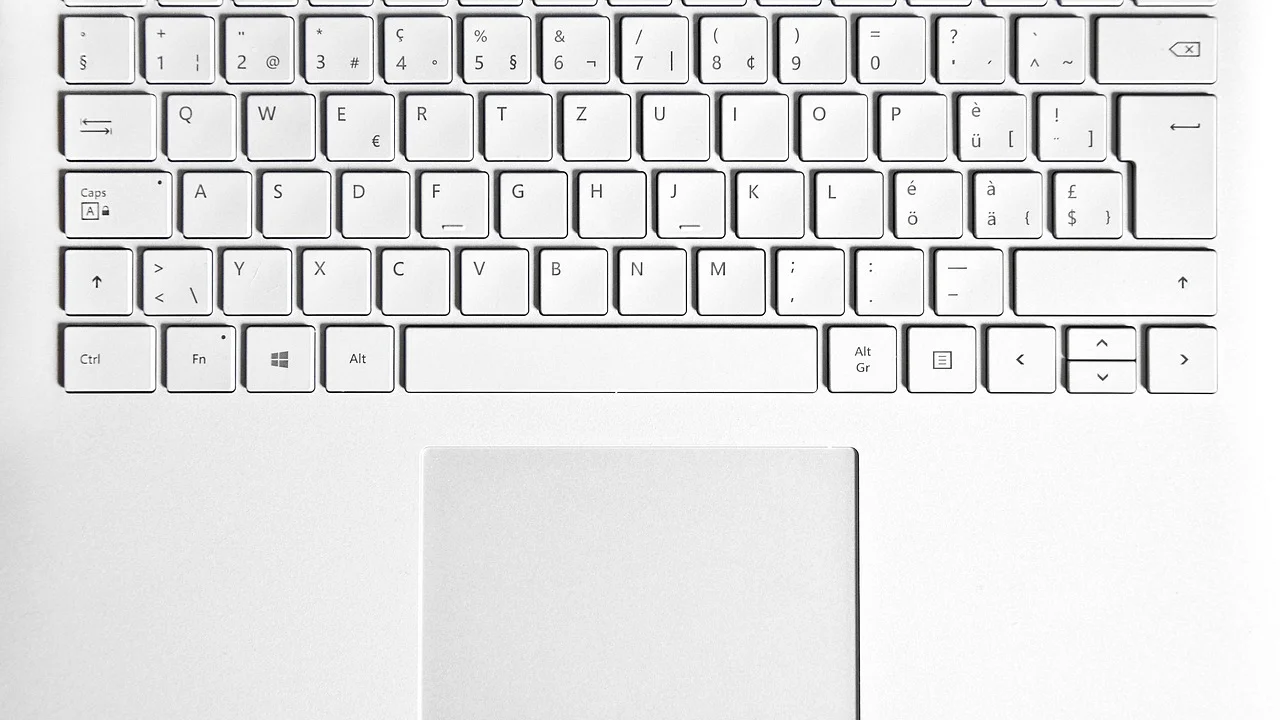
This guide helps U.S. laptop owners diagnose the problem safely on Windows and macOS. Start with the simplest checks, use a wired or wireless mouse if you have one, and avoid opening the laptop until software and power-related causes have been ruled out. If the device is under warranty or has accidental-damage coverage, contact the manufacturer before attempting an internal repair.
First, identify what the touchpad is doing
The word “not working” can describe several different symptoms. Pinpointing the pattern narrows the likely cause and prevents unnecessary changes.
- No pointer movement: the touchpad may be disabled, disconnected, or affected by a driver or hardware failure.
- Pointer moves but clicking fails: tap-to-click may be disabled, the physical click mechanism may be worn, or the system may be frozen.
- Scrolling or gestures fail: the basic touchpad driver may be active while gesture settings or manufacturer software is missing.
- Cursor jumps or drifts: moisture, debris, electrical interference, a swollen battery, or a failing touchpad can be responsible.
- Problem began after an update: an operating-system update or newly installed driver is a strong suspect.
If the entire computer is unresponsive—not just the pointer—try pressing Caps Lock and see whether its indicator changes. If it does not, the laptop may be frozen and needs a restart rather than touchpad troubleshooting.
Quick checks that solve many touchpad problems
Restart and disconnect accessories
Save any work you can with the keyboard, then restart the computer. A restart reloads system services and drivers that may have stalled. Shut the laptop down completely if restarting does not help, unplug its charger, and disconnect USB hubs, docking stations, game controllers, and external displays. Then start it again.
Some laptops automatically disable the built-in touchpad when an external mouse is connected. That behavior is convenient for some users but confusing when a USB receiver remains plugged in or a Bluetooth mouse is still paired.
Check the touchpad shortcut key
Many Windows laptops include a function-key shortcut that toggles the touchpad on and off. Look along the top row for an icon resembling a touchpad, sometimes with a slash through it. Depending on the model, press that key alone or with Fn. On some systems, double-tapping a marked corner of the touchpad toggles it.
Wait a few seconds after using the shortcut. A small on-screen notification may confirm that the touchpad has been enabled. If you are unsure which key applies, use the laptop’s model number from the bottom label or system information screen to find its official support documentation.
Check settings in Windows and macOS
Windows touchpad settings
Use the keyboard to open Settings: press the Windows key, type “Touchpad settings,” and press Enter. Confirm that the main Touchpad switch is on. Then check whether Windows is set to leave the touchpad enabled when a mouse is connected. Review tap, scroll, and multi-finger gesture options if movement works but certain actions do not.
In Device Manager, expand “Mice and other pointing devices” and “Human Interface Devices.” The touchpad may appear under a manufacturer name, as a precision touchpad, or as an I2C HID device. A downward arrow can mean it is disabled; a warning symbol can point to a driver issue. The Microsoft Windows support center provides current instructions for Windows settings and device troubleshooting.
Mac trackpad settings
On a MacBook, open System Settings with Spotlight: press Command-Space, type “Trackpad,” and press Return. Verify that tracking speed is not set unusually low and check Point & Click, Scroll & Zoom, and More Gestures settings. If an external mouse is connected, inspect Accessibility pointer-control settings for options that can change trackpad behavior.
If the built-in trackpad is fully unresponsive, restart the Mac. On newer Apple silicon MacBooks, many low-level controller functions are handled during a normal shutdown and restart. If trouble persists, install available macOS updates and consider Apple Diagnostics, following instructions from Apple Support.
Update, reinstall, or roll back the driver
Drivers allow the operating system to communicate with hardware. A damaged, generic, outdated, or incompatible driver can leave a touchpad partially functional or completely unavailable. This is especially common after a major Windows update, a system reset, or installation of third-party driver utilities.
| Symptom | Likely cause | Best first action |
|---|---|---|
| Touchpad stopped after a keyboard shortcut | Touchpad toggle is off | Use the Fn touchpad key and check Settings |
| No touchpad listed in Windows | Driver, firmware, or internal connection issue | Restart, update from laptop maker, then seek service if absent |
| Pointer works but gestures do not | Settings or incomplete driver | Review gesture settings and install manufacturer driver |
| Problem began after a system update | Driver conflict | Update, reinstall, or roll back the driver |
| Raised, stiff, or intermittently clicking touchpad | Possible battery swelling or physical damage | Stop using it and arrange professional inspection |
For Windows, start with Windows Update, including optional driver updates where appropriate. Next, visit the laptop manufacturer’s support site and enter the exact model or service tag. Download touchpad, chipset, serial I/O, and BIOS or firmware updates only when they match your exact machine and operating-system version. Chipset and serial I/O components matter because many modern touchpads communicate through those controllers.
In Device Manager, you can try enabling the device, updating its driver, or uninstalling the touchpad device and restarting. Windows often reinstalls a basic driver automatically. If the issue began immediately after a known update, the Roll Back Driver option may restore prior functionality. Create a restore point or back up important documents before making broader system changes.
“If you have a lithium-ion battery that is swollen, discontinue use and do not attempt to charge it.” This safety guidance applies to laptops with a lifted touchpad, separating case, or distorted keyboard deck.
U.S. Consumer Product Safety Commission
Rule out dirt, moisture, and power problems
Turn the laptop off and unplug it before cleaning. Wipe the touchpad with a clean, dry microfiber cloth. If residue remains, lightly dampen the cloth—not the laptop—with water or a device-safe cleaner, following the manufacturer’s guidance. Never spray liquid directly onto the touchpad or force tools into the seam around it.
After a spill, shut the computer down promptly, disconnect power, and avoid repeatedly turning it on to “test” it. Liquid damage may worsen when electricity passes through affected components. A repair shop can assess internal corrosion and battery safety.
Pay close attention to physical changes. A touchpad that has risen above the palm rest, become difficult to click, or is pushing the chassis apart can indicate a swollen lithium-ion battery. This is not a routine touchpad repair. Stop using and charging the laptop, place it on a nonflammable surface away from people and combustible materials, and contact the manufacturer or a qualified repair provider.
A practical touchpad recovery plan
Use this sequence to avoid skipping easy fixes or changing too many things at once. An inexpensive wired USB mouse can make the process much easier, but keyboard navigation is enough for most steps.
- Document the symptom. Note whether movement, clicking, scrolling, or all functions are affected and when the problem started.
- Restart fully. Disconnect peripherals, restart, and test the touchpad before reconnecting devices.
- Toggle it on. Use the laptop’s function-key shortcut, then verify the touchpad setting in Windows or macOS.
- Inspect externally. Clean the surface while powered off and check for lifting, cracks, heat, or chassis separation.
- Install official updates. Update the operating system, then obtain model-specific drivers and firmware from the laptop maker.
- Test outside your normal session. On Windows, try Safe Mode; on a Mac, use Safe Mode. If the touchpad works there, startup software or an extension may be involved.
- Protect your data. Back up important files before a reset, repair, or service appointment.
- Choose repair or replacement. Seek professional help when the device is absent from the system, physical swelling is present, or software fixes fail.
When repair is the sensible next step
A replacement touchpad assembly can be affordable on some laptops, but total cost depends on the model and how deeply the component is integrated. Labor can exceed the part price, particularly when the keyboard, top case, or battery must be removed. For a newer computer, manufacturer-authorized service may preserve warranty coverage. For an older machine, request a written estimate and compare it with the cost of a replacement laptop.
Bring the model number, serial number, proof of purchase if available, and notes about the timing of the issue. Tell the technician about spills, drops, battery swelling, or recent updates. These details can reduce diagnostic time and lead to a more accurate estimate.
FAQ: Laptop touchpad not working
Why did my touchpad suddenly stop working?
Common reasons include an accidental keyboard toggle, an external-mouse setting, a stalled operating-system service, a faulty driver, or a recent update. Start with a restart and the touchpad setting before assuming the hardware has failed.
Can I use my laptop without a working touchpad?
Yes. A wired USB mouse is usually the quickest temporary solution. Bluetooth mice and keyboard navigation can also work, although pairing a new Bluetooth device may be difficult without an existing pointing device.
Should I download a driver updater to fix my touchpad?
Usually no. Use Windows Update, Apple’s software update process, or the laptop manufacturer’s official support page. Third-party driver updater tools can install mismatched software or add unwanted programs.
What does it mean if my touchpad is bulging upward?
A bulging or lifted touchpad can be a sign of battery swelling beneath the palm rest. Stop using and charging the laptop, and have it inspected promptly by a qualified professional.
Will resetting my computer fix the touchpad?
It can help when system files or software conflicts are the cause, but it is a last-resort software step. Back up data first, and try settings, official updates, driver repair, and Safe Mode before resetting the operating system.
Conclusion
A laptop touchpad that is not working does not automatically mean the computer needs replacement. Start with a restart, shortcut key, settings check, and official software updates. Move carefully toward driver troubleshooting and professional service only after those steps. Physical distortion, heat, or a raised touchpad deserves urgent attention because battery safety takes priority over restoring cursor control.
References
About the author
Stefano Barcellos
Editor jefe de SaberTec
Editor jefe de SaberTec. Coordina la línea editorial, revisa la precisión de los contenidos y supervisa su publicación en 20 idiomas.
View full profile