
Printer Not Printing Even Though It Is Connected
A connected printer can still fail because of offline status, stuck print jobs, Wi-Fi changes, driver issues, paper jams, or supply problems. Use this practical troubleshooting sequence to identify the cause and get your home or office printer working again.
Table of contents
- Start with the printer’s physical status
- Check the basics in order
- Make sure the correct printer is selected
- Watch for misleading labels
- Clear a stuck print queue
- How to reset the queue safely
- Fix offline status and connection problems
- Wi-Fi printer checks
- Review paper, ink, toner, and print settings
- Settings worth checking
- Update or reinstall the printer driver
- When a reinstall makes sense
- Run a focused diagnostic test
- A simple diagnostic path
- Know when repair or replacement is practical
- FAQ
- Why does my printer say connected but not print?
- How do I get a printer out of offline mode?
- Why are print jobs stuck in the queue?
- Can a low ink cartridge stop a printer from printing?
- Should I use a generic printer driver?
- Conclusion
- References
Few technology problems are more frustrating than sending a document to a printer that appears connected, only to have nothing happen. The computer may show the device as available, the printer may be powered on, and the file may sit in the queue without a page emerging. This problem affects USB, Ethernet, and Wi-Fi printers, as well as inkjet and laser models.
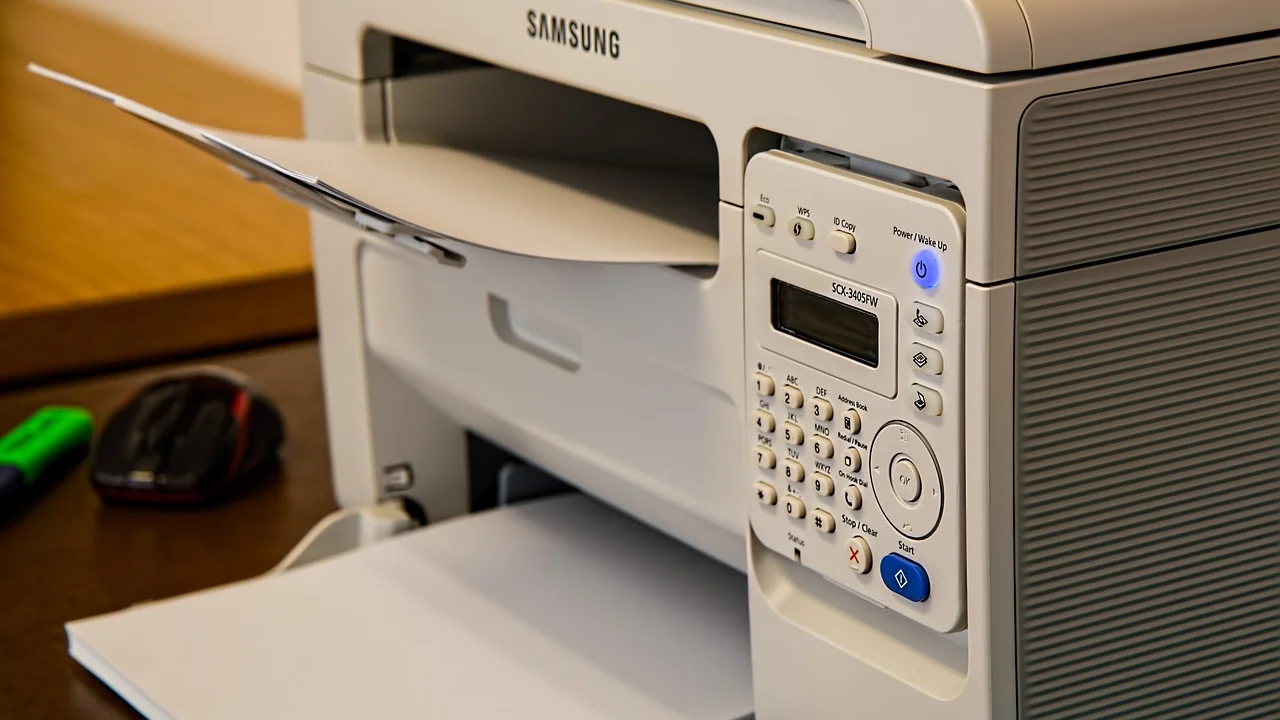
A connection is only one part of successful printing. The printer must be reachable on the correct network or cable, selected as the intended device, ready to receive jobs, supplied with paper and usable ink or toner, and paired with a working driver. The steps below move from quick checks to more targeted fixes, so you can avoid changing settings at random.
Before you start, save open work and note whether the problem affects every document or only one application. That distinction can quickly reveal whether the issue is with the printer itself, the computer, the network, or a particular file.
Start with the printer’s physical status
Look at the printer before changing anything on your computer. A display message, flashing light, or warning icon often identifies the real issue. “Connected” does not mean “ready.” A printer can be connected while paused, out of paper, waiting for a cover to close, or reporting a paper jam.
Check the basics in order
- Confirm the printer is powered on and awake rather than in a deep sleep state.
- Check the display or control panel for error messages, warning lights, or a paused status.
- Make sure paper is loaded squarely in the tray and that the paper guides touch, but do not bend, the stack.
- Open and firmly close paper trays, access doors, and the ink or toner compartment.
- Remove any visible torn paper or packing material, following the printer’s instructions for jam removal.
- Check that ink cartridges or toner cartridges are installed correctly and have not reached an empty or incompatible state.
Print a built-in status, configuration, or test page from the printer’s own panel if your model offers that option. If it cannot print its internal page, the problem is likely hardware, supplies, or the printer’s internal settings—not your laptop or phone.
Make sure the correct printer is selected
Homes and offices often have multiple printer entries: an old device, a virtual PDF printer, a duplicate Wi-Fi installation, or the same printer listed once as a network device and once as a direct connection. A print job may be going to the wrong destination.
On Windows, open Settings, choose Bluetooth & devices, then Printers & scanners. Select the printer and review its status. On a Mac, open System Settings, choose Printers & Scanners, and confirm that the printer you intend to use is listed and selected in the app’s Print dialog.
Watch for misleading labels
If a printer name includes “Copy,” “Fax,” “WSD,” or an old network address, it may not be the best choice for ordinary printing. Select the entry marked Ready when possible. Also turn off any setting that automatically changes the default printer if your computer repeatedly sends jobs to a different device.
When printing from a phone or tablet, ensure you are using the same local Wi-Fi network as the printer. Cellular data and a guest Wi-Fi network typically cannot reach a home printer.
Clear a stuck print queue
One corrupt, oversized, or interrupted job can block everything behind it. This is especially common after a computer sleeps, a printer loses Wi-Fi briefly, or a document contains an unusual font, damaged image, or unsupported page size.
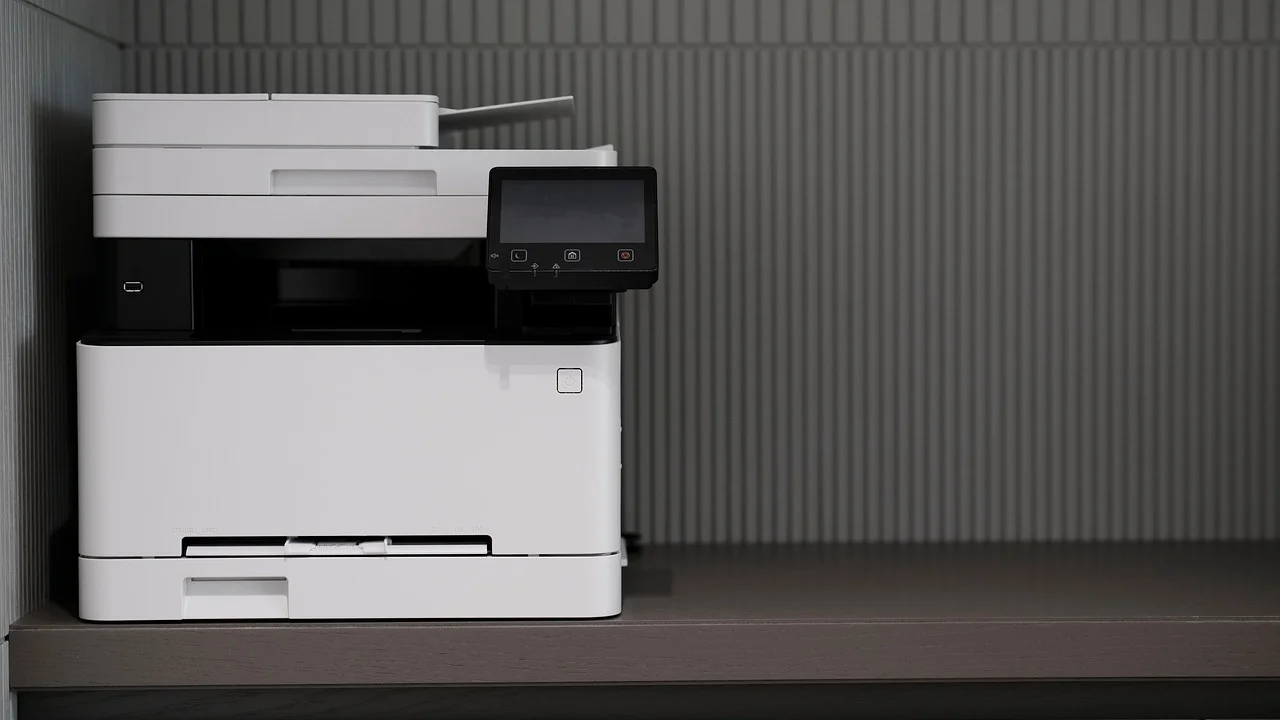
How to reset the queue safely
- Cancel all pending jobs in the printer queue on your computer.
- Wait about 30 seconds to see whether the queue clears completely.
- Turn the printer off, wait another 30 seconds, and turn it back on.
- Restart the computer if jobs continue to reappear or remain marked as deleting.
- Print a simple one-page document, such as a plain text file, before retrying the original document.
Windows users can open the printer queue from Printers & scanners. Mac users can open the queue by selecting the printer in Printers & Scanners and choosing its job list. If a single file consistently fails while a simple document works, export or recreate the troublesome file and try again.
Fix offline status and connection problems
A printer may display as Offline even when it is physically powered on. The cause can be a loose USB cable, an expired network lease, a router restart, weak Wi-Fi signal, or a computer attempting to use an outdated printer address.
| Connection type | Common failure point | Quick check | Best first fix |
|---|---|---|---|
| USB | Loose cable or failed USB port | Reconnect the cable and try another port | Use a direct connection, not a hub |
| Wi-Fi | Printer joined the wrong network | Compare network names on printer and computer | Reconnect printer to the home Wi-Fi network |
| Ethernet | Loose cable or inactive router port | Check link lights near the port | Reseat cable and restart network equipment |
| Shared printer | Host computer is asleep or offline | Check the host device status | Wake the host or add printer directly to network |
Wi-Fi printer checks
Verify that the printer and computer are on the same Wi-Fi name, also called the SSID. Dual-band routers may offer separate 2.4 GHz and 5 GHz networks; many older printers support only 2.4 GHz. A recent router replacement, password change, or power outage can disconnect the printer without making the issue obvious.
Restart the printer and router in that order if the device seems unavailable. Give the router a few minutes to fully reconnect. For persistent problems, print the printer’s network configuration page and compare its IP address with the one saved in your computer’s printer settings.
For Windows-specific help with a device that remains unavailable, use Microsoft’s official printer connection troubleshooting guidance. It covers offline messages, basic diagnostics, and system-level checks.
Review paper, ink, toner, and print settings
Supply and settings issues can look like communication failures. The printer may accept the job but stop because it detects an empty cartridge, a mismatched paper size, a blocked tray, or a setting that directs output to a manual feed slot.

Settings worth checking
- Paper size: choose Letter (8.5 by 11 inches) for typical U.S. documents unless you intentionally loaded another size.
- Paper source: select the tray that actually contains paper, not a manual feed or photo tray.
- Color mode: try black-and-white if a color cartridge error prevents printing.
- Duplex printing: turn it off temporarily if the job stops during two-sided printing.
- Print range: verify you did not select blank pages or a page range outside the document.
- Print quality: use Normal or Draft for a test, particularly on low-ink inkjet printers.
Do not ignore a low-ink or low-toner warning if output has stopped entirely. Some models continue printing with a warning, while others require a cartridge replacement or confirmation on the control panel. Genuine and compatible cartridges can both work, but firmware changes and chip-recognition policies vary by manufacturer.
Update or reinstall the printer driver
The driver translates your document into instructions the printer understands. A damaged, outdated, or mismatched driver can cause blank jobs, gibberish output, repeated errors, or a queue that never finishes. This is more likely after a major operating system update or after moving the printer to a new computer.
When a reinstall makes sense
Reinstall the printer if it appears Ready but will not print a simple test page, if it repeatedly disappears after rebooting, or if its advanced settings no longer open. Remove duplicate entries first, then add the printer again using the operating system’s setup tools or the manufacturer’s current software package.
Download software only from the printer manufacturer’s official support site. Avoid third-party “driver updater” utilities, which may bundle unwanted software or install generic drivers that omit scanning, ink monitoring, duplexing, and other useful functions.
The Federal Trade Commission advises consumers to be cautious with unexpected technical support offers and to verify a company before sharing access or payment information.
Federal Trade Commission, How To Avoid a Scam
This matters because printer problems often lead people to search for quick support numbers. If help is needed, begin with the manufacturer’s official support page or a trusted local technician rather than an unsolicited pop-up or phone call.
Run a focused diagnostic test
Instead of testing with a large spreadsheet or photo, use small tests that isolate the failure. A printer self-test checks the machine. A computer test page checks the driver and connection. A plain-text document checks ordinary output. Testing in this sequence prevents guesswork.
A simple diagnostic path
- Print a self-test or status page directly from the printer.
- Print the operating system’s test page.
- Print a one-page plain-text document from a different application.
- Try another device, such as a second computer or phone, on the same network.
- Try a different cable or network connection if your printer supports it.
If the self-test fails, contact the manufacturer or consider repair. If the self-test succeeds but the system test fails, focus on the queue, connection, and driver. If another device prints successfully, the issue is almost certainly limited to the original computer or application.
Know when repair or replacement is practical
Repeated jams, loud grinding, persistent error codes, damaged rollers, and failure to print internal pages can indicate a mechanical problem. Consumer inkjet printers often cost less to replace than to repair outside warranty, while a business-class laser printer may justify professional service because of its higher original cost and lower per-page operating expense.

Before replacing a machine, check the warranty, service plan, and return policy. Estimate whether the repair quote is reasonable compared with a new model that supports your required features, such as automatic duplexing, scanning, Ethernet, or mobile printing. Also consider cartridge availability and typical page yield, not just the purchase price.
FAQ
Why does my printer say connected but not print?
It may be connected but paused, offline in the operating system, blocked by a stuck job, out of paper or supplies, or using an outdated driver. First print an internal test page, then clear the queue and send a simple test document.
How do I get a printer out of offline mode?
Confirm the printer is on, reconnect its USB or network connection, restart the printer, and check its status in your computer’s printer settings. On Wi-Fi, make sure the printer and computer use the same network and that the saved printer address is current.
Why are print jobs stuck in the queue?
A previous job may be corrupted, interrupted, or waiting for a response from an unavailable printer. Cancel every job, restart the printer and computer, then test with a short plain-text document.
Can a low ink cartridge stop a printer from printing?
Yes. Some printers permit printing until a cartridge is empty, while others stop when they detect a depleted, unrecognized, or incorrectly seated cartridge. Check the printer display for a supply message and reinstall or replace the indicated cartridge.
Should I use a generic printer driver?
A generic driver can be useful as a temporary test, but it may not support all features or provide reliable results. For regular use, install the latest driver or setup software from the printer manufacturer’s official website.
Conclusion
When a printer is not printing even though it is connected, start with the simplest evidence: the printer’s own status screen and internal test page. Then verify the selected device, clear the queue, check the connection, and review paper and supply settings. If those steps do not resolve the issue, reinstalling the official driver and comparing results from another device will usually pinpoint whether the failure lies with the computer, network, or printer hardware.
References
About the author
Stefano Barcellos
Editor jefe de SaberTec
Editor jefe de SaberTec. Coordina la línea editorial, revisa la precisión de los contenidos y supervisa su publicación en 20 idiomas.
View full profile