
Printer Shows Offline for No Reason: Fixes That Work
When a printer suddenly shows as offline, the cause is often a connection, queue, settings, or driver issue—not a broken printer. Use this practical guide to diagnose the problem, reconnect your device, and prevent recurring offline status messages.
Table of contents
- What “Offline” Actually Means
- Common causes at a glance
- Start With the Printer and Connection
- For Wi-Fi printers
- For USB and Ethernet printers
- Compare Connection Types and Best Next Steps
- Fix an Offline Printer in Windows
- Clear offline and pause settings
- Restart the Print Spooler
- Fix an Offline Printer on a Mac
- Remove and add the printer again
- Resolve Network Address Problems
- A Practical 15-Minute Recovery Plan
- Prevent the Offline Status From Returning
- When to Contact Support or Consider Replacement
- Frequently Asked Questions
- Why does my printer say offline when it is turned on?
- Will restarting the router fix an offline printer?
- Why does my printer keep going offline on Wi-Fi?
- Is it safe to remove and re-add my printer?
- What if every device says the printer is offline?
- Conclusion
- References
A printer that appears offline even though it is powered on can stop an important task in its tracks. In most cases, the message does not mean the printer has failed. It means your computer cannot currently communicate with it through the selected connection, whether that is Wi-Fi, Ethernet, USB, or a print-sharing service.
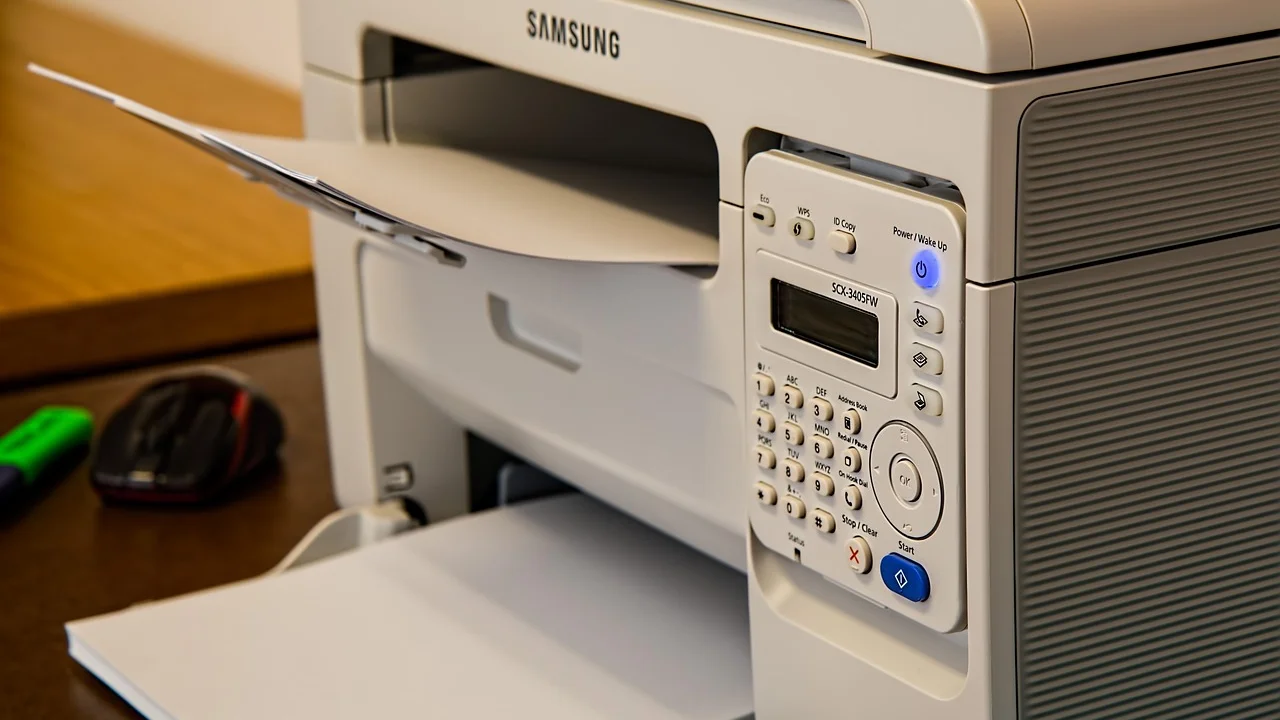
The fastest fix depends on where the communication breaks down. A weak network signal, a changed router address, a stuck print queue, an incorrect default device, or a paused system service can all produce the same “offline” label. Work through the checks below in order, starting with the simplest ones, to avoid changing settings that are not causing the issue.
What “Offline” Actually Means
Offline is a status reported by your computer or mobile device, not always by the printer itself. Your printer may be ready at its control panel while Windows or macOS is trying to reach an old network address, a disconnected USB port, or the wrong printer entry.
Network printers are especially prone to this mismatch. Many home routers assign local IP addresses automatically. After a restart, power outage, router replacement, or long period without printing, the printer can receive a different address. Your computer may still send print jobs to the previous address and label the device offline.
Common causes at a glance
- The printer is asleep, has an error message, or is not fully connected to power.
- Your computer and printer are on different Wi-Fi networks, such as a guest network and a main network.
- The Wi-Fi signal is weak or the router was restarted.
- A USB cable or Ethernet cable is loose, damaged, or connected through an unreliable hub.
- The print queue contains a failed job that blocks later jobs.
- Windows has enabled “Use Printer Offline,” or the printer is paused.
- A driver, port setting, or printer entry is outdated after an operating system update.
Start With the Printer and Connection
Before adjusting computer settings, verify that the printer itself is ready. Look at its display or status lights. Clear paper jams, close open covers, refill empty ink or toner if the device reports it, and resolve any error codes. Then turn the printer off, wait 30 seconds, and turn it back on.
For Wi-Fi printers
Confirm the printer’s wireless icon indicates an active connection. Many models can print a network configuration page from the control panel; that page normally shows the connected network name and IP address. Compare the network name with the one used by your computer. A printer connected to “HomeWiFi” cannot normally be reached by a laptop on “HomeWiFi-Guest.”
Move the printer closer to the router temporarily if its connection drops often. Thick walls, metal shelving, microwaves, and crowded 2.4 GHz networks can affect reliability. If your printer supports both bands, follow its manufacturer instructions; many older models support only 2.4 GHz Wi-Fi.
For USB and Ethernet printers
Disconnect and reconnect the cable firmly at both ends. Test a different USB port directly on the computer rather than through a monitor, docking station, or unpowered hub. For Ethernet, check that the port lights on the printer and router or switch are active. If possible, test with a known-good cable.
Compare Connection Types and Best Next Steps
| Connection type | Typical offline cause | Most useful first check | Long-term reliability tip |
|---|---|---|---|
| Wi-Fi | Changed IP address or weak signal | Confirm network name and restart printer/router | Reserve an IP address in the router settings |
| Ethernet | Loose cable or inactive network port | Check cable and port activity lights | Use a wired connection for shared office printers |
| USB | Bad cable, hub issue, or port conflict | Connect directly to another USB port | Use a short, undamaged cable |
| Shared printer | Host computer is asleep or disconnected | Wake and reconnect the host computer | Use a network printer instead when possible |
Fix an Offline Printer in Windows
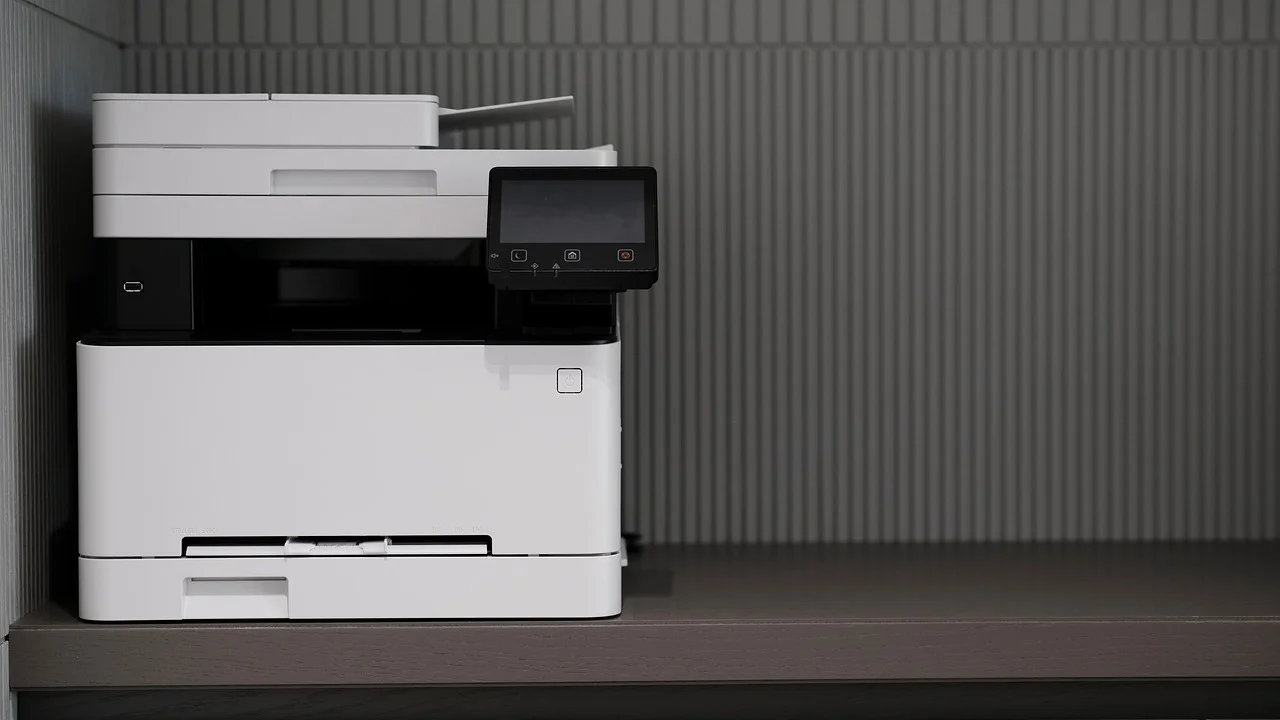
Windows can retain old printer records and queue settings, particularly after an update or network change. First, open Settings, select Bluetooth & devices, then Printers & scanners. Choose the affected printer and review its status.
Clear offline and pause settings
- Open the printer’s queue from Printers & scanners.
- Select the Printer menu in the queue window.
- Make sure “Use Printer Offline” is not checked.
- Make sure “Pause Printing” is not checked.
- Cancel any job marked Error, Deleting, or Printing that does not clear after a minute.
- Try printing a simple one-page document.
If Windows still reports the printer offline, run the built-in printer troubleshooter. Microsoft provides troubleshooting guidance through its Windows support center, including steps for printer discovery, drivers, and spooler issues.
Restart the Print Spooler
The Print Spooler is the Windows service that manages queued print jobs. When it hangs, a healthy printer can appear unavailable. Search for “Services,” open the Services app, find Print Spooler, right-click it, and choose Restart. Return to the queue afterward and remove any stuck jobs before trying again.
If this problem recurs, remove the printer from Printers & scanners and add it again. During setup, choose the printer found on your current network rather than selecting an older entry with a similar name. Install the current driver or setup utility from the printer manufacturer when Windows’ generic driver does not restore full functionality.
Fix an Offline Printer on a Mac
On a Mac, open the Apple menu, choose System Settings, then Printers & Scanners. Select your printer and check whether it is paused or displays a message such as “Unable to connect to printer.” Resume the printer if that option appears, then open the print queue and delete jobs that are stuck.
Remove and add the printer again
If the printer remains unavailable, remove it using the minus button in Printers & Scanners, restart the Mac and printer, and add the device again with the plus button. Select the entry that shows the correct network location. If macOS offers AirPrint, it is usually the simplest choice for basic printing; use the manufacturer’s driver only when you need device-specific features such as advanced finishing, scanning controls, or ink monitoring.
For persistent discovery problems, verify that your Mac is not connected to a guest Wi-Fi network and that a VPN is not blocking local-network access. Briefly disconnecting a VPN can help isolate the issue. Reconnect it after testing and adjust its local network setting only if your organization’s policy permits it.
Resolve Network Address Problems
A changed IP address is one of the most overlooked reasons a printer shows offline for no reason. Print the printer’s network report or locate its IP address in the printer’s network menu. It will often look like 192.168.1.25 or 10.0.0.45.
Type that address into a web browser while connected to the same network. If the printer’s embedded settings page opens, the printer is on the network and the problem is likely the computer’s saved printer port or queue. If the page does not open, focus on reconnecting the printer to Wi-Fi or checking the router connection.
The Federal Communications Commission explains that Wi-Fi performance can be affected by distance, physical obstacles, and interference from other electronic devices. In practical terms, an unstable wireless connection can interrupt communication with a network printer even when the printer remains powered on.
Federal Communications Commission, Wi-Fi Connection Problems
For a recurring issue, reserve an IP address for the printer in your router’s administration settings. The exact labels vary, but look for DHCP reservation, Address Reservation, or Static Lease. This tells the router to assign the same local address to the printer every time. Do not manually choose an address unless you understand your network’s address range and router configuration.
A Practical 15-Minute Recovery Plan
Use this sequence when you need to get printing again quickly. Stop as soon as printing succeeds; there is no need to complete every step.
- Check the printer display for paper, cover, ink, toner, or connection errors.
- Power the printer off for 30 seconds, then restart it.
- Confirm your computer and printer use the same non-guest Wi-Fi network, or reseat the USB/Ethernet cable.
- Restart your computer and, if the issue affects several devices, restart the router.
- Open the print queue and cancel all stalled jobs.
- On Windows, uncheck “Use Printer Offline” and restart Print Spooler if needed; on a Mac, resume the queue.
- Print a network configuration page and compare its IP address with the printer entry on your computer.
- Remove and re-add the printer using the current network discovery result.
- Install the latest official driver or firmware only after the connection itself is stable.
Prevent the Offline Status From Returning
Keep the printer in a location with a dependable signal or use Ethernet when it is practical. Ethernet is often the most stable choice for a home office or a printer used by several people. Avoid putting a router in a cabinet or behind large metal objects, and do not place the printer where its wireless signal must pass through several dense walls.
Use the same Wi-Fi name and password only with care when replacing a router. Although preserving network details can make reconnecting devices easier, newer routers may use different security settings or band-management options. Check the printer’s network report after any router change.
Also review your computer’s printer list a few times a year. Remove duplicate entries and old printers that are no longer used. A clearly named, current printer entry makes it less likely that you will accidentally send a job to an offline copy.
When to Contact Support or Consider Replacement
Contact the manufacturer’s support team if the printer repeatedly disconnects after being re-added, cannot detect any Wi-Fi networks, loses its network settings after every restart, or shows hardware error codes. Have the model number, serial number, operating system version, connection type, and the exact error message ready. Those details shorten the troubleshooting process.

For an older printer, replacement may be more practical when it no longer receives compatible drivers, lacks support for current Wi-Fi security, or costs more to repair than a comparable new model. Before replacing it, test the existing printer through USB or Ethernet if available. A stable wired connection may extend its useful life without a new purchase.
Frequently Asked Questions
Why does my printer say offline when it is turned on?
Power is only one requirement. Your computer must also reach the printer through the correct cable, network, IP address, and printer queue. A changed Wi-Fi connection or stuck queue is often the cause.
Will restarting the router fix an offline printer?
It can, especially after a network outage or if multiple devices cannot find the printer. However, a restart may assign a new IP address, so you may need to add the printer again or create an IP reservation afterward.
Why does my printer keep going offline on Wi-Fi?
Common reasons include weak signal, router band compatibility, power-saving behavior, changing IP addresses, and interference. Place the printer closer to the router, verify the correct Wi-Fi network, and reserve its IP address if the problem repeats.
Is it safe to remove and re-add my printer?
Yes. Removing a printer from Windows or macOS removes the computer’s connection entry; it does not erase the printer’s documents or damage the device. You may need to reinstall a manufacturer driver for specialized functions.
What if every device says the printer is offline?
The issue is likely with the printer, router, or network rather than one computer. Check the printer’s network status, restart the printer and router, and try opening the printer’s IP address in a browser from a device on the same network.
Conclusion
An offline status is usually a communication problem that can be resolved without replacing the printer. Start with the printer’s own error indicators and physical connections, then check the Wi-Fi network or cable, clear the queue, and refresh the computer’s printer entry. If the issue keeps returning, a reserved IP address or wired connection can provide a more permanent solution.
References
About the author
Stefano Barcellos
Editor jefe de SaberTec
Editor jefe de SaberTec. Coordina la línea editorial, revisa la precisión de los contenidos y supervisa su publicación en 20 idiomas.
View full profile