
Print Job Stuck in Queue: Fix It Step by Step
A print job stuck in the queue can stop an entire home office or shared workspace. Learn the likely causes, safe ways to clear Windows and Mac queues, when to restart the print spooler, and practical steps that help prevent the problem from returning.
Table of contents
- Why a Print Job Gets Stuck in the Queue
- Common causes
- Start With Quick, Low-Risk Checks
- Clear a Stuck Print Queue in Windows
- Restart the Print Spooler service
- Check the printer port and driver
- Clear a Stuck Print Queue on a Mac
- Reset the printing system when normal cancellation fails
- Windows and Mac Fixes at a Glance
- Fix Network and Shared-Printer Problems
- What to do at work or school
- A Practical Recovery Checklist
- Prevent Print Queue Problems From Returning
- Frequently Asked Questions
- Why can’t I delete a print job?
- Will restarting Print Spooler delete my documents?
- Why does my printer keep printing an old document?
- Does reinstalling a printer remove a stuck job?
- Should I use a third-party print queue cleaner?
- Conclusion
- References
A print job stuck in the queue is one of the most common and frustrating printer problems. You click Print, the document appears in the list, and then nothing happens. Sometimes the printer seems to be working but repeatedly prints an old page; other times every new document waits behind one frozen item.
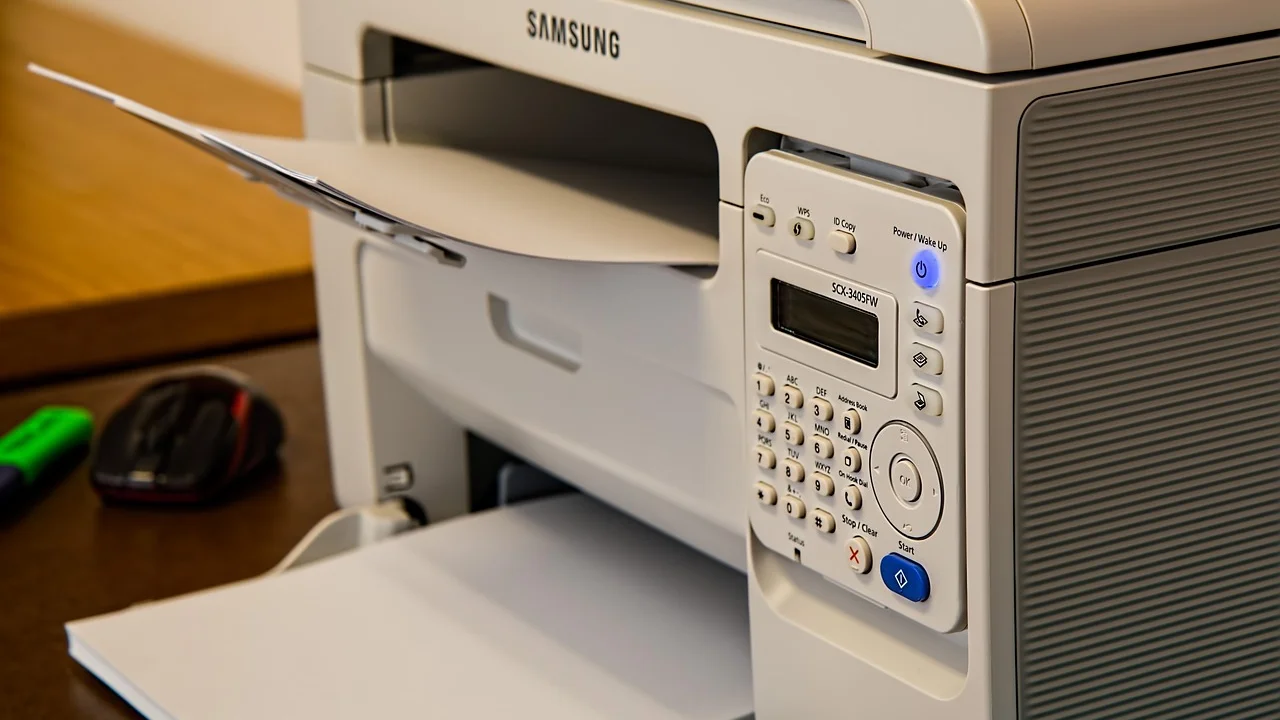
The good news is that this issue is usually local to the computer, printer connection, or print-management service—not a sign that the printer is permanently damaged. The right fix depends on whether you use Windows or macOS, whether the printer is connected by USB or Wi-Fi, and whether it is a personal or shared office printer.
Use the steps below in order. Start with the least disruptive option, then move to clearing the queue, restarting the print service, and refreshing the printer connection if necessary.
Why a Print Job Gets Stuck in the Queue
A print queue is a temporary holding area. Your computer converts a document into printer-ready data, then sends that data through a print service to the selected device. If one stage fails, the document can remain marked as “Printing,” “Deleting,” “Paused,” or “Error.”
Common causes
- A disconnected printer: The printer may be asleep, offline, out of paper, jammed, or disconnected from Wi-Fi.
- A stalled print service: Windows uses the Print Spooler service to manage jobs. If it stops responding, jobs can pile up.
- A damaged print file: A complex PDF, corrupted attachment, unusual font, or incomplete download can cause a single job to hang.
- A network change: A Wi-Fi printer may receive a new IP address after a router restart, leaving the computer pointed at an old address.
- An outdated driver or software conflict: Old drivers, security software, or manufacturer utilities can interfere with printing.
- A shared-printer problem: On a workplace network, the queue might be hosted on a print server rather than your own computer.
Before deleting anything, check the printer itself. Resolve obvious messages such as “Paper Jam,” “Door Open,” “Replace Toner,” or “Offline.” A queue cannot clear normally while the device is unable to accept a job.
Start With Quick, Low-Risk Checks
These checks solve many cases without deleting pending documents. They are especially useful when only one item is stuck and you need to preserve other work in the queue.
- Make sure the printer is powered on and its display has no error message.
- Confirm it has paper, ink or toner, and all covers and trays are properly closed.
- For a Wi-Fi printer, verify that the printer and computer are on the same home or office network.
- Open the print queue and see whether “Pause Printing” or “Use Printer Offline” is enabled. Turn those options off if they are checked.
- Cancel the stuck job. Wait about 30 seconds, then try printing a simple one-page text document.
- Restart the printer: turn it off, wait 30 seconds, and turn it back on. Do not unplug it while it is actively printing unless the manufacturer specifically recommends that step.
If a small test page prints but a particular document does not, the document is likely the issue. Save it under a new name, export it again as a PDF, or print a few pages at a time. If no file prints, continue with the operating-system steps.
Clear a Stuck Print Queue in Windows
On Windows 10 and Windows 11, first try canceling jobs from Settings. Go to Settings > Bluetooth & devices > Printers & scanners, select your printer, and choose Open print queue. Select the stuck item and choose Cancel. If the command never completes, use the more thorough method below.
Restart the Print Spooler service
The Print Spooler stores and schedules print jobs. Restarting it removes the processing bottleneck, but it may cancel every pending document on that computer. Save open work first and tell others before doing this on a shared PC.
- Press Windows + R, type services.msc, and press Enter.
- Find Print Spooler in the list.
- Right-click it and select Stop.
- Open File Explorer and go to C:\Windows\System32\spool\PRINTERS. Administrator approval may be required.
- Delete the files inside that folder, but do not delete the folder itself.
- Return to Services, right-click Print Spooler, and select Start.
- Open the queue again and send a one-page test print.
If you use a managed work computer, you may not have permission to access the spool folder. Contact your IT department instead of bypassing workplace controls. Microsoft also provides current guidance through its official support site for device and printing issues.
Check the printer port and driver
If jobs immediately return to “Error” after the queue is cleared, remove and add the printer again from Printers & scanners. For a USB printer, try a different USB port and avoid unpowered hubs. For a network printer, add it using the manufacturer’s setup app or its current network address when appropriate.
Then update the printer driver from the printer manufacturer’s official support page. Windows Update can provide basic drivers, but manufacturer drivers may be necessary for duplex printing, scanning, tray selection, or specialized paper sizes.
Clear a Stuck Print Queue on a Mac
On a Mac, open System Settings > Printers & Scanners, select the printer, and open its print queue. Click the X next to a document to cancel it. If the printer is paused, click Resume. A yellow status indicator often signals a connection or supply problem.
Reset the printing system when normal cancellation fails
If multiple printers are unresponsive or old jobs reappear, resetting the printing system can help. This removes printers, scanners, and related queue settings from the Mac, so you will need to add devices again afterward.
- Open System Settings > Printers & Scanners.
- Control-click in the printer list area, if that option is available, and select Reset printing system.
- Confirm the reset and enter an administrator password if prompted.
- Restart the Mac.
- Add the printer again using the plus button and print a test page.
Menu labels can vary by macOS version. If your printer supports AirPrint, adding it through the default macOS setup often avoids driver conflicts. Apple’s support site has version-specific printer setup instructions.
Windows and Mac Fixes at a Glance
| Situation | Best first action | What it affects | When to escalate |
|---|---|---|---|
| One document will not print | Cancel it and test with a simple page | Usually one job only | It returns after cancellation |
| All Windows jobs are frozen | Restart Print Spooler and clear spool files | All pending jobs on that PC | Jobs fail again after restart |
| Mac queue shows paused or stalled | Resume or cancel in Printers & Scanners | Selected printer queue | Several printers remain unavailable |
| Wi-Fi printer is offline | Reconnect printer to the network | Current network printing | Printer drops off repeatedly |
| Shared office printer is stuck | Report job name and time to IT | Potentially many users | Queue is hosted on a server |
Fix Network and Shared-Printer Problems
Wi-Fi printing introduces an extra point of failure: your computer may be connected while the printer is not. Print a network configuration page from the printer’s control panel if available. Compare the network name shown there with the network your computer uses.
Restarting the router can sometimes help, but it can also assign new local IP addresses. If the printer works briefly after setup and then disappears later, reserve an IP address for it in your router settings or use the manufacturer’s discovery tool. This is particularly helpful in homes with many smart devices.
What to do at work or school
Do not repeatedly resend a confidential document to a shared printer. Each attempt may create another copy once the queue resumes. Instead, note the printer name, document name, approximate time sent, and any error message. Send those details to the help desk. They can determine whether the issue sits on your computer, the printer, or the organization’s print server.
“Before you print, think about what you print.” This U.S. Environmental Protection Agency reminder supports a simple troubleshooting habit: avoid repeatedly sending duplicate jobs while a queue is stuck.
U.S. Environmental Protection Agency, Sustainable Materials Management
A Practical Recovery Checklist
Use this sequence whenever a print job is stuck in the queue. It minimizes duplicate pages and prevents you from changing several variables at once.
- Stop resending the document. One failed job is easier to diagnose than ten copies.
- Check the printer display. Clear jams, replenish paper, close covers, and resolve offline status.
- Open the queue. Cancel the oldest stuck item first.
- Print a basic test. Use a one-page document with plain text.
- Restart the printer. Give it time to reconnect before testing again.
- Clear the computer-side queue. Restart Print Spooler on Windows or reset the printing system on a Mac only when ordinary cancellation fails.
- Reconnect or reinstall. Remove and re-add the printer, then update its driver or firmware from official sources.
- Escalate intelligently. For a shared device, provide IT with the device name, error, and time of the failed job.
Prevent Print Queue Problems From Returning
Prevention is mostly about keeping the connection and software stable. Install operating system updates and printer firmware updates when you can do so without interrupting a critical job. Use a reliable Wi-Fi signal or Ethernet for heavily used printers. Position wireless printers away from dense walls, microwaves, and other interference sources.
Also avoid turning off a printer in the middle of a job. If you frequently print large PDFs, CAD files, or high-resolution photos, wait until the printer finishes receiving data before putting the computer to sleep. For home offices, a modest uninterruptible power supply can protect a printer and router from brief outages that corrupt a pending job.
Finally, keep the queue short. Confirm that the first copy prints correctly before sending a large batch. This reduces paper waste and makes it easier to identify the file that caused a failure.
Frequently Asked Questions
Why can’t I delete a print job?
The print service may be frozen, the printer may be offline, or the job file may be corrupted. Restart the printer first. On Windows, restart Print Spooler and clear the spool folder if the job remains. On a Mac, cancel it in the queue or reset the printing system if necessary.
Will restarting Print Spooler delete my documents?
No. It deletes pending print-job data, not the original documents saved on your computer. However, any jobs waiting in the queue may be canceled, so reopen and print them again after the service restarts.
Why does my printer keep printing an old document?
An old job may still be stored in the computer queue, printer memory, or a network print server. Cancel the job on the computer, restart the printer, and clear the local queue. For an office printer, ask IT to check the server queue.
Does reinstalling a printer remove a stuck job?
It often does, especially when the problem is an incorrect network connection or driver. Clear the queue first when possible, then remove and re-add the printer. Reinstalling is usually more effective after a failed driver update or network change.
Should I use a third-party print queue cleaner?
Usually not. Windows and macOS include the tools needed to clear most stuck queues. Third-party utilities can add unwanted software or make troubleshooting harder. Use the printer manufacturer’s official software only when it is needed for setup or diagnostics.
Conclusion
A print job stuck in the queue is usually resolved by checking the printer’s status, canceling the failed job, and testing with a simple page. If that does not work, clear the Windows Print Spooler or reset the macOS printing system, then reconnect the printer and update its software. For shared workplace devices, avoid duplicate submissions and involve IT early, since the underlying queue may be on a server.
References
About the author
Stefano Barcellos
Editor jefe de SaberTec
Editor jefe de SaberTec. Coordina la línea editorial, revisa la precisión de los contenidos y supervisa su publicación en 20 idiomas.
View full profile