
Bluetooth Missing From Device Manager: Fix It Fast
If Bluetooth does not appear in Windows Device Manager, the cause may be a disabled adapter, power setting, missing driver, hardware issue, or recent update. Use this practical troubleshooting sequence to identify the cause and restore wireless connections safely.
Table of contents
- Why Bluetooth can disappear from Device Manager
- Common software-related causes
- Common hardware-related causes
- Confirm the problem before changing drivers
- Use the fastest recovery checks first
- Compare the likely fixes by symptom
- Restart Bluetooth services and run Windows checks
- Check Bluetooth Support Service
- Review power management
- Reinstall the correct Bluetooth driver
- Clean driver reinstall steps
- Check BIOS/UEFI and external Bluetooth hardware
- A practical 20-minute troubleshooting plan
- When repair or replacement makes sense
- Frequently Asked Questions
- Why is there no Bluetooth option in Windows Settings?
- Can Windows Update restore missing Bluetooth?
- Should I uninstall every Bluetooth device in Device Manager?
- Does a Bluetooth mouse prove my computer has Bluetooth?
- What if Bluetooth appears but will not pair?
- Conclusion
- References
When Bluetooth is missing from Device Manager, Windows cannot currently detect, enumerate, or expose the wireless adapter properly. That can leave you unable to pair headphones, keyboards, mice, game controllers, printers, and other accessories—even if Bluetooth worked yesterday.
The good news is that this problem is often recoverable without replacing hardware. A disabled radio, an interrupted driver update, a laptop power setting, or a stale Windows device record can make the Bluetooth category disappear. Start with the least disruptive checks, then move methodically toward driver and hardware diagnosis.
This guide is written for Windows 10 and Windows 11 PCs in the United States. The menu wording can vary slightly by computer manufacturer and Windows version, but the troubleshooting logic is the same.
Why Bluetooth can disappear from Device Manager
Device Manager only lists hardware that Windows can identify through the system firmware, USB bus, PCIe bus, or another connection path. If the Bluetooth section is absent, Windows may not be seeing the adapter at all, or it may be hiding it because of a driver or configuration problem.
Common software-related causes
- A Bluetooth driver was removed, corrupted, or replaced by an incompatible update.
- The adapter is disabled in Device Manager, BIOS/UEFI, or a manufacturer wireless-control utility.
- The Bluetooth Support Service is stopped or configured incorrectly.
- Fast Startup, sleep, or a failed shutdown left the wireless adapter in an unresponsive power state.
- A recent Windows update changed a driver or device setting.
Common hardware-related causes
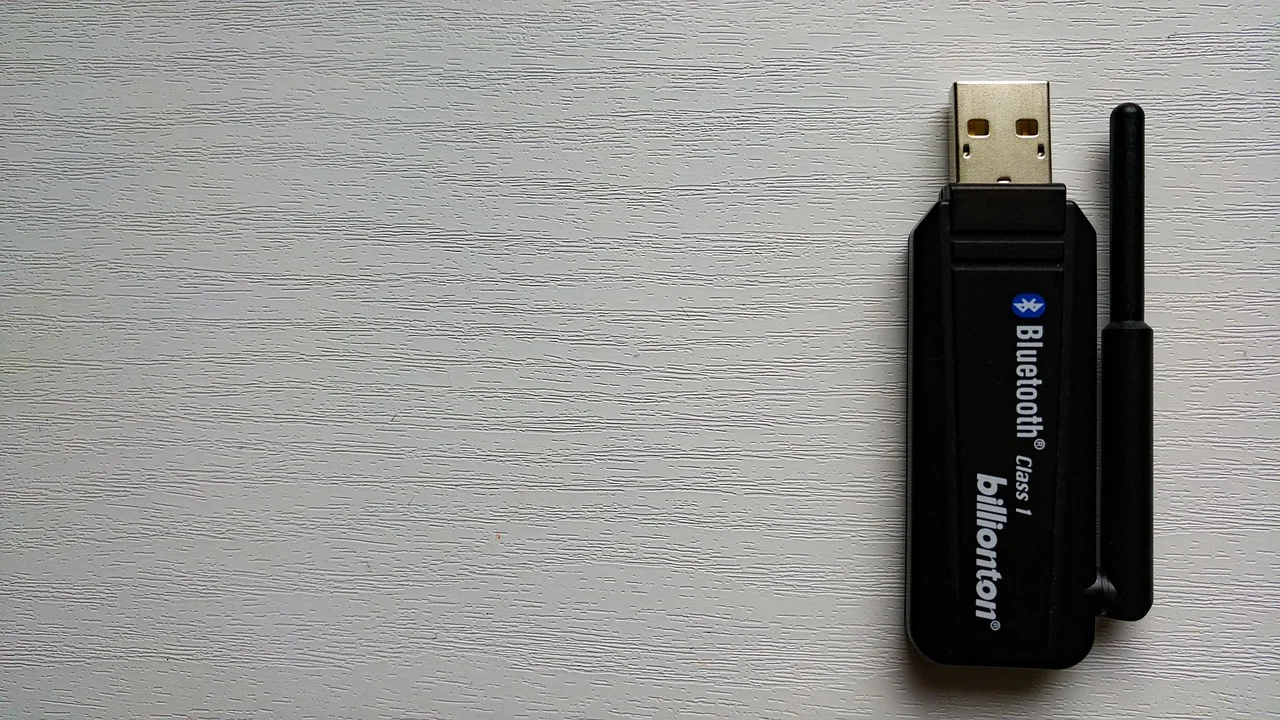
- A USB Bluetooth dongle is loose, damaged, connected through an unreliable hub, or underpowered.
- An internal Wi-Fi/Bluetooth card has a poor connection or has failed.
- Airplane mode, a physical wireless switch, or a keyboard hotkey has disabled the radio on a laptop.
- The computer does not actually have Bluetooth hardware; some desktop motherboards and older PCs do not include it.
Bluetooth and Wi-Fi often share one internal card, but they are separate functions. Wi-Fi working normally does not prove that the Bluetooth portion of the card is healthy.
Confirm the problem before changing drivers
First, rule out a simple viewing issue. Right-click the Start button and choose Device Manager. Select View, then choose Show hidden devices. Look for a Bluetooth category, an item called Generic Bluetooth Adapter, or an entry with a yellow warning icon under Other devices, Universal Serial Bus controllers, or Network adapters.
Next, select Action and then Scan for hardware changes. If Bluetooth reappears, right-click the adapter and choose Enable device if that option is available. A down-arrow overlay commonly means the device is disabled.
Also open Settings and search for “Bluetooth.” If Windows shows an Add device option but no Bluetooth on/off switch, that is another sign that Windows does not currently recognize a usable Bluetooth radio.
Use the fastest recovery checks first
A full power reset can restore an adapter that became stuck after sleep, hibernation, or an update. This is more effective than a quick restart because it clears residual power from many laptop and desktop components.
- Save your work and shut down Windows completely.
- Disconnect external USB hubs, docks, and Bluetooth dongles.
- Unplug the PC from power. For a laptop with a removable battery, remove it if the manufacturer permits it.
- Hold the power button for about 15 seconds.
- Reconnect power, start the computer, and check Device Manager again.
- If you use a USB Bluetooth adapter, plug it directly into a different USB port—preferably a rear motherboard port on a desktop.
On a laptop, turn off Airplane mode and check for a wireless key or physical switch. Some systems use an Fn key combination, and some manufacturer utilities allow Bluetooth to be disabled independently. If the computer has recently been in a bag, it is especially worth checking whether a keyboard shortcut was pressed accidentally.
Compare the likely fixes by symptom
| What you see | Most likely cause | Best next step |
|---|---|---|
| Bluetooth category appears only after showing hidden devices | Stale or disconnected device record | Uninstall the grayed-out adapter, restart, and scan for hardware changes. |
| Unknown device with a yellow warning icon | Missing or incorrect driver | Install the Bluetooth driver from the PC or adapter manufacturer. |
| USB adapter works in one port but not another | Port, hub, or power-management issue | Use a direct USB port and avoid an unpowered hub. |
| Bluetooth vanished after sleep or an update | Power-state or driver conflict | Perform a full power reset, then update or reinstall the driver. |
| No Bluetooth entry anywhere after reinstalling drivers | Disabled firmware setting or hardware failure | Check BIOS/UEFI and test with a known-good USB Bluetooth adapter. |
Restart Bluetooth services and run Windows checks
Windows relies on background services to discover and manage Bluetooth devices. A stopped service usually does not remove the adapter from Device Manager by itself, but restarting it can resolve pairing and detection problems once the adapter returns.
Check Bluetooth Support Service
Press Windows key + R, type services.msc, and press Enter. Find Bluetooth Support Service. Double-click it, set Startup type to Manual or Automatic if appropriate for your setup, then select Start if the service is stopped. Restart the PC afterward.
You can also use the built-in Windows Get Help troubleshooting experience. In Settings, search for “troubleshoot” and follow the available Bluetooth or hardware prompts. Microsoft’s Bluetooth troubleshooting guidance for Windows provides current steps that may differ as Windows settings evolve.
Review power management
If the Bluetooth adapter is visible again, right-click it in Device Manager and select Properties. On the Power Management tab, if present, clear “Allow the computer to turn off this device to save power” and restart. This setting can be useful for battery life, but on some systems it contributes to adapters failing to wake correctly.
“Restart your PC and try to connect again” is among Microsoft’s recommended first responses to Bluetooth problems, because restarting can clear temporary configuration and connection states.
Microsoft Support, Bluetooth troubleshooting in Windows
Reinstall the correct Bluetooth driver
Do not rely solely on a generic driver search result. The most dependable source is the support page for your laptop, desktop motherboard, or USB adapter model. Manufacturers often package Bluetooth, Wi-Fi, chipset, and power-management components that are designed to work together.
Identify your exact PC model from the label, Settings > System > About, or the manufacturer’s support tool. Then download the Bluetooth driver made for your Windows version and hardware. For an internal adapter, the PC manufacturer’s package is usually the best first choice. For a retail USB dongle, use the dongle maker’s official support page.
Clean driver reinstall steps
- Download the correct driver before uninstalling anything.
- Disconnect Bluetooth accessories and, if applicable, unplug a USB Bluetooth adapter.
- Open Device Manager and enable View > Show hidden devices.
- Right-click every relevant Bluetooth adapter entry and choose Uninstall device. If Windows offers “Attempt to remove the driver for this device,” select it only when you already have the correct replacement driver ready.
- Restart the PC.
- Install the downloaded manufacturer driver, then restart again.
- Return to Device Manager and confirm that Bluetooth appears without a warning icon.
Windows Update can help after the manufacturer package is installed. Check Settings > Windows Update > Advanced options > Optional updates for driver updates. Be cautious with third-party “driver updater” programs: they can install a generic or incorrect package and complicate the diagnosis.
Check BIOS/UEFI and external Bluetooth hardware
If no driver installation makes the adapter appear, restart into BIOS/UEFI setup. The entry key varies by PC, commonly F2, Delete, Esc, or F10. Look under sections such as Advanced, Onboard Devices, Integrated Peripherals, Wireless, or I/O Ports. Ensure Bluetooth or Wireless Device is enabled. Do not change unrelated firmware options, and avoid a BIOS update unless the manufacturer specifically identifies it as relevant to your issue.
For a USB adapter, testing is straightforward: plug it directly into another Windows PC. If the second computer recognizes it, focus on the original PC’s ports, drivers, or settings. If neither computer detects it, the dongle may have failed. If an internal adapter is missing even in BIOS/UEFI, a hardware issue becomes more likely.
Desktop owners should also verify the hardware configuration. A motherboard may advertise Wi-Fi capability only on a version that includes a wireless module, while another version of the same board may require an add-in card or USB adapter. The Bluetooth Special Interest Group’s overview of Bluetooth technology can help distinguish device compatibility questions from PC-adapter detection problems.
A practical 20-minute troubleshooting plan
Use this sequence to avoid repeatedly changing settings without learning what fixed the issue.
- Minutes 1–3: In Device Manager, choose Show hidden devices and Scan for hardware changes. Note any warning codes or unknown devices.
- Minutes 4–6: Fully shut down, remove power, wait, and restart. Test a different direct USB port if using a dongle.
- Minutes 7–9: Confirm Airplane mode is off, check laptop wireless controls, and restart Bluetooth Support Service.
- Minutes 10–15: Download and install the exact Bluetooth driver from the computer or adapter manufacturer.
- Minutes 16–18: Review optional Windows driver updates and restart.
- Minutes 19–20: If still missing, check BIOS/UEFI or test a USB adapter on another computer.
Keep a short record of what changed immediately before the problem began: a Windows update, a new dock, a system repair, a sleep event, or a drop. That timeline is valuable if you need manufacturer support or a repair technician.
When repair or replacement makes sense
Consider hardware service when Bluetooth is absent from Device Manager after a clean driver reinstall, does not appear in BIOS/UEFI, and cannot be restored by a power reset. This is particularly likely after liquid exposure, a fall, motherboard service, or repeated wireless failures.
For many desktops, a quality USB Bluetooth adapter is the simplest low-cost solution. For laptops, an external adapter can also be practical, but it occupies a USB port and may be less convenient than repairing an internal card. If Wi-Fi and Bluetooth both fail on a combined internal card, professional diagnosis may be worthwhile, especially if the computer is under warranty.
Frequently Asked Questions
Why is there no Bluetooth option in Windows Settings?
Windows usually hides the Bluetooth on/off toggle when it cannot detect an enabled Bluetooth adapter. Check Device Manager, restart the PC completely, and reinstall the manufacturer driver.
Can Windows Update restore missing Bluetooth?
Sometimes. Windows Update may provide a compatible driver, especially through Optional updates. However, the driver from your computer or adapter manufacturer is often the better first choice for a missing adapter.
Should I uninstall every Bluetooth device in Device Manager?
Remove the Bluetooth adapter and stale grayed-out Bluetooth entries when performing a clean reinstall. Do not uninstall unrelated USB controllers or network devices unless a manufacturer support procedure tells you to do so.
Does a Bluetooth mouse prove my computer has Bluetooth?
Not necessarily. Many wireless mice use a proprietary USB receiver rather than Bluetooth. If the mouse works only with its included USB receiver, it does not confirm that your PC has a Bluetooth radio.
What if Bluetooth appears but will not pair?
That is a different stage of troubleshooting. Remove the accessory from Bluetooth settings, put it into pairing mode, charge it or replace its battery, and pair it again close to the PC. Also check whether it is already connected to another phone, tablet, or computer.
Conclusion
Bluetooth missing from Device Manager usually points to an adapter that is disabled, stuck in a power state, missing its driver, or no longer detected by the computer. Start by showing hidden devices and performing a complete power reset, then reinstall the manufacturer’s driver and review firmware settings. If the hardware remains invisible across those checks, testing a known-good USB adapter or seeking repair is the most efficient next move.
References
About the author
Stefano Barcellos
Editor jefe de SaberTec
Editor jefe de SaberTec. Coordina la línea editorial, revisa la precisión de los contenidos y supervisa su publicación en 20 idiomas.
View full profile