
Laptop Screen Goes Black on Startup: Fixes to Try
A laptop that powers on but shows a black screen can have a simple display setting, a failed startup process, or a hardware issue. This guide explains what to check first, how to test an external monitor, when to use recovery tools, and when repair is the safer choice.
Table of contents
- First, identify what “black screen” means
- Common black-screen patterns
- Start with safe power and display checks
- Perform a power reset
- Check whether the computer is actually booting
- Test with an external monitor or TV
- Use Windows Recovery when the logo appears
- Recovery options worth trying
- Consider memory, storage, and firmware symptoms
- When opening the laptop may be reasonable
- A practical 20-minute troubleshooting plan
- When to repair, replace, or seek warranty support
- FAQ
- Why does my laptop turn on but the screen stays black?
- Can a dead battery cause a black screen?
- Will resetting my laptop fix a black screen?
- How do I know whether the laptop screen itself is broken?
- Is it safe to keep restarting a laptop with a black screen?
- Conclusion
- References
A laptop screen that goes black on startup is frustrating because the machine may appear to be working: the power light comes on, the fan spins, and keyboard lights may respond, yet nothing useful appears on the display. The cause can be as minor as the brightness being turned down or as serious as a damaged screen cable, failed memory module, or graphics hardware problem.
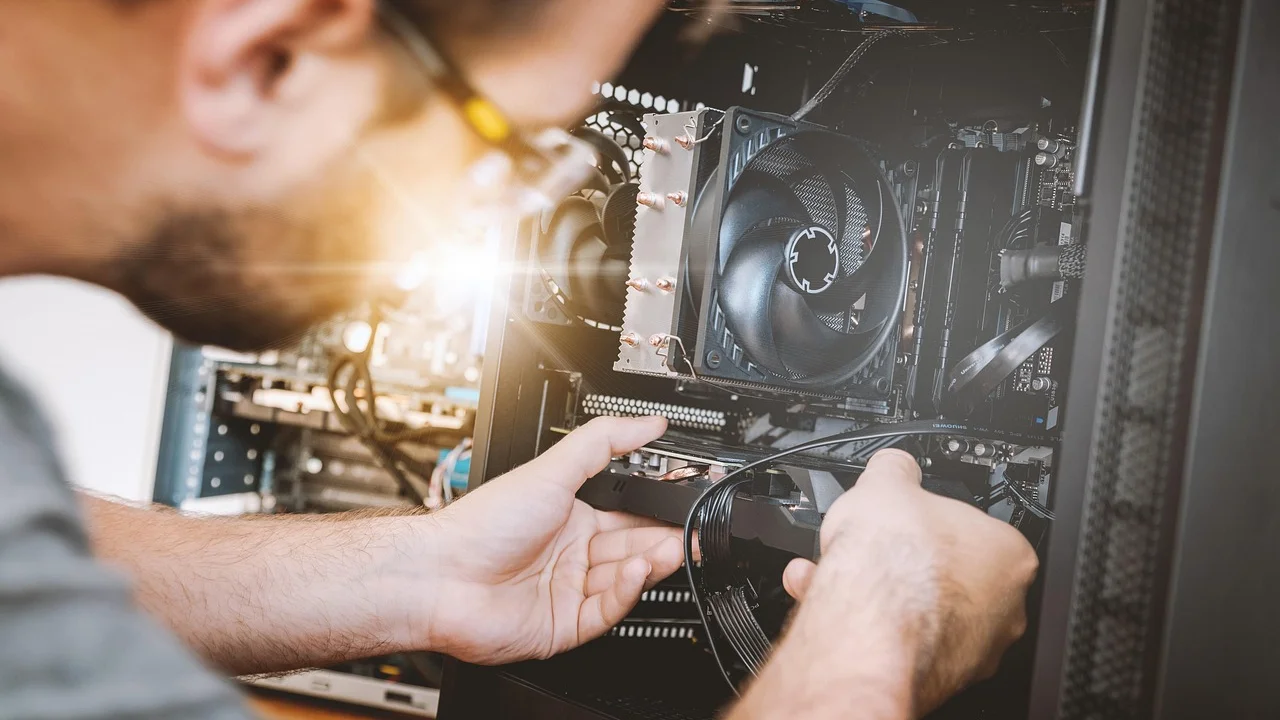
The most useful approach is to separate a display-only issue from a broader startup failure. Start with the least invasive checks, observe exactly what the laptop does, and avoid opening the device until you have ruled out power, external-display, and software causes. These steps are written for common Windows laptops, but many hardware checks also apply to Chromebooks and MacBooks.
First, identify what “black screen” means
Not every dark display points to the same problem. Notice whether you see a manufacturer logo, a mouse pointer, a faint image, an error message, or absolutely nothing. Also listen for normal startup sounds and check whether the Caps Lock key changes its indicator light when pressed.
Common black-screen patterns
- Black screen before any logo appears: Often related to power, display hardware, memory, firmware, or graphics initialization.
- Logo appears, then the screen turns black: More likely to involve Windows, a graphics driver, an update, or a startup app.
- Screen is black but the pointer appears: Windows may have loaded incompletely, often because Explorer or a driver did not start correctly.
- Faint image visible under a flashlight: The panel may be producing an image while its backlight has failed.
- External monitor works but the laptop panel does not: The internal display, cable, hinge connection, or panel itself is the leading suspect.
Write down the pattern before changing anything. That detail can save time if you later contact the manufacturer or a repair shop.
Start with safe power and display checks
Disconnect every nonessential accessory: USB drives, docking stations, printers, memory cards, external keyboards, and HDMI adapters. A faulty peripheral or bootable USB device can interfere with startup. Leave only the charger connected.
Perform a power reset
Turn the laptop off completely. If it is frozen, hold the power button for about 10 to 15 seconds. Unplug the charger. If your model has a removable battery, remove it. Then hold the power button for 20 to 30 seconds to discharge residual electricity. Reconnect the charger and try starting it again.
Next, raise the display brightness with the keyboard’s brightness keys. Press the display-toggle key, often marked with a monitor icon, to cycle through internal display, external display, and duplicate modes. On Windows, you can also press Windows key + P, wait a few seconds, then use the arrow keys and Enter to select another projection mode.
Check whether the computer is actually booting
A black display does not always mean the laptop failed to start. Look for signs that the operating system is running: fan activity changes after a minute, notification sounds play, the keyboard backlight responds, or the network indicator becomes active.

If you believe Windows is running, press Windows key + Ctrl + Shift + B. This keyboard shortcut asks Windows to reset the graphics driver. You may hear a beep or see the display flicker. It is safe to try and can restore a screen affected by a temporary graphics-driver crash.
Microsoft advises users facing a blank screen to check connections and try the Windows graphics-driver reset shortcut before moving to more advanced recovery steps.
Microsoft Support, “Troubleshooting blank screens in Windows”
If the screen remains dark but the laptop otherwise seems active, shine a flashlight at an angle across the panel. A dim desktop or logo suggests a backlight issue. Do not press hard on the screen; pressure can worsen a cracked panel or loose connection.
Test with an external monitor or TV
Connecting an external display is one of the clearest tests. Use HDMI, DisplayPort, USB-C video output, or another port supported by your laptop. Connect the display before turning the laptop on, select the correct input on the monitor or TV, and then start the computer.
If the external screen shows the startup logo or Windows desktop, the laptop is likely booting normally. Focus on the built-in panel and its connection rather than reinstalling Windows. If neither screen shows an image, the issue may occur earlier in the boot process.
| What you observe | Most likely area | Best next action |
|---|---|---|
| External monitor works; laptop panel stays black | Internal panel, display cable, backlight, hinge connection | Back up files and arrange display hardware service |
| Logo appears, then black screen after sign-in | Windows driver, update, startup software | Start Windows Recovery and use Safe Mode |
| No logo on internal or external display | Power, RAM, motherboard, graphics, firmware | Run manufacturer diagnostics or seek repair |
| Faint image visible with flashlight | Backlight circuit or display panel | Have the screen assembly evaluated |
| Screen returns after graphics reset shortcut | Temporary graphics-driver fault | Update or reinstall the graphics driver |
Use Windows Recovery when the logo appears
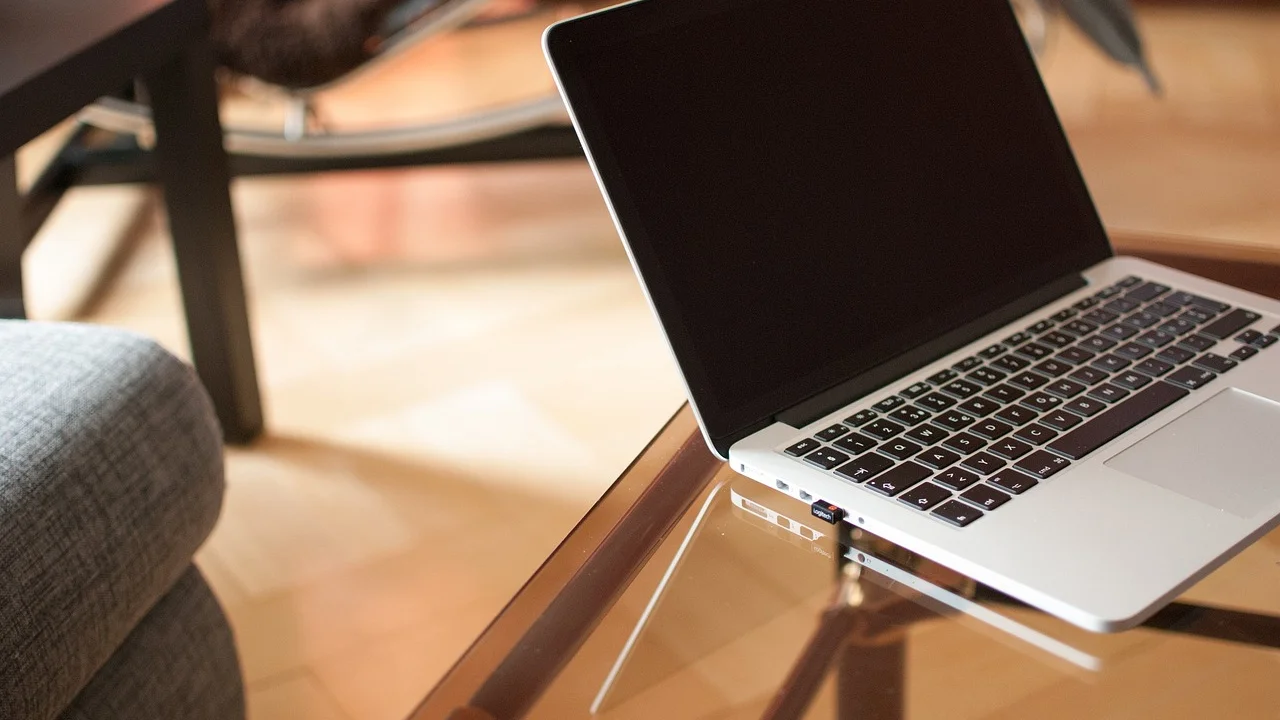
If you can see the manufacturer logo or Windows loading symbol before the screen turns black, software is a stronger possibility. Force Windows into its recovery environment by interrupting startup three times: turn the laptop on, and when Windows begins loading, hold the power button to shut it down. On the next start, Windows should offer Automatic Repair or recovery options.
Recovery options worth trying
- Select Troubleshoot, then Advanced options.
- Run Startup Repair first. It can correct some boot configuration problems automatically.
- If the problem began after a recent change, choose Uninstall Updates and remove the latest quality update before attempting a feature update rollback.
- Use Startup Settings, restart, and choose Safe Mode.
- In Safe Mode, uninstall or roll back the display adapter driver through Device Manager, then restart normally.
Download replacement drivers from the laptop manufacturer’s support page when possible. Laptop makers often customize graphics drivers for their specific screen, power settings, and switching graphics configuration. If the issue began immediately after a graphics update, rolling back can be more useful than installing a newer generic driver.
For Windows recovery instructions and current options, consult the official Microsoft Support Windows page. Avoid third-party “driver updater” programs; they can install unsuitable drivers and create additional instability.
Consider memory, storage, and firmware symptoms
When there is no logo, no external video, and no evidence of a normal boot, hardware becomes more likely. Repeated beeps, blinking power lights, or a pattern of flashing Caps Lock or Num Lock indicators can be diagnostic codes. Search the support documentation for your exact model rather than guessing what a light pattern means.
When opening the laptop may be reasonable
Only consider internal checks if the device is out of warranty, you are comfortable with small electronics, and you can follow the official service manual. Shut down, unplug power, and use precautions against static electricity. On some models, reseating accessible RAM can resolve a no-display startup issue. On others, the memory is soldered, and opening the case adds risk without offering a useful repair.
A failing solid-state drive usually does not prevent the manufacturer logo or firmware menu from appearing, but it can stop Windows from loading. Try entering BIOS or UEFI setup, commonly with F2, F10, Delete, or Esc at startup. If the firmware screen is visible, the display system is functioning at a basic level. Check whether the internal storage drive is detected there.
Do not update BIOS or firmware while the system is unstable or unable to display reliably. An interrupted firmware update can make a repair substantially more difficult.
A practical 20-minute troubleshooting plan
Use this sequence to avoid repeating tests and to preserve useful evidence for support staff.
- Minute 1–3: Disconnect accessories, inspect the charger and power port, and perform a full power reset.
- Minute 4–6: Raise brightness, cycle display modes, and try Windows key + Ctrl + Shift + B if you think Windows has loaded.
- Minute 7–10: Connect an external monitor or TV and test startup again.
- Minute 11–14: Record whether a logo appears, whether indicator lights blink, and whether either screen shows output.
- Minute 15–20: If Windows begins to load, enter Recovery and try Startup Repair or Safe Mode. If no image appears anywhere, stop software troubleshooting and check manufacturer diagnostic guidance.
Take a short video of the startup behavior using your phone. Capture the power button press, indicator lights, any beeps, and both displays. This is often more helpful to a technician than a general description such as “it will not turn on.”
When to repair, replace, or seek warranty support
Contact the manufacturer first if the laptop is still covered by a limited warranty, extended protection plan, school or employer service agreement, or credit-card purchase protection. Opening a sealed device or using an unauthorized repair provider may affect coverage.

Screen repairs vary widely in the United States. A basic non-touch panel can be less expensive than a high-resolution, touch-enabled, OLED, or bonded display assembly. Request a written estimate that separates parts, labor, diagnostic fees, and taxes. If the quote approaches a large share of the cost of a comparable replacement laptop, compare replacement options before approving the repair.
For battery safety, swelling, burning smell, excessive heat, or visible liquid damage, stop using and charging the laptop. Place it on a nonflammable surface and arrange professional service. The U.S. Consumer Product Safety Commission battery safety guidance offers safety information for lithium-ion battery products.
FAQ
Why does my laptop turn on but the screen stays black?
The computer may be sending video to another display mode, experiencing a graphics-driver problem, or failing to initialize internal display hardware. An external monitor test helps distinguish these possibilities quickly.
Can a dead battery cause a black screen?
Yes, especially if the charger, charging port, or power adapter is also faulty. However, a laptop that powers on with lights and fans but has no image may have a display or startup issue instead of a simple battery problem.
Will resetting my laptop fix a black screen?
A reset can help only when Windows software is the cause. It will not repair a damaged screen, loose cable, failed backlight, defective memory, or motherboard problem. Try recovery options and an external-display test before resetting.
How do I know whether the laptop screen itself is broken?
If an external monitor works while the built-in panel remains black, flickers, displays lines, or shows only a faint image, the internal display assembly is likely at fault. Physical cracks and changing behavior when the lid moves are additional clues.
Is it safe to keep restarting a laptop with a black screen?
A few controlled restart attempts are reasonable. Avoid repeated forced shutdowns once you know Windows is loading, because they can corrupt files. Stop immediately if you notice heat, swelling, smoke, or a burning odor.
Conclusion
The fastest way to diagnose a laptop screen that goes black on startup is to determine whether the laptop is booting and whether it can display video externally. Begin with a power reset and display controls, then test an external monitor. Use Windows Recovery only when the system reaches the loading stage, and treat a no-logo, no-video condition as a likely hardware or firmware issue. Careful observation will make the next step—software repair, warranty service, or a hardware estimate—far more straightforward.

References
About the author
Stefano Barcellos
Editor jefe de SaberTec
Editor jefe de SaberTec. Coordina la línea editorial, revisa la precisión de los contenidos y supervisa su publicación en 20 idiomas.
View full profile