
Wireless Mouse Lagging: Causes and Fixes That Work
A lagging wireless mouse can make work, gaming, and everyday browsing frustrating. Use this practical guide to identify battery, signal, USB, software, and surface problems, then apply reliable fixes before replacing your device.
Table of contents
- What wireless mouse lag looks like
- Start with the simplest physical checks
- Replace or recharge the battery
- Clean the sensor and use a better surface
- Improve the wireless signal path
- Move the USB receiver closer
- Reduce nearby interference
- Check USB ports, pairing, and connection type
- Update software and review power settings
- Windows troubleshooting
- macOS troubleshooting
- Rule out computer performance problems
- A practical 10-minute wireless mouse fix plan
- When repair or replacement makes sense
- FAQ
- Why does my wireless mouse lag but the keyboard works?
- Can Wi-Fi cause a wireless mouse to stutter?
- Should I use Bluetooth or a USB receiver?
- Why does my mouse lag only after my computer wakes up?
- How do I know whether the mouse is broken?
- Conclusion
- References
A wireless mouse that lags, freezes, skips, or moves in sudden jumps can turn a simple task into a frustrating one. The problem may appear as a delayed cursor, intermittent disconnections, erratic scrolling, or a pointer that stops moving for a second and then catches up. Although the mouse is often blamed first, the underlying cause can be the battery, USB receiver placement, wireless interference, computer settings, or the surface under the sensor.
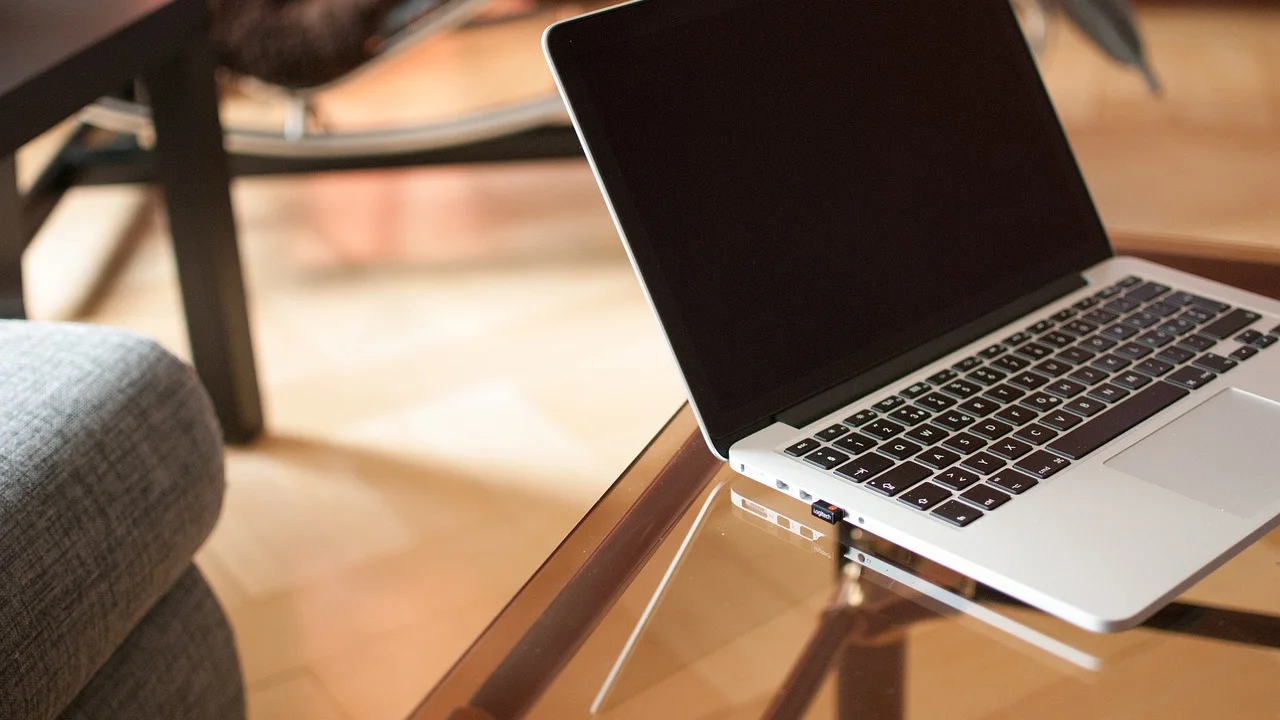
The good news is that most wireless mouse problems can be diagnosed at home in a few minutes, without special tools. Start with the quick checks, then move toward software and hardware testing if the issue continues. This guide applies to common 2.4 GHz USB-receiver mice and Bluetooth mice used with Windows PCs, Macs, laptops, and desktop computers.
What wireless mouse lag looks like
“Lagging” is a broad term, so it helps to identify the behavior before trying a fix. A mouse can have a wireless connection problem, a tracking problem, or a system performance problem. Each has a different likely cause.
- Cursor delay: The pointer follows your hand movement a moment late.
- Stuttering: The pointer moves in small, uneven jumps rather than smoothly.
- Freezing: The cursor stops briefly and resumes after a second or two.
- Dropouts: The mouse disconnects entirely until clicked, moved, or turned off and on.
- Poor tracking: The mouse is connected, but its sensor cannot read the surface consistently.
If your computer itself is slow—apps take a long time to open, video stutters, or the keyboard is delayed—the mouse may be revealing a broader performance issue. If only the mouse behaves badly, focus first on its power, signal, receiver, and sensor.
Start with the simplest physical checks
Replace or recharge the battery
Low power is one of the most common reasons for a wireless mouse to become unreliable. A battery may still have enough charge to power the LED and buttons while lacking enough stable output for consistent radio communication and sensor tracking. Replace AA or AAA batteries with fresh alkaline batteries, or fully charge a rechargeable mouse using its recommended cable.
Check battery contacts while the compartment is open. If you see dust, oxidation, or residue, gently wipe the contacts with a dry microfiber cloth. Do not mix old and new batteries, different brands, or different battery chemistries in a mouse that uses more than one cell.
Clean the sensor and use a better surface
Turn the mouse over and inspect the sensor opening. Hair, lint, and dust can interfere with optical tracking. Use a hand blower or a soft, dry brush; avoid spraying liquid directly into the opening. Then test the mouse on a plain mouse pad or a matte desk surface.
Glass, glossy finishes, patterned surfaces, and reflective tabletops can confuse many optical sensors. Even a premium mouse may track poorly on clear glass unless it has a sensor specifically designed for it. A standard cloth or hard-surface mouse pad is a quick way to rule out a surface issue.
Improve the wireless signal path
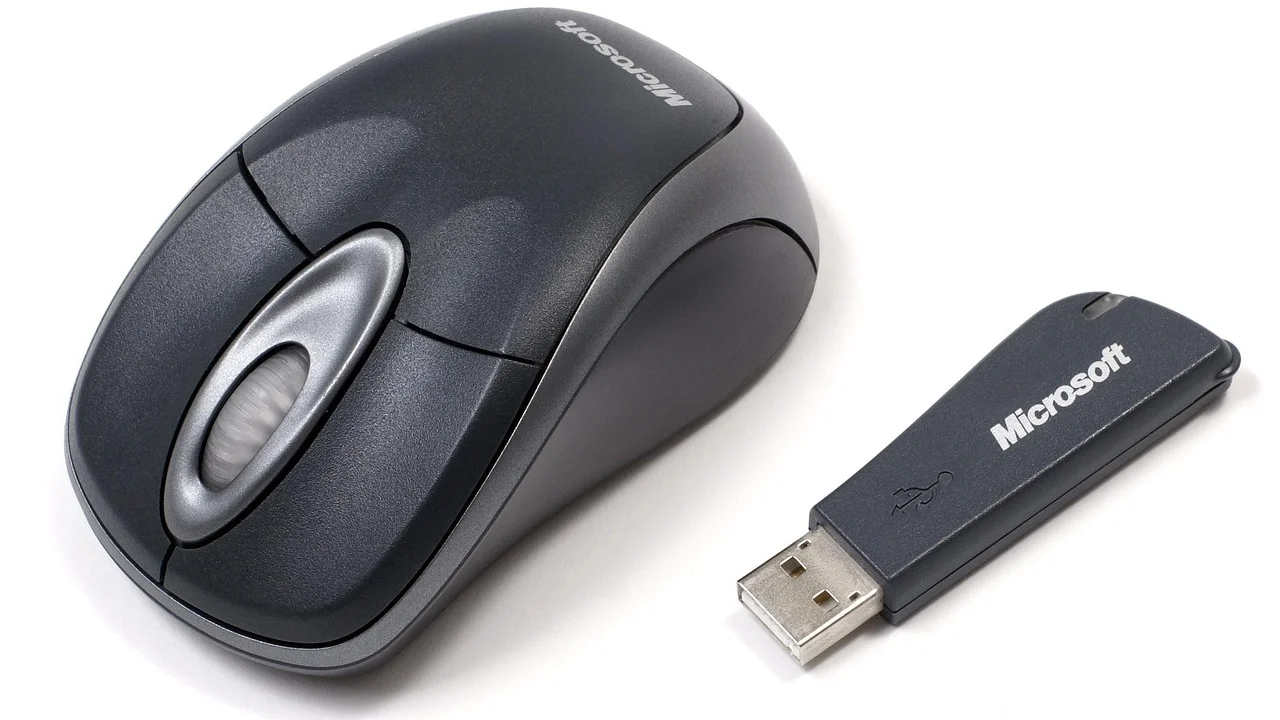
Most USB-receiver wireless mice communicate over the 2.4 GHz band. That is convenient, but it is also used by Wi-Fi networks, Bluetooth devices, wireless headsets, smart-home equipment, and some microwave ovens. Signal congestion or physical obstruction can cause momentary cursor freezes.
Move the USB receiver closer
A receiver plugged into the back of a desktop tower may be blocked by metal, cables, or the desk itself. Move it to a front USB port, or use a USB extension cable to place it on the desktop within a few feet of the mouse. This simple change often produces the biggest improvement.
For laptops, avoid placing the receiver beside a crowded docking station, external drive, or USB 3.x hub. USB 3.x equipment can create radio-frequency noise that affects nearby 2.4 GHz receivers. Put the receiver in a port on the other side of the laptop when possible.
Reduce nearby interference
Temporarily move wireless headphones, phone chargers, external SSDs, and hubs away from the receiver. If the mouse works better afterward, add devices back one at a time to identify the source. If you use Wi-Fi, switching your router and computer to a less congested band can help network performance, though it may not solve every mouse issue.
The Federal Communications Commission notes that unlicensed devices share spectrum and must accept interference from other authorized operations. In practice, that means crowded wireless environments can affect consumer peripherals.
Federal Communications Commission, Equipment Authorization
Check USB ports, pairing, and connection type
A mouse receiver needs a stable USB connection. A loose port, damaged hub, or underpowered dock can make the mouse appear to fail randomly. Disconnect the receiver, wait a few seconds, and insert it firmly into another USB port. Do not use a passive hub for testing; connect it directly to the computer first.
If your mouse uses Bluetooth rather than a USB receiver, remove the mouse from your computer’s Bluetooth device list, restart the computer, and pair it again. Keep the mouse close to the computer during pairing. On a multi-device model, verify that you selected the correct device channel; many mice have a button on the bottom that cycles between stored connections.
| Symptom | Likely cause | Most useful first test |
|---|---|---|
| Cursor freezes every few minutes | Weak battery or signal interference | Install fresh batteries and move receiver closer |
| Pointer jumps only on one desk | Unsuitable tracking surface | Test on a plain mouse pad |
| Mouse fails through a dock or hub | USB power or hub conflict | Connect receiver directly to the computer |
| Bluetooth mouse disconnects after sleep | Power management or pairing issue | Restart, forget device, and pair again |
| Lag begins during gaming or heavy work | High system load or outdated drivers | Check Task Manager or Activity Monitor |
Update software and review power settings
Operating system updates, Bluetooth drivers, chipset drivers, and manufacturer utilities can all affect peripheral reliability. First, restart your computer. A restart clears temporary processes and can restore a USB or Bluetooth service that has become unstable.
Windows troubleshooting
In Windows, run Windows Update and install available updates, including optional driver updates only when they clearly match your hardware. You can also open Device Manager to inspect Bluetooth adapters, USB controllers, and the mouse entry for warning symbols. If lag started immediately after installing a device utility or driver, uninstalling that recent software can be a useful test.
On laptops, aggressive power saving may suspend a USB or Bluetooth device. In Device Manager, open the relevant device properties and look for power-management options that allow the computer to turn off the device to save power. Test with that option disabled, then reassess battery life and stability.
macOS troubleshooting
On a Mac, install current macOS updates and review Bluetooth settings. Remove and reconnect the mouse if it appears repeatedly in a disconnected state. If the problem occurs only while using a dock, test with the mouse receiver connected directly to the Mac or use a short extension cable to move it away from the dock.
For either operating system, use the manufacturer’s official support page for firmware or configuration software. Avoid downloading “driver updater” programs from unknown sites. They may install unwanted software, recommend incorrect drivers, or create more system instability than they solve.
Rule out computer performance problems
A wireless mouse can feel laggy when the computer is overwhelmed. This is especially noticeable during video editing, large spreadsheet work, games, browser sessions with many tabs, cloud syncing, or security scans. In Windows, open Task Manager; on macOS, use Activity Monitor. Look for unusually high CPU, memory, disk, or GPU usage while the mouse stutters.
Close a demanding application and test again. If mouse behavior immediately improves, the issue is likely system load rather than radio interference. Also check available storage space, because a nearly full system drive can contribute to slow overall performance. Microsoft provides general guidance for maintaining and troubleshooting Windows devices through its official support portal.
A practical 10-minute wireless mouse fix plan
Work through these steps in order. Test cursor movement for about 30 seconds after each step so you know what changed.
- Turn the mouse off, wait 10 seconds, and turn it back on.
- Replace disposable batteries or fully charge the mouse.
- Clean the sensor opening and test on a mouse pad.
- Remove the USB receiver and reconnect it directly to another computer port.
- Move the receiver closer with an extension cable, if available.
- Move nearby hubs, external drives, chargers, and wireless devices farther away.
- Restart the computer.
- For Bluetooth, forget the mouse and pair it again.
- Install operating system updates and the mouse maker’s official firmware, if applicable.
- Test the mouse on a second computer.
The final test is especially valuable. If the mouse lags on two different computers after fresh batteries and close receiver placement, the mouse or its receiver is probably defective. If it works normally on another computer, investigate settings, drivers, ports, or system load on the original machine.
When repair or replacement makes sense
Replacement is reasonable when a mouse has persistent dropouts across multiple computers, a cracked receiver, corroded battery contacts, a damaged charging port, or a failing scroll wheel or switch. Many receiver-based mice are paired to their original receiver, so buying a random replacement dongle may not work. Check the manufacturer’s support documentation before ordering parts.
For a work-from-home setup, prioritize a mouse with a well-supported receiver, Bluetooth as a backup connection option, and a shape that fits your hand. For gaming, prioritize low-latency wireless technology, a reliable sensor, and a dedicated receiver extension adapter. Price does not guarantee reliability, but a model from a company with accessible firmware and warranty support is usually easier to maintain.
FAQ
Why does my wireless mouse lag but the keyboard works?
The mouse may have a low battery, a dirty sensor, a poor surface, or a receiver positioned farther from your hand than the keyboard receiver. The two devices can also use different wireless technologies, so one can be affected while the other remains stable.
Can Wi-Fi cause a wireless mouse to stutter?
It can contribute, particularly when a 2.4 GHz mouse receiver is surrounded by other wireless equipment. Move the receiver closer to the mouse and away from hubs and external drives before changing router settings.
Should I use Bluetooth or a USB receiver?
Either can work well. A dedicated USB receiver is often convenient and responsive, while Bluetooth saves a USB port and may be useful for switching among devices. Choose the connection that is most stable in your workspace.
Why does my mouse lag only after my computer wakes up?
Sleep and power-management settings can delay the reactivation of a USB or Bluetooth connection. Restarting, reconnecting the receiver, re-pairing Bluetooth, and reviewing device power settings can resolve this pattern.
How do I know whether the mouse is broken?
Test it with fresh power on a clean mouse pad and on a second computer. If it still freezes, skips, or disconnects in that controlled test, a hardware fault is likely.
Conclusion
A lagging wireless mouse usually has a fix: restore stable power, improve the receiver’s position, clean the sensor, simplify the wireless environment, and check the computer’s ports and software. Follow the 10-minute plan before replacing anything. Testing the mouse on another computer provides the clearest answer when the cause is still uncertain.
References
About the author
Stefano Barcellos
Editor jefe de SaberTec
Editor jefe de SaberTec. Coordina la línea editorial, revisa la precisión de los contenidos y supervisa su publicación en 20 idiomas.
View full profile