
Scanner Not Recognized by Computer: Fix It Fast
When a scanner is not recognized by a computer, the cause may be a loose USB connection, outdated driver, network issue, or permissions setting. Use this practical guide to isolate the problem, restore detection, and avoid common setup mistakes.
Table of contents
- Understand What “Not Recognized” Means
- Common symptoms and their likely causes
- Start With Power, Cable, and Port Checks
- For USB-connected scanners
- For network and Wi-Fi scanners
- Check Whether Your Operating System Sees the Scanner
- Windows checks
- macOS checks
- Update or Reinstall the Correct Scanner Driver
- Fix App, Permission, and Service Problems
- Windows app and service checks
- macOS privacy permissions
- Resolve Wireless Scanner Discovery Issues
- A Practical 15-Minute Recovery Plan
- When to Repair, Replace, or Contact Support
- Frequently Asked Questions
- Why is my scanner not recognized after a Windows update?
- Can a USB charging cable cause a scanner not to be detected?
- Why does my wireless scanner work sometimes but not always?
- Do I need the manufacturer app to scan documents?
- What if my scanner is too old for my current computer?
- Conclusion
- References
A scanner that suddenly disappears from your computer can bring work, school, tax preparation, and home organization to a halt. The good news is that most detection problems are not hardware failures. They usually come down to power, a cable or network connection, a driver conflict, an operating system permission, or the scanning app itself.

This guide helps you diagnose a scanner not recognized by a computer in a logical order. The steps apply to standalone flatbed and document scanners as well as multifunction printers with scanning features. Start with the simplest checks before reinstalling software or assuming the device needs replacement.
Understand What “Not Recognized” Means
Before changing settings, identify where the failure occurs. A scanner can be physically connected but unavailable in one application, or it may not be detected by the operating system at all. Those are different problems and require different fixes.
Common symptoms and their likely causes
- No power or no display: outlet, power adapter, power switch, or hardware issue.
- Scanner powers on but does not appear on the computer: USB cable, port, driver, or network discovery problem.
- Scanner appears in settings but will not scan: app permissions, incorrect default device, busy queue, or outdated scanning software.
- Scanner works on another computer: the original computer’s driver, account settings, or security software is likely responsible.
- Wireless scanner is intermittently unavailable: Wi-Fi signal, router isolation, changed network credentials, or IP address changes.
Write down the scanner model, connection type, operating system version, and any error message. That information will make later troubleshooting faster and more accurate.
Start With Power, Cable, and Port Checks
Physical checks feel basic, but they resolve a large share of scanner detection issues. A device may look connected while a cable is partially seated, damaged internally, or plugged into a low-power hub.
For USB-connected scanners
- Turn the scanner off, wait 15 seconds, and turn it back on.
- Disconnect the USB cable from both the scanner and computer.
- Inspect the cable for bent connectors, fraying, or a loose fit.
- Reconnect it directly to a USB port on the computer, not a keyboard, monitor, docking station, or unpowered hub.
- Try a different USB port. If available, try a different known-good USB data cable.
- Restart the computer after reconnecting the scanner.
Some scanners need more stable power than a passive USB hub can provide. A direct port connection is especially important for older USB-A devices attached to newer laptops through adapters. If you must use a hub, choose a powered hub from a reputable manufacturer.
For network and Wi-Fi scanners
Confirm that the scanner and computer are on the same home or office network. A computer on a guest Wi-Fi network may be intentionally isolated from other devices. Restarting the router and scanner can renew the network connection, but first check the scanner’s screen or control panel for a Wi-Fi icon, network name, or connection status.
If the scanner was connected before you changed your router, password, or internet provider, reconnect it using the manufacturer’s setup process. Avoid assuming that an internet connection means local device discovery is working; the scanner must be reachable on the local network.
Check Whether Your Operating System Sees the Scanner
Separating operating-system detection from app-specific trouble prevents unnecessary reinstalls. If the scanner is absent from system settings, focus on the connection and driver. If it appears there, focus on the scan application and permissions.
Windows checks
Open Settings, then look under Bluetooth & devices for Printers & scanners. Select Add device if your scanner is missing. For a USB device, also open Device Manager and look under Imaging devices, Cameras, Print queues, or Universal Serial Bus controllers. A yellow warning icon suggests a driver or device communication issue.
Windows includes a built-in scanning application, but hardware support often depends on a current manufacturer driver. Microsoft also provides guidance for managing devices and printers through its Windows Support site, where you can search your exact error message.
macOS checks
On a Mac, open System Settings and go to Printers & Scanners. If the scanner is listed, select it and look for a Scan option. If it is not listed, use Add Printer, Scanner, or Fax and allow macOS a moment to search the network or USB bus.
For a USB scanner that is missing, check System Information under USB to see whether the Mac detects the hardware. If it appears in System Information but not in Printers & Scanners, software support is the likely issue. Older scanners may not have compatible drivers for current macOS releases.
Update or Reinstall the Correct Scanner Driver
Drivers translate commands between the operating system and the scanner. A generic driver may support basic functions, while the manufacturer’s full package can add document feeder controls, duplex scanning, OCR, color settings, and firmware updates.
Download software only from the scanner manufacturer’s official support page. Search using the full model number printed on the device, not only the product family name. Select your exact operating system version and architecture when prompted. Avoid third-party “driver updater” utilities: they can install unsuitable software, bundle unwanted programs, or fail to provide the latest manufacturer release.
| Situation | Best first action | Likely result |
|---|---|---|
| USB scanner is completely absent | Test another port and data cable | Rules out a connection failure |
| Scanner has a warning icon in Windows | Remove device and install official driver | Rebuilds device-driver communication |
| Scanner is listed but app cannot scan | Try a different scanning app and check permissions | Identifies app-level conflicts |
| Wi-Fi scanner appears offline | Reconnect it to the same local network | Restores network discovery |
| Older scanner fails after an OS update | Check current compatibility on manufacturer site | Confirms whether supported software exists |
When reinstalling, disconnect the scanner if the installer instructs you to do so. Remove the old device entry first, restart the computer, install the new package, and connect the scanner only when prompted. This sequence reduces the chance that the operating system loads an older cached driver.
“Before replacing a peripheral, test the device with a different cable, port, or computer to isolate whether the issue is with the device or the host system.”
Paraphrased from U.S. Cybersecurity and Infrastructure Security Agency guidance on basic technology troubleshooting and secure device practices.
Fix App, Permission, and Service Problems
A scanner can be recognized by the computer but still fail inside a particular program. First, close all scanning applications, including any manufacturer utility running in the notification area or menu bar. Reopen one app at a time and test a simple scan.
Windows app and service checks
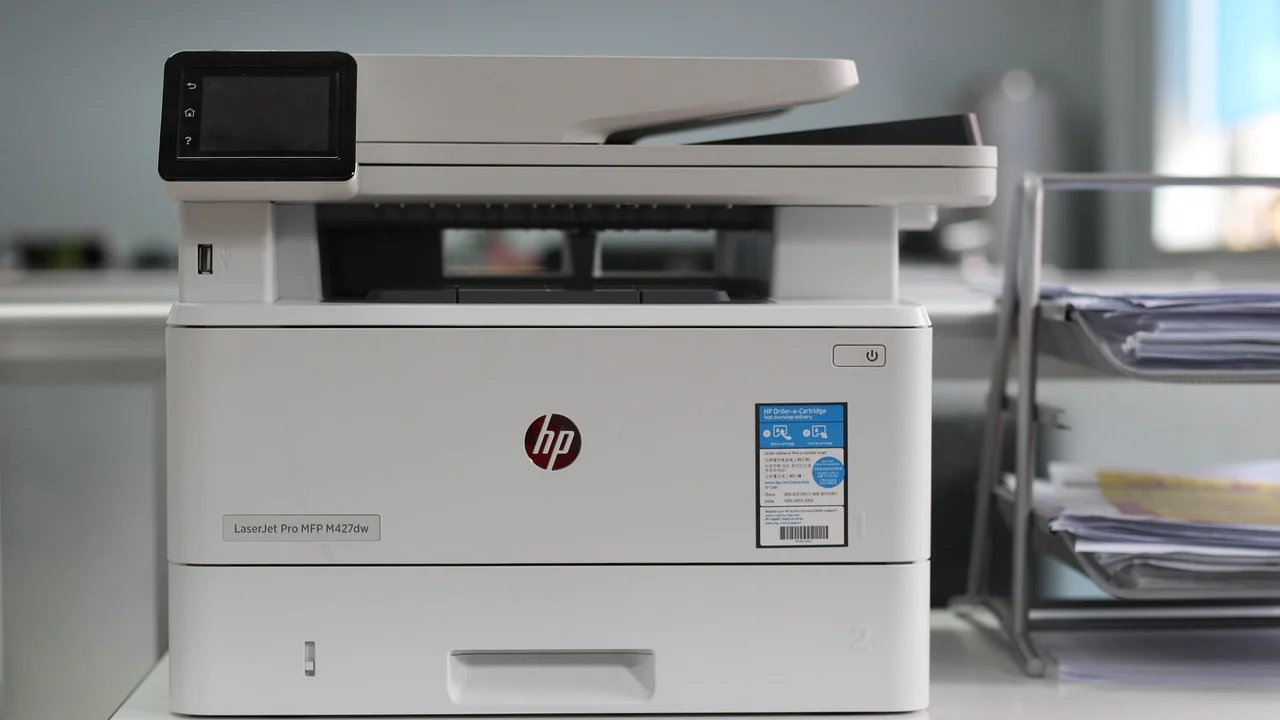
Try the Windows Scan app or the manufacturer’s utility. If the device is detected in one app but not another, the scanner itself is working. Update or reset the failing app. For multifunction printers, verify that the correct device is selected rather than a similarly named virtual printer or old network entry.
If scans never start, the Windows Image Acquisition service may be stopped. An administrator can check Services, locate Windows Image Acquisition (WIA), and confirm that it is running. In a managed workplace, ask IT before changing service settings or installing drivers.
macOS privacy permissions
macOS may ask permission for an app to access files, folders, cameras, or removable volumes. If a scanning app opens but cannot save files or communicate correctly, review its permissions in System Settings under Privacy & Security. Use the Mac’s built-in Image Capture app as a neutral test; if it can scan, the issue lies with the manufacturer app rather than the connection.
Resolve Wireless Scanner Discovery Issues
Network scanners are convenient but add variables that USB devices do not have. Routers may assign a new local IP address after a restart, and security features can block device-to-device communication.
- Make sure both devices use the same Wi-Fi name, not a guest network.
- Move the scanner closer to the router if its signal indicator is weak.
- Restart the scanner, computer, and router in that order if practical.
- Disable a VPN temporarily while testing, because some VPN configurations block local-network discovery.
- Use the manufacturer setup tool to add the scanner again by its network address if automatic discovery fails.
- For offices, ask the network administrator whether client isolation, VLAN segmentation, or firewall rules block scanning traffic.
A wired Ethernet connection can be a useful test for an all-in-one printer or network scanner. If it works over Ethernet but not Wi-Fi, the hardware is probably fine and the problem is wireless configuration or signal quality.
A Practical 15-Minute Recovery Plan
Follow this order rather than trying random fixes. Stop once the scanner is recognized and completes a test scan.
- Minute 1–3: Restart the scanner and computer. Confirm the scanner has power and no error light or paper jam.
- Minute 4–6: For USB, reconnect directly to another computer port. For Wi-Fi, confirm the scanner is connected to the same local network.
- Minute 7–9: Check Windows Printers & scanners or macOS Printers & Scanners. Add the device if it is missing.
- Minute 10–12: Run a test in Windows Scan, Image Capture, or the manufacturer’s current utility.
- Minute 13–15: Remove the old device entry, restart, and install the official current driver if the system still cannot use it.
If none of these steps works, connect the scanner to another compatible computer. A successful test there points to a configuration issue on the original computer. Failure on two computers, with a known-good cable and power source, makes a scanner hardware defect more likely.
When to Repair, Replace, or Contact Support
Contact manufacturer support when the scanner shows a persistent hardware error, makes unusual mechanical noises, cannot calibrate, or fails on more than one computer after a clean driver installation. Have the serial number, model number, operating system version, connection type, and exact error wording ready.

Replacement may be more economical for an older scanner that no longer has supported drivers, especially after a major operating-system change. Before buying a new unit, verify that the manufacturer explicitly supports your computer’s current Windows or macOS version and check whether you need an automatic document feeder, duplex scanning, Wi-Fi, or a compact flatbed.
For security, keep scanning software current and download it from official sources. The Cybersecurity and Infrastructure Security Agency recommends maintaining updated software as a core protective practice, which also helps address bugs that affect peripheral compatibility.
Frequently Asked Questions
Why is my scanner not recognized after a Windows update?
An update can replace, disable, or expose an incompatibility in an older driver. Remove the scanner from Windows settings, restart the computer, and install the latest driver package from the manufacturer’s support page.
Can a USB charging cable cause a scanner not to be detected?
Yes. Some cables carry power but not data, and damaged data wires can cause the same symptom. Use the cable supplied with the scanner or a compatible USB data cable, then test a direct computer port.
Why does my wireless scanner work sometimes but not always?
Common causes include weak Wi-Fi signal, changing local IP addresses, guest-network isolation, VPN interference, and router settings that prevent devices from seeing each other. Reconnect the scanner to the local network and rerun the manufacturer setup tool.
Do I need the manufacturer app to scan documents?
Not always. Windows Scan and macOS Image Capture can often handle basic scans. The manufacturer app may still be necessary for advanced settings, document feeder controls, OCR, cloud destinations, or firmware updates.
What if my scanner is too old for my current computer?
Check for a current driver or supported generic driver first. If the manufacturer no longer supports your operating system, a replacement scanner may be the most reliable option. Avoid downloading drivers from unknown sites.
Conclusion
When a scanner is not recognized by a computer, begin with the physical connection, then confirm operating-system detection, test a basic scanning app, and reinstall official software only when needed. This method narrows the cause quickly and protects you from unnecessary purchases. If the scanner fails with multiple cables and computers, manufacturer service or replacement becomes the sensible next step.

References
About the author
Stefano Barcellos
Editor jefe de SaberTec
Editor jefe de SaberTec. Coordina la línea editorial, revisa la precisión de los contenidos y supervisa su publicación en 20 idiomas.
View full profile