
RAM Usage Always High: Causes and Practical Fixes
High RAM usage can be normal, but constant slowdowns, freezing, and paging signal a memory problem. Learn how to inspect apps, browser tabs, startup tools, and hardware limits, then choose the right fix for a smoother Windows PC.
Table of contents
- What it means when RAM usage is always high
- When high memory use becomes a real problem
- Common causes of high RAM usage
- Normal multitasking on a low-memory system
- Browser tabs, extensions, and web apps
- Memory leaks and faulty software
- Startup applications and background services
- How much RAM is enough for common PC tasks?
- Find the process using your memory
- Read the results carefully
- Practical plan to reduce memory pressure
- Step 1: Update the software that is growing
- Step 2: Trim browser overhead
- Step 3: Reduce unnecessary startup items
- Step 4: Scan for unwanted software
- Step 5: Leave the paging file managed by Windows
- Step 6: Upgrade RAM when the workload demands it
- Settings and “fixes” to avoid
- When hardware or professional support is warranted
- FAQ
- Is 90% RAM usage bad?
- Why is RAM usage high when nothing is open?
- Will adding more RAM make my PC faster?
- Should I close every background application?
- Can a browser cause a memory leak?
- Conclusion
- References
Seeing RAM usage near the top of the meter can be unsettling, especially when a computer starts stuttering, programs take longer to open, or browser tabs reload unexpectedly. Yet a high percentage alone does not automatically mean something is wrong. Modern operating systems deliberately use available memory for active programs, background services, and cached files because unused RAM does not make a PC faster.
The concern begins when memory demand stays high while the computer feels sluggish. On a Windows PC, that can force the system to move data between RAM and the storage drive, a process called paging. Even with a fast SSD, paging is much slower than accessing physical memory. This guide explains what persistent high RAM usage means, how to find its cause, and when changing settings—or adding more memory—actually helps.
The practical goal is not to keep the RAM meter artificially low. It is to leave enough headroom for the work you do so Windows and your applications remain responsive.
What it means when RAM usage is always high
Random access memory, or RAM, is the fast workspace used by Windows and currently running applications. It holds data that the processor needs immediately: open documents, browser tabs, game assets, communication apps, drivers, and parts of the operating system.
Windows also uses spare memory as a file cache. For example, files and app components you used recently may remain cached so they can reopen faster. That cache is normally released when another application needs the space. Therefore, 70% to 85% RAM usage during demanding work may be completely normal.
When high memory use becomes a real problem
Look for behavior, not just a percentage. Persistent memory pressure is more likely if you notice:
- Apps freezing when you switch between them.
- Browser tabs refreshing or crashing after sitting in the background.
- Frequent disk activity while the PC is otherwise idle.
- Games hitching when new scenes or menus load.
- Windows warnings that the system is low on memory.
- Task Manager showing one or more processes steadily increasing their memory use.
A quick restart may make the number look better, but it only clears the current session. If the problem returns after the same app, website, or workload, identifying that pattern is more valuable than repeatedly rebooting.
Common causes of high RAM usage
Normal multitasking on a low-memory system
A PC with 8 GB of RAM can feel constrained when running Windows, a browser with many tabs, a video meeting, cloud-sync software, and a few desktop apps. The same tasks are generally more comfortable with 16 GB. Creative work, virtual machines, software development, large spreadsheets, and newer games may need 32 GB or more.
Browser tabs, extensions, and web apps
Browsers separate tabs and processes for stability and security. That design means a video stream, a social media feed, a large web app, and several extensions can consume several gigabytes together. Closing unused tabs helps, but reviewing extensions is often more effective. An extension that injects content into every page can create a persistent cost.
Memory leaks and faulty software
A memory leak happens when software keeps reserving memory it no longer needs. The process may start at a reasonable amount and climb for hours or days. A restart temporarily fixes the symptom, but updating, repairing, or replacing the offending program is the durable solution. Drivers, RGB-control utilities, game launchers, and poorly maintained add-ons can also be responsible.
Startup applications and background services
Many programs configure themselves to start with Windows: chat tools, game clients, printer utilities, cloud storage, update agents, and vendor dashboards. Each may use a modest amount, but their combined impact can be significant on an 8 GB machine.
How much RAM is enough for common PC tasks?
There is no single correct capacity because your workload matters more than a marketing label. The ranges below assume a current 64-bit version of Windows, ordinary background software, and a reasonably fast SSD. They are planning guidelines, not hard requirements.
| Typical workload | Practical RAM target | Why |
|---|---|---|
| Email, documents, light web browsing | 8 GB minimum | Works for basic use, but multitasking headroom is limited. |
| School, office work, many browser tabs, video calls | 16 GB | Provides comfortable room for daily multitasking. |
| Gaming with background apps and streaming | 16 GB to 32 GB | Modern games and overlays can raise peak demand. |
| Photo editing, coding, large spreadsheets | 16 GB to 32 GB | Projects, previews, development tools, and local services add up. |
| 4K video editing, virtual machines, 3D work | 32 GB or more | These workloads retain large assets and multiple environments in memory. |
Microsoft explains that the paging file is an area on a hard disk that Windows uses as if it were RAM, and it extends the system’s committed memory limit.
Microsoft Support, “How to determine the appropriate page file size”
This is why a computer can continue operating after physical RAM fills up, but may feel substantially slower. A page file is a safety net, not a substitute for enough installed memory.
Find the process using your memory
Task Manager is the best starting point on Windows. Press Ctrl+Shift+Esc, select More details if needed, and open the Processes tab. Click the Memory column to sort from highest to lowest use. Do this while the slowdown is happening, not immediately after a restart.
Read the results carefully
Do not end a process simply because it appears near the top. A web browser, game, video editor, or database tool may legitimately need a large allocation. Instead, ask whether the memory use matches what you are doing. If a program you did not intentionally open is consuming hundreds of megabytes or more, investigate it.
- Take note of the top five processes and their memory amounts.
- Close one program normally and watch whether available memory returns.
- Reopen it and repeat the activity that caused the spike.
- Check for application and Windows updates.
- If usage rises continuously without additional work, search the developer’s support materials for a known memory issue.
For a more detailed view, select the Performance tab and choose Memory. The “In use,” “Available,” “Committed,” and “Cached” values help distinguish ordinary caching from true pressure. The Microsoft RAMMap utility can provide an advanced breakdown for experienced users, but Task Manager is sufficient for most diagnoses.
Practical plan to reduce memory pressure
Work through these steps in order. They begin with low-risk changes and avoid the common mistake of disabling essential Windows services or using dubious “RAM cleaner” software.

Step 1: Update the software that is growing
Install pending Windows updates, browser updates, graphics driver updates, and updates for the specific app consuming memory. If a problem began right after an update, check whether the developer has published a fix or a documented rollback procedure. Avoid downloading drivers from random driver-update sites; use Windows Update or the device manufacturer’s official support page.
Step 2: Trim browser overhead
Close tabs you no longer need, remove extensions you do not recognize or use, and enable your browser’s memory-saving or sleeping-tab option if available. Keep an eye on web apps that stay open all day, such as messaging platforms, dashboards, and online design tools. They can behave more like desktop applications than simple web pages.
Step 3: Reduce unnecessary startup items
In Task Manager, open Startup apps. Disable items that are not needed immediately after sign-in, such as game launchers or vendor utilities. Keep security software and hardware functions you rely on enabled. Disabling a startup item does not uninstall it; you can still open it manually later.
Step 4: Scan for unwanted software
Unexpected memory use combined with pop-ups, unfamiliar processes, browser redirects, or unusually high CPU activity deserves a security check. Run a full scan with Windows Security and make sure its definitions are current. Microsoft’s Windows security guidance is a reliable starting point for reviewing built-in protections and safe practices.
Step 5: Leave the paging file managed by Windows
Many online tips recommend disabling the page file to “free RAM.” That advice can cause app crashes and system instability. For most people, the best setting is automatically managed paging. Ensure the system drive has enough free space, because a nearly full drive can limit Windows’ flexibility.
Step 6: Upgrade RAM when the workload demands it
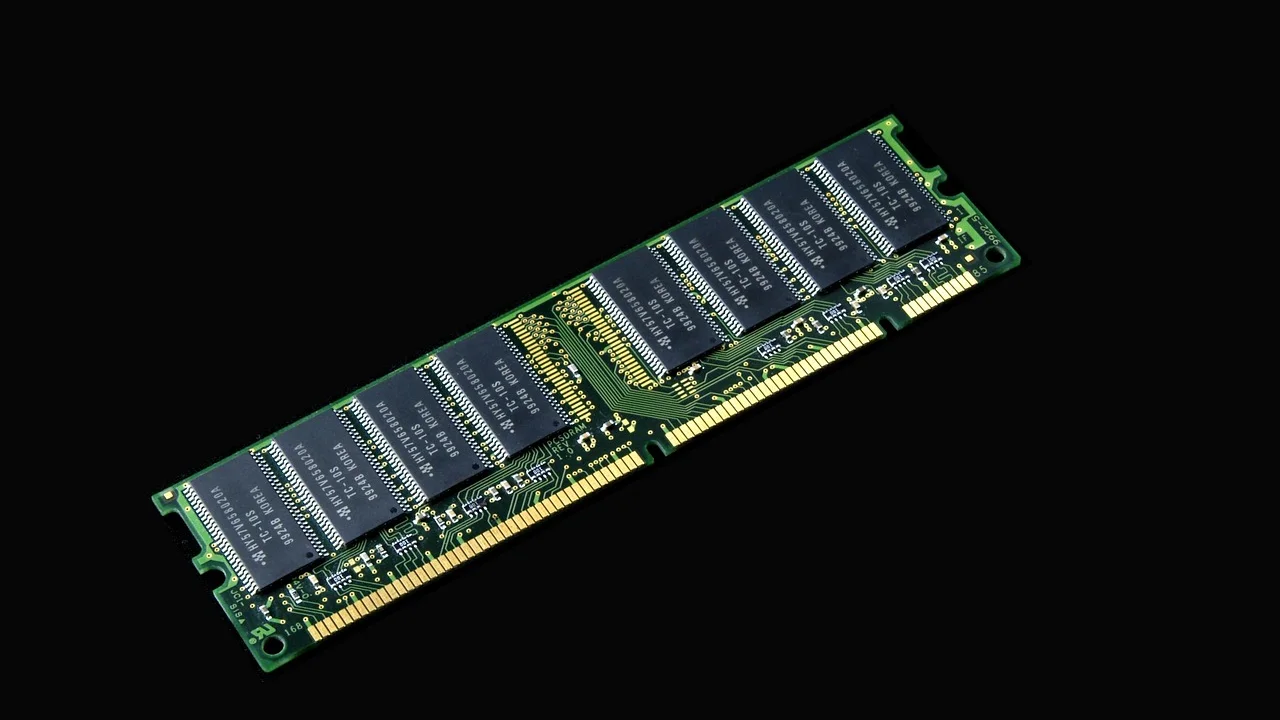
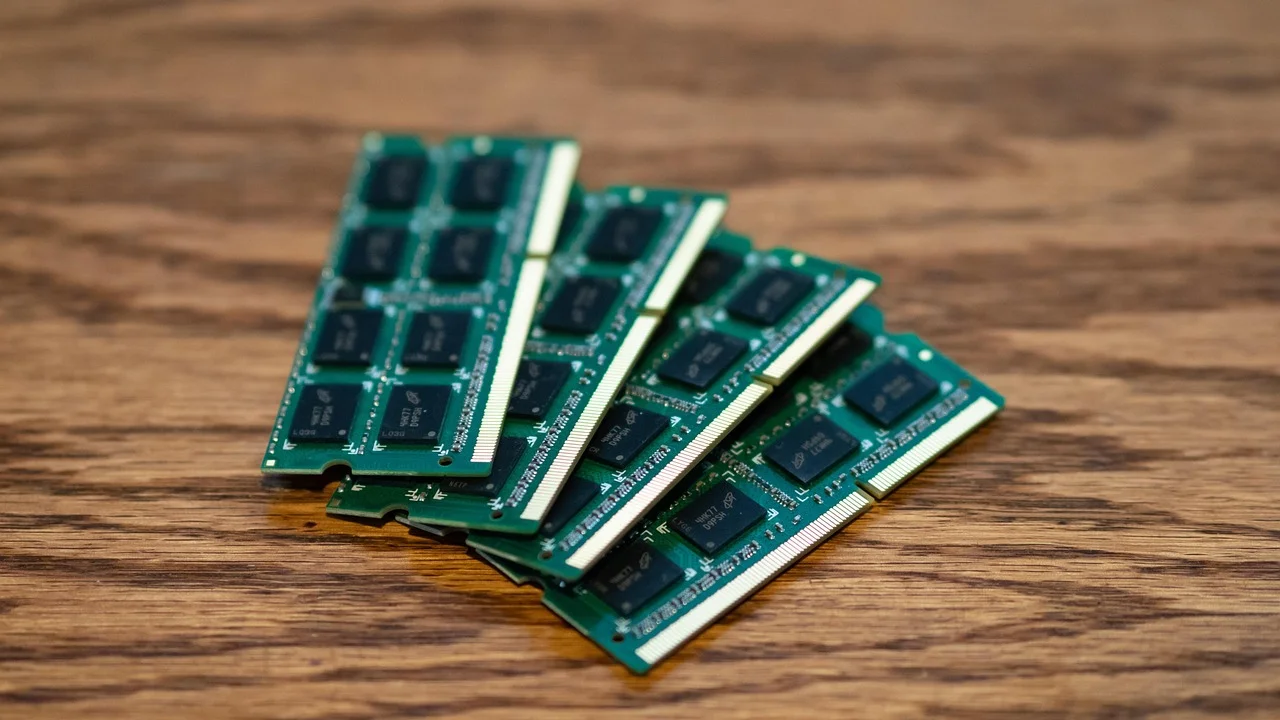
If normal daily tasks consistently fill memory after cleanup, a hardware upgrade is often the most meaningful fix. Before buying modules, check the laptop or motherboard manual for supported memory type, speed, capacity, and slot configuration. Desktop systems commonly use DIMMs; laptops commonly use SO-DIMMs, though many thin laptops have soldered memory that cannot be upgraded.
For systems with two memory slots, a matched pair such as 2 × 8 GB can also enable dual-channel operation, which improves memory bandwidth. Do not mix modules casually unless you have verified compatibility. Capacity comes first, but stability matters more than a small speed increase.
Settings and “fixes” to avoid
Memory optimization utilities often promise instant performance gains by forcibly emptying memory. They may lower a visible percentage briefly, but they often do so by pushing useful data out of RAM. Windows then has to reload it, which can make the computer feel worse.
- Do not disable the page file merely to reduce a number in Task Manager.
- Do not end unfamiliar Windows processes without identifying them.
- Do not install registry cleaners or unverified driver tools to solve memory use.
- Do not assume all cached memory is wasted memory.
- Do not buy RAM until you confirm whether a specific app, malware, or startup load is the actual problem.
When hardware or professional support is warranted
Consider hardware troubleshooting if high RAM use comes with blue screens, random restarts, failure to boot, or a memory amount in Windows that is lower than what you installed. Reseat desktop modules only with the computer powered down and unplugged, following the manufacturer’s instructions. A laptop with a sealed chassis is usually better handled by an authorized repair provider.
Windows Memory Diagnostic can help screen for faults: search for it from the Start menu, save your work, and allow the PC to restart for testing. A failed test, recurring crashes, or newly installed RAM that is not detected are good reasons to contact the system or memory manufacturer.
FAQ
Is 90% RAM usage bad?
Not necessarily. It is normal during a demanding task if the PC remains responsive and memory use falls after the task ends. It is a concern when the system regularly stutters, pages heavily to disk, or cannot handle ordinary multitasking.
Why is RAM usage high when nothing is open?
Programs can remain active in the notification area or as background processes, and Windows uses memory for services and caching. Check Task Manager’s Processes and Startup apps tabs to identify background software rather than relying only on the desktop.
Will adding more RAM make my PC faster?
It will help if your current workload exhausts physical memory and forces paging. It will not fix a slow processor, failing drive, malware infection, or poorly optimized software that is slow for other reasons.
Should I close every background application?
No. Close or disable applications you do not need, especially those that start automatically, but leave essential security, driver, and system services alone. Aim for a lean setup that still supports your normal workflow.
Can a browser cause a memory leak?
Yes. A browser, an extension, or a particular website can retain memory unexpectedly. Update the browser, test in a private window with extensions disabled, and compare behavior across sites to narrow down the cause.
Conclusion
RAM usage always high is a useful clue, not a diagnosis by itself. Begin with Task Manager, observe which process grows and when, reduce unnecessary startup and browser load, and keep Windows and key applications updated. If your legitimate everyday workload still creates slowdowns on an 8 GB system, moving to 16 GB—or higher for creative and technical work—can provide the responsive headroom that software tweaks cannot create.
References
About the author
Stefano Barcellos
Editor jefe de SaberTec
Editor jefe de SaberTec. Coordina la línea editorial, revisa la precisión de los contenidos y supervisa su publicación en 20 idiomas.
View full profile