
SSD Not Recognized by BIOS: Causes and Fixes
An SSD missing from BIOS can stem from a loose connection, an incompatible M.2 interface, outdated firmware, disabled storage settings, or a failing drive. Follow a structured troubleshooting process to identify the cause and restore detection without risking your data.
Table of contents
- Understand What BIOS Detection Tells You
- Distinguish a missing drive from a missing boot option
- Identify your SSD type
- Start With Safe Physical Connection Checks
- Check a 2.5-inch SATA SSD
- Check an M.2 SSD
- Confirm Compatibility Before Changing Firmware Settings
- Review BIOS or UEFI Storage Settings
- Settings worth checking
- Update Firmware Carefully When the System Supports It
- Isolate the Drive, Slot, or System as the Cause
- Protect Data When a Previously Working SSD Disappears
- When professional recovery may be appropriate
- When Replacement Is the Sensible Choice
- FAQ: SSD Not Recognized by BIOS
- Can Windows detect an SSD that BIOS does not detect?
- Why is my NVMe SSD not listed under SATA devices?
- Will resetting BIOS settings erase files on my SSD?
- Can an M.2 SSD fit but still be incompatible?
- Should I initialize the SSD in Windows?
- Conclusion
- References
When an SSD is not recognized by BIOS, the operating system cannot use it either. The problem may be as simple as a loose SATA cable or as technical as an M.2 slot that supports only one protocol. A methodical approach matters: changing settings at random can waste time, hide the real cause, or put important data at risk.
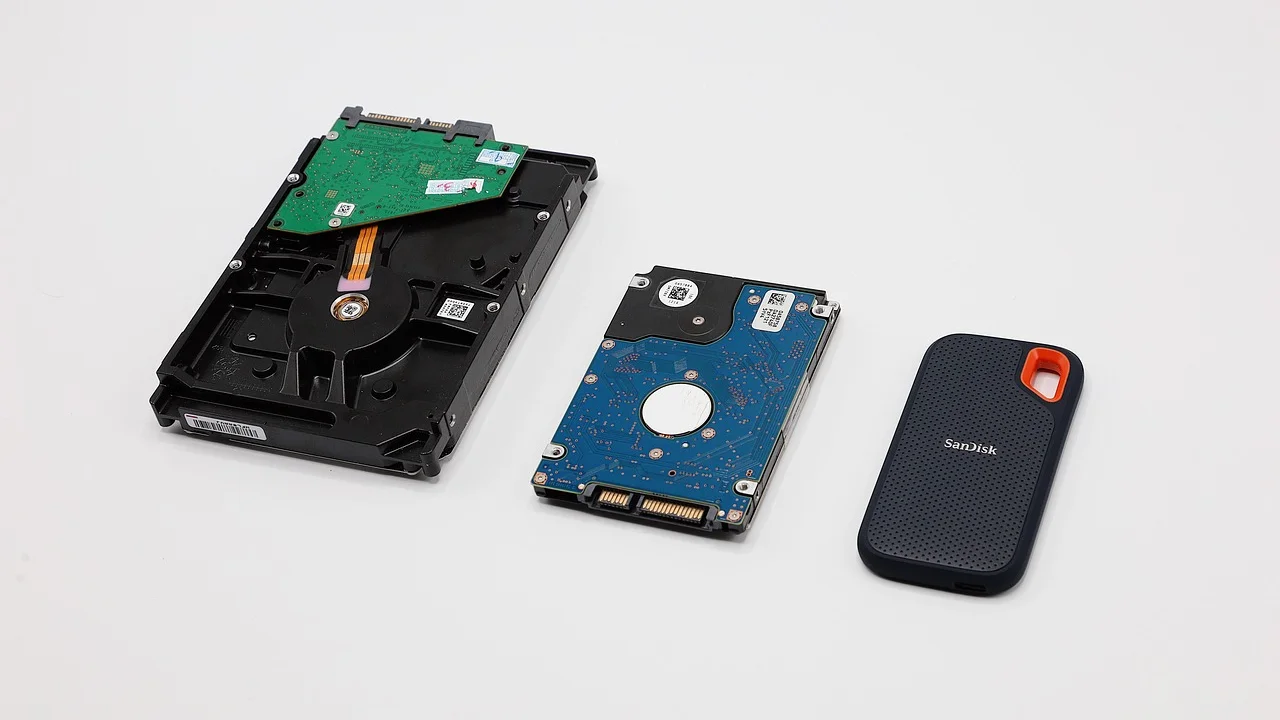
This guide is written for desktop and laptop owners in the United States who are installing a new SATA or NVMe SSD, or who have a drive that suddenly disappeared. It explains what BIOS detection means, how SATA and M.2 storage differ, and which checks to perform before assuming the drive has failed.
Before opening a computer, shut it down completely, disconnect AC power, and use sensible static-electricity precautions. If the SSD contains files you cannot replace, avoid formatting, initializing, or repartitioning it until you have ruled out a connection or configuration issue.
Understand What BIOS Detection Tells You
BIOS, often called UEFI on modern PCs, is the firmware that starts hardware before Windows or another operating system loads. If the SSD appears in the BIOS storage, NVMe, SATA, or boot information screen, the motherboard can communicate with it at a basic level. If it does not appear there, Windows Disk Management and Device Manager usually cannot fix the underlying detection problem.
Distinguish a missing drive from a missing boot option
A drive can be detected but still not appear as a boot choice. For example, a new blank SSD has no operating system and is not expected to show as “Windows Boot Manager.” Likewise, a previously working Windows installation may need the correct boot mode or boot order. First, look for the physical drive model in the firmware’s storage or NVMe information page; only then investigate boot configuration.
Identify your SSD type
There are two common consumer SSD connection families:
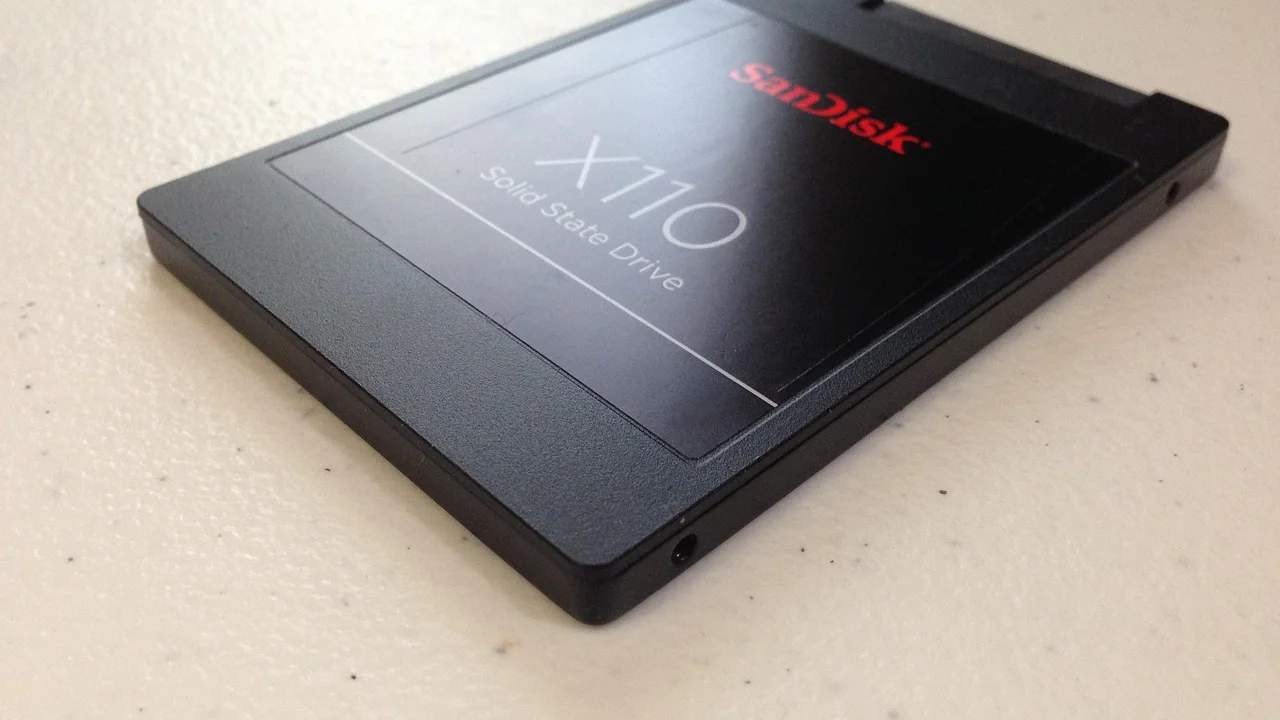
- 2.5-inch SATA SSDs use a SATA data cable to the motherboard and a separate SATA power connector from the power supply.
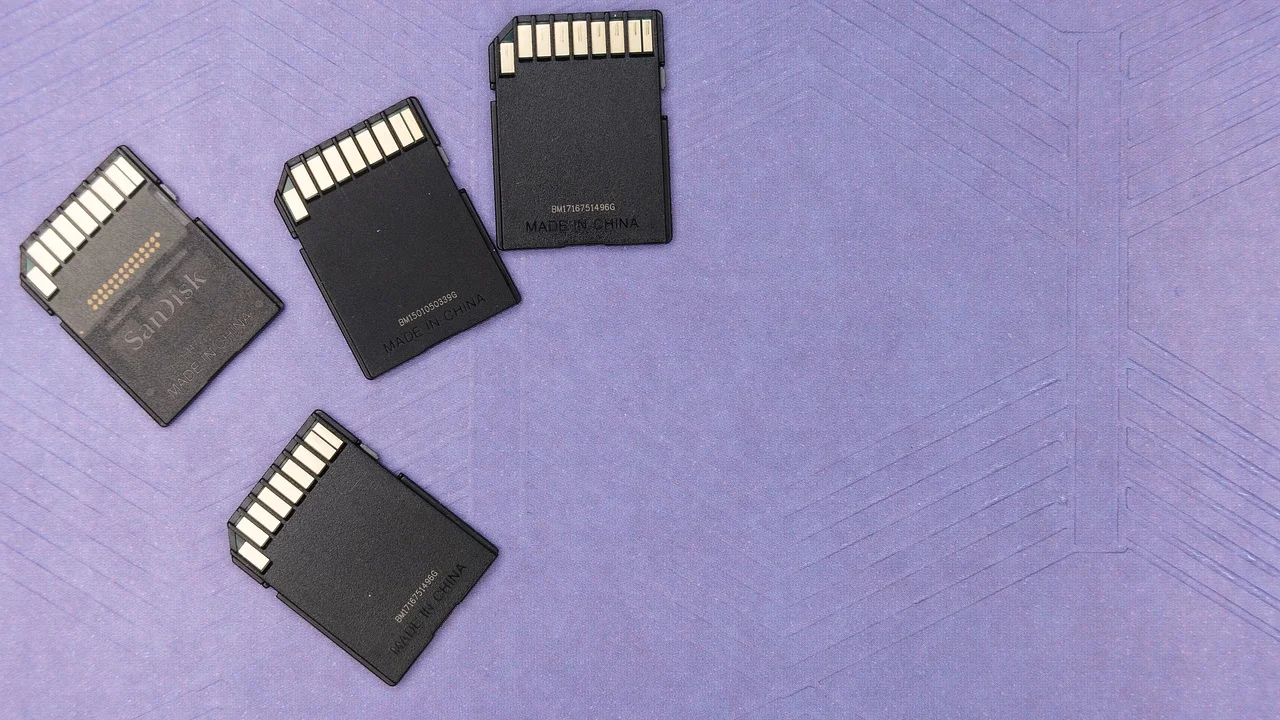
- M.2 SATA SSDs use the compact M.2 card shape but communicate through SATA. They need an M.2 slot that supports SATA mode.
- M.2 NVMe SSDs also use the M.2 card shape but communicate over PCIe. They need an M.2 slot with PCIe/NVMe support.
The physical M.2 shape alone does not guarantee compatibility. A common installation mistake is placing an M.2 SATA drive into a slot wired only for NVMe, or installing an NVMe drive in a slot that supports only SATA.
Start With Safe Physical Connection Checks
Physical checks solve many cases, particularly after building a PC, moving it, replacing a power supply, or adding storage. Work with the machine powered off and unplugged. On a laptop, follow the manufacturer’s service guidance and disconnect the internal battery if the model permits it.
Check a 2.5-inch SATA SSD
Reseat both ends of the thin SATA data cable: the connector on the SSD and the motherboard SATA port. Then confirm the wider SATA power connector is fully seated. Try a different known-good SATA data cable and another motherboard SATA port. If possible, test with a different SATA power connector from the power supply.
Some motherboards disable one or more SATA ports when a particular M.2 slot is occupied. The manual usually includes a storage-sharing diagram. If a SATA SSD vanishes after adding an M.2 drive, move the SATA cable to a port that is not shared.
Check an M.2 SSD
Remove the M.2 retaining screw, pull the card out gently, and reinstall it at a slight angle. It should slide into the socket firmly and lie flat before you secure it with the correct screw. Do not overtighten the screw. If the board includes an M.2 heatsink, ensure any protective film has been removed from the thermal pad and that the heatsink does not prevent the drive from seating correctly.
On a desktop motherboard with multiple M.2 slots, test another compatible slot. On a laptop, do not force a longer drive into a shorter mounting position; common sizes include 2230, 2242, 2260, and 2280, where the last two digits indicate length in millimeters.
Confirm Compatibility Before Changing Firmware Settings
Consult the motherboard or laptop manual and compare it with the SSD specifications. Look specifically for the supported interface, supported M.2 key, maximum capacity if relevant, and any lane-sharing notes. A drive can fit mechanically while remaining electrically incompatible.
| Drive type | Typical connection | What to verify in the manual | Common detection issue |
|---|---|---|---|
| 2.5-inch SATA SSD | SATA data and SATA power | Available SATA ports and shared-port rules | Loose data cable or disabled shared SATA port |
| M.2 SATA SSD | M.2 socket using SATA protocol | Slot explicitly supports SATA M.2 | Installed in an NVMe-only slot |
| M.2 NVMe SSD | M.2 socket using PCIe lanes | Slot supports PCIe/NVMe and appropriate generation | Using a SATA-only M.2 slot or outdated firmware |
| PCIe add-in-card SSD | Desktop PCIe expansion slot | Slot lane availability and boot support | Disabled slot, lane conflict, or adapter limitation |
PCIe generations are generally backward compatible, so a PCIe 4.0 NVMe drive often works in a PCIe 3.0 slot at lower performance. Compatibility exceptions can exist, especially with older systems, unusual adapters, or manufacturer-specific laptop firmware. The system documentation is more reliable than assumptions based on connector appearance.
Review BIOS or UEFI Storage Settings
Enter firmware setup during startup using the key shown by the computer maker, often Delete, F2, F10, or Esc. Menu names differ among manufacturers, but storage details are commonly found under Advanced, Storage Configuration, NVMe Configuration, System Information, or Boot.
Settings worth checking
- SATA controller: Verify that the SATA controller is enabled for a 2.5-inch SATA SSD.
- SATA mode: AHCI is the usual setting for standard consumer installations. Do not switch between RAID/Intel RST and AHCI casually on an existing Windows installation, because Windows may fail to boot without preparation.
- NVMe information: An NVMe SSD may appear in its own NVMe page rather than in the SATA device list.
- CSM and UEFI mode: These settings usually affect booting rather than physical detection, but an older installation may require a compatible boot mode.
- Load defaults: Restoring optimized defaults can correct an accidental setting, but record custom settings first, including fan profiles, memory tuning, and boot order.
If a newly installed drive is visible in firmware but not in Windows File Explorer, that is a different stage of setup. A new disk may need to be initialized, partitioned, and formatted in Disk Management. Do this only after confirming it is the correct empty drive; these actions can erase access to existing data.
Update Firmware Carefully When the System Supports It
Motherboard BIOS updates can add storage compatibility or resolve known issues, especially on early board revisions. SSD firmware updates can also address drive-specific reliability concerns. However, an update is not the first move when an SSD is completely absent from every compatible system.
“Do not interrupt the BIOS update process once it has begun.” This is standard guidance from motherboard manufacturers because an interruption can leave the system unable to start.
ASUS Support, BIOS update guidance
Download firmware only from the computer, motherboard, or SSD manufacturer’s official support page. Confirm the exact model and revision before proceeding. If the system is stable enough to identify the SSD but has a documented compatibility issue, update the motherboard BIOS using the vendor’s recommended method. For general firmware security and update context, the Cybersecurity and Infrastructure Security Agency provides guidance on keeping technology products securely maintained.
Isolate the Drive, Slot, or System as the Cause
Testing one component at a time prevents unnecessary purchases. A known-good drive and a known-good compatible port are valuable comparison tools. For an M.2 drive, an external USB enclosure can help, but the enclosure must support the same protocol: NVMe and SATA M.2 enclosures are not interchangeable.
- Write down the SSD model, motherboard or laptop model, current BIOS version, and exact symptoms.
- Reseat the drive and inspect connectors, cables, and the M.2 socket for debris or visible damage.
- Test a different SATA cable and port, or a different compatible M.2 slot.
- Check firmware setup to see whether the drive model appears in a storage or NVMe page.
- Test the SSD in another compatible computer or enclosure, if available.
- Test a known-good compatible SSD in the original computer.
- Compare results: if no drive works in one slot, suspect the slot or board; if the original SSD fails everywhere, suspect the drive.
For a laptop under warranty, opening the case or installing unsupported hardware may affect coverage. Check the warranty terms and service manual first. The Federal Trade Commission also emphasizes protecting data before disposing of or transferring devices; apply that caution if a failed drive must be replaced.
Protect Data When a Previously Working SSD Disappears
A drive that was working yesterday and is now absent from BIOS deserves more caution than a newly installed blank drive. Repeated power cycles, formatting attempts, and improvised repairs can complicate recovery. If the drive reappears intermittently, copy irreplaceable files immediately to another storage device before doing extensive testing.
When professional recovery may be appropriate
Consider a professional data-recovery service when the SSD holds unique business records, family photos, legal files, or other irreplaceable information and is not detected in a second compatible system. SSD recovery can be complex because of controller failure, encryption, TRIM behavior, and proprietary flash translation layers. A reputable service should explain evaluation costs, likely outcomes, security handling, and whether you will pay if recovery is unsuccessful.
For routine prevention, keep at least one separate backup. Important files should not exist only on a single internal SSD, regardless of how new the drive is.
When Replacement Is the Sensible Choice
Replace the SSD when it fails in multiple compatible computers or enclosures, has visible connector damage, or remains absent after basic connection, compatibility, and firmware checks. Check the manufacturer warranty using the drive serial number. Many consumer SSDs have multi-year limited warranties, often tied to a total-bytes-written rating, but exact coverage varies by model and purchase region.
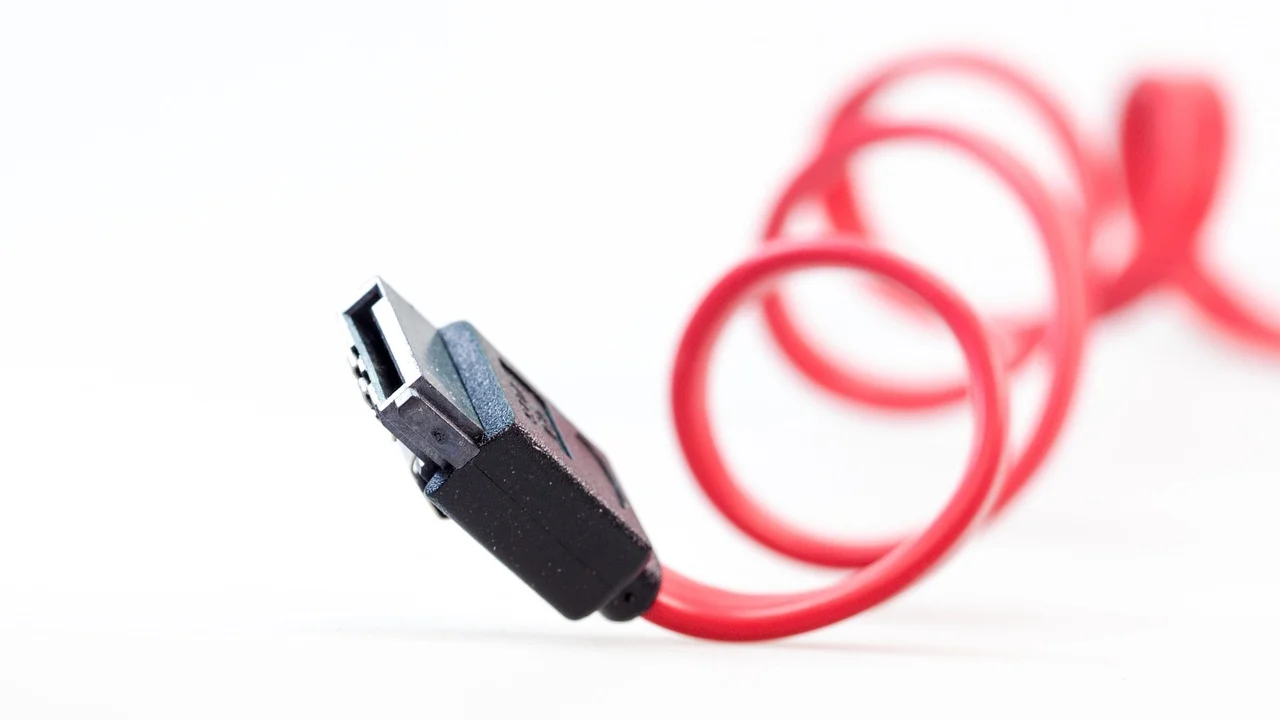
Do not assume a larger or more expensive SSD will solve an interface mismatch. Choose a replacement that matches the system: 2.5-inch SATA for a SATA bay, M.2 SATA for a SATA-capable M.2 slot, or NVMe for an NVMe-capable M.2 slot. For desktops, also consider heatsink clearance and lane-sharing rules.
FAQ: SSD Not Recognized by BIOS
Can Windows detect an SSD that BIOS does not detect?
Usually no. BIOS or UEFI detection occurs before Windows loads. If the drive is absent from firmware, solve the physical connection, compatibility, slot, or drive issue first.
Why is my NVMe SSD not listed under SATA devices?
NVMe drives use PCIe rather than SATA. Look for a dedicated NVMe configuration page, storage information page, or system information screen in the firmware.
Will resetting BIOS settings erase files on my SSD?
No, loading BIOS defaults does not erase SSD files. It can change boot order, RAID/AHCI settings, memory profiles, and other system settings, so document custom configuration before resetting.
Can an M.2 SSD fit but still be incompatible?
Yes. M.2 describes the physical form factor, not the communication protocol. An M.2 SATA drive and an M.2 NVMe drive require compatible socket support.
Should I initialize the SSD in Windows?
Only if BIOS detects the correct drive and it is new or intentionally blank. Do not initialize a drive that contains data you need, because initialization and partitioning can make recovery more difficult.
Conclusion
An SSD that is not recognized by BIOS is most often a connection, port-sharing, M.2 protocol, or configuration problem—not automatically a dead drive. Start with secure physical checks, verify the exact interface supported by the system, then review firmware storage pages and test components methodically. When a previously working drive holds important files, prioritize data preservation over aggressive troubleshooting.
References
About the author
Stefano Barcellos
Editor jefe de SaberTec
Editor jefe de SaberTec. Coordina la línea editorial, revisa la precisión de los contenidos y supervisa su publicación en 20 idiomas.
View full profile