
Laptop Battery Not Charging? Causes and Fixes
A laptop battery that will not charge can stem from a loose cable, failing adapter, worn battery, temperature limits, firmware, or power settings. Use this practical U.S.-focused guide to identify the cause, protect your data, and decide when repair or replacement makes sense.
Table of contents
- Understand What “Not Charging” Means
- Common symptoms and likely directions
- Start With Safe External Checks
- Check wattage and charging standards
- Rule Out Heat, Moisture, and Physical Damage
- Check Battery Limits and Power Settings
- Windows checks worth trying
- Reset the Power System and Battery Driver
- Step-by-step troubleshooting plan
- Know When the Battery Is Simply Worn Out
- Replacement choices
- When the Charger or Port Is the Real Problem
- Repair, Replace, or Upgrade?
- Frequently Asked Questions
- Why does my laptop say plugged in but not charging?
- Can I use my laptop while the battery is not charging?
- Will leaving a laptop plugged in ruin the battery?
- How do I know whether my USB-C charger is powerful enough?
- Is a swollen laptop battery dangerous?
- Conclusion
- References
A laptop that runs only when plugged in—or shows “plugged in, not charging”—can interrupt work, school, travel, and everyday tasks. The underlying issue is not always a dead battery. A damaged charging cable, an underpowered USB-C charger, a dirty port, a heat-related protection feature, a driver problem, or a battery preservation setting can all stop normal charging.
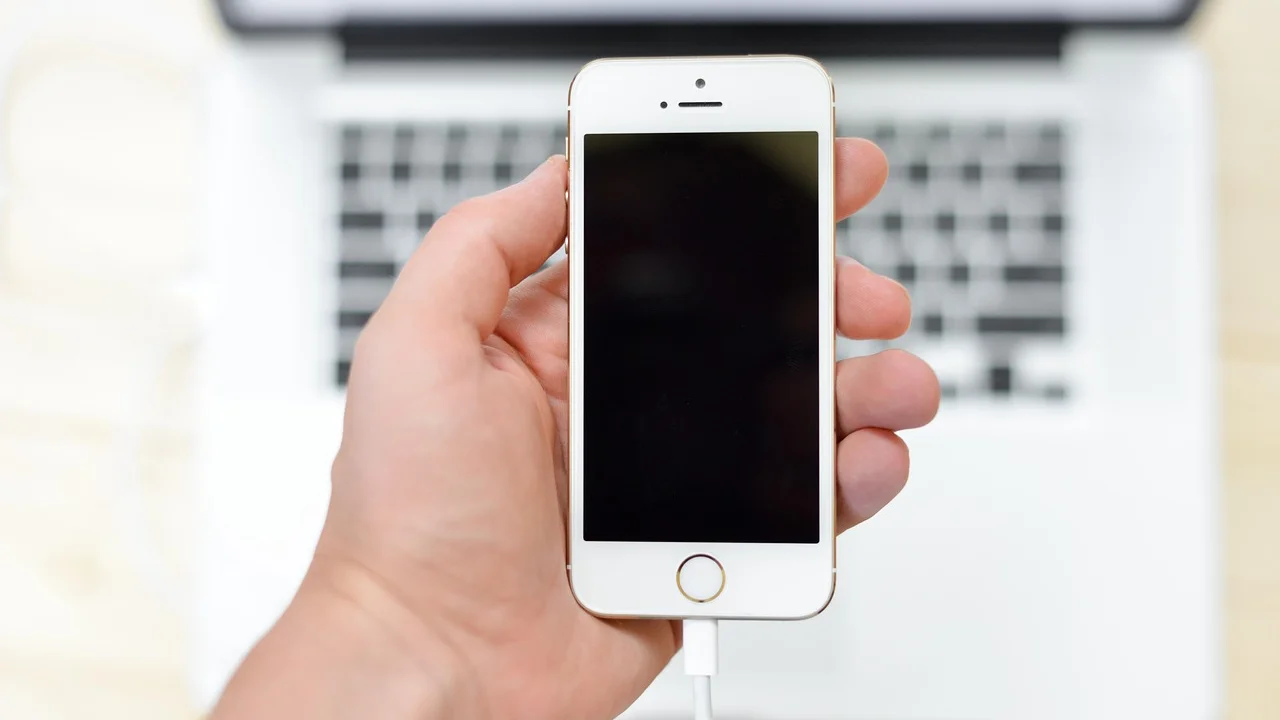
The safest approach is to begin with simple external checks and then move toward software and hardware diagnosis. Avoid repeatedly forcing connectors, opening the battery compartment, or using a questionable third-party power adapter. Those shortcuts can damage the charging port, motherboard, or battery pack.
Understand What “Not Charging” Means
The message on the battery icon matters. “Plugged in, charging” with a battery percentage that rises very slowly may point to a weak charger, a high-power workload, or a worn battery. “Plugged in, not charging” commonly appears when the computer is intentionally holding a charge limit or cannot accept power properly. If the laptop immediately shuts down when unplugged, the battery may have little remaining usable capacity or may be disconnected internally.
Also distinguish between a charging issue and a power issue. If the laptop will not turn on even with the charger connected, diagnose the adapter, outlet, charging port, and internal power circuitry first. A battery replacement alone may not solve that situation.
Common symptoms and likely directions
- Battery stays at 0%: The battery may be deeply degraded, the adapter may be insufficient, or the charging circuit may have a fault.
- Charge stops around 50% to 80%: A battery-care limit may be enabled, especially on business and gaming laptops.
- Charging starts only at a certain cable angle: Suspect cable damage, debris, or a worn charging port.
- Battery drains while plugged in: The adapter may not supply enough wattage for the workload, particularly with USB-C systems.
- Battery is missing from the operating system: Look at drivers, firmware, internal connections, or a failed battery management system.
Start With Safe External Checks
First, save open work if possible and shut the laptop down. Inspect the charger brick, cable, connector, and wall outlet in good lighting. Look for cracked insulation, bent pins, scorch marks, exposed wire, swelling, or a burnt smell. Stop using any charger with visible damage.
Plug the charger directly into a known-working wall outlet rather than a loose power strip, extension cord, dock, or travel adapter. If the adapter has an indicator light, note whether it turns on. For removable AC cords, firmly reseat both ends: the wall-to-brick connection can loosen over time.
Check wattage and charging standards
Use the adapter supplied with the laptop whenever possible. A low-wattage USB-C phone charger might power an idle ultraportable but will often fail to charge it during use. Many laptops require 45 watts, 65 watts, 90 watts, 100 watts, or more. Some high-performance models also require a proprietary barrel connector or a higher-power USB-C implementation.
| What you observe | Most likely cause | Useful next action |
|---|---|---|
| No charging light or power response | Outlet, adapter, cable, port, or board issue | Test a known-good compatible charger and outlet |
| Charging works intermittently | Frayed cable, loose plug, or worn port | Inspect without bending the connector; arrange repair if movement affects charging |
| Stops at 80% | Battery charge threshold enabled | Check the manufacturer’s battery or device management app |
| Drains under heavy use while connected | Underpowered adapter or demanding workload | Confirm required wattage and test while the laptop is idle |
| Shuts down immediately when unplugged | Failed, disconnected, or severely worn battery | Run a battery report and seek service if health is poor |
Rule Out Heat, Moisture, and Physical Damage
Lithium-ion batteries have built-in safety controls. Charging may pause when the pack or device is too hot or too cold. Let the laptop reach room temperature on a hard, ventilated surface, then try again. Do not place it in a refrigerator, near a heater, or under blankets to speed up the process.
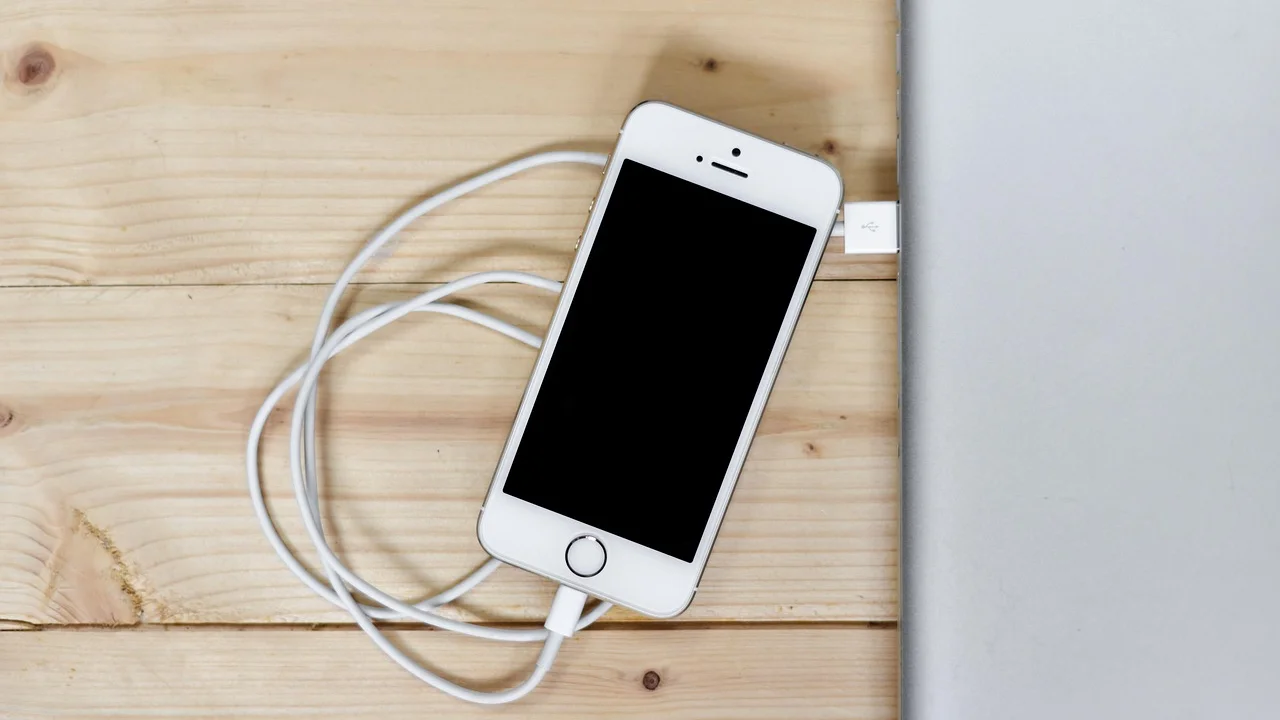
If liquid was spilled on the laptop or its charger, unplug it immediately and do not attempt to recharge it until it has been professionally evaluated. Corrosion can create a delayed electrical hazard. Likewise, a swollen battery needs prompt attention. Signs include a bulging bottom case, lifted keyboard or trackpad, gaps in the chassis, or a laptop that no longer sits flat.
The U.S. Consumer Product Safety Commission advises consumers to stop using lithium-ion battery products if they show signs of damage, overheating, leakage, odor, swelling, or other abnormal behavior.
U.S. Consumer Product Safety Commission
Do not puncture, compress, or throw away a swollen battery in household trash. Contact the laptop manufacturer, a qualified repair shop, or a local electronics recycling program for safe handling.
Check Battery Limits and Power Settings
Many current laptops include a feature designed to extend battery lifespan by avoiding a constant 100% charge. Depending on the manufacturer, it may be called Smart Charging, Adaptive Charging, Battery Health Manager, Conservation Mode, or a charging threshold. A cap at 80% is often intentional, not a malfunction.
Open the manufacturer’s support or device-management application and look for battery settings. If you need a full charge before a flight or long day away from an outlet, temporarily disable the threshold. Re-enable it afterward if the laptop spends most of its life connected to AC power.
Windows checks worth trying
Restart the computer before making deeper changes. Then open Settings and confirm that Battery Saver is not confusing the situation; it normally does not prevent charging, but it may change performance and battery estimates. Install pending Windows updates and manufacturer updates for BIOS or firmware only when the laptop is connected to stable power. Interrupting a firmware update can cause serious problems.
On a Windows laptop, you can also generate a battery report. Open Command Prompt as an administrator and enter powercfg /batteryreport. Windows saves an HTML report that compares the battery’s original design capacity with its current full-charge capacity. A large gap is strong evidence of normal aging rather than a software glitch.
Reset the Power System and Battery Driver
A power reset clears residual electrical state and can resolve occasional charging-controller errors. It is low risk when done carefully. If your laptop has a removable battery, follow the manufacturer’s manual; modern laptops often have sealed internal batteries and should not be opened by inexperienced users.

Step-by-step troubleshooting plan
- Shut down the laptop completely, not just sleep or hibernate it.
- Disconnect the charger, dock, USB devices, external display, and other accessories.
- Hold the power button for 15 to 30 seconds to discharge residual power.
- Reconnect only the original or verified compatible charger directly to a wall outlet.
- Start the laptop and wait 10 to 15 minutes before judging whether the percentage changes.
- If it still does not charge, open Device Manager, expand Batteries, and restart the entries listed as Microsoft AC Adapter and Microsoft ACPI-Compliant Control Method Battery. Do not download random driver utilities.
- Restart once more and test with a second known-good compatible adapter if one is available.
For USB-C laptops, test each charging-capable USB-C port. Not every USB-C port accepts power input, and ports may have different capabilities. Remove hubs and docks during testing because they add another potential point of failure.
Know When the Battery Is Simply Worn Out
All rechargeable lithium-ion batteries lose capacity over time. The pace depends on heat exposure, charging habits, usage, and charge cycles. A laptop may still be perfectly usable with a degraded battery if it works reliably on AC power, but a new battery can restore mobility.
Battery health reports are more useful than guessing. Compare full-charge capacity with design capacity, and watch for sudden percentage drops, unexpected shutdowns, or a battery that moves from 30% to 0% quickly. Apple users can review battery condition within macOS, while Windows users can use the battery report and the manufacturer’s diagnostics. The ENERGY STAR program also offers general guidance on reducing computer energy use, which can help stretch limited runtime when replacement is not immediate.
Replacement choices
For an internal battery, manufacturer-authorized service is usually the safest option, especially if the laptop is under warranty or uses adhesives and delicate components. A reputable independent repair shop can be practical for an older device, but ask whether it uses an original-equipment or high-quality replacement battery and whether labor is warranted. Extremely cheap batteries from unknown sellers can have inaccurate capacity ratings and inconsistent safety protections.
When the Charger or Port Is the Real Problem
A failing adapter can appear normal until the laptop draws significant power. If a compatible replacement charger immediately resolves the problem, retire the old one. Check the output rating printed on the charger label and match voltage, connector type, USB-C Power Delivery compatibility, and minimum wattage to the laptop’s documented requirements.
Charging ports can collect lint or become mechanically loose. With the laptop powered off and unplugged, inspect the port with a flashlight. Do not insert metal objects. Compressed air used in short, careful bursts may remove loose debris, but a bent center pin, scorched port, or connector that wiggles excessively calls for professional service.
If you suspect the adapter or battery is unsafe, review product recalls through the U.S. Consumer Product Safety Commission recall database. Stop using recalled charging equipment until you have followed the remedy instructions.
Repair, Replace, or Upgrade?
Choose repair when the laptop is otherwise meeting your needs, the charging port or battery is the only issue, and the estimate is reasonable relative to the device’s value. A battery replacement often makes sense for a laptop that is a few years old and still receives security updates. A port repair can also be worthwhile, particularly for a higher-end model.
Consider replacement when multiple expensive parts are failing, battery runtime remains poor after replacement, the device cannot run a supported operating system securely, or repair approaches the cost of a comparable new laptop. Before sending any computer for service, back up important files and, if possible, sign out of sensitive accounts.
Frequently Asked Questions
Why does my laptop say plugged in but not charging?
The most common explanations are a battery-health charge limit, an aging battery, a charger that is not providing enough power, or a temporary driver or charging-controller error. Start by checking the manufacturer battery settings and testing the correct charger directly from a wall outlet.
Can I use my laptop while the battery is not charging?
Yes, if the charger and laptop show no signs of damage or overheating. However, save work frequently because the computer may shut off if the adapter connection fails. Stop using the device if the battery swells, the charger gets unusually hot, or you smell burning.
Will leaving a laptop plugged in ruin the battery?
Modern laptops manage charging automatically, but heat and prolonged time at a very high charge can contribute to battery aging. If your laptop offers an 80% charge limit, using it while the device stays at a desk can be beneficial.
How do I know whether my USB-C charger is powerful enough?
Check the wattage specified by the laptop manufacturer, then compare it with the charger’s output and the cable’s rating. A 20-watt phone charger is usually inadequate for a laptop that expects 65 watts or more. Use a certified cable rated for the needed power.
Is a swollen laptop battery dangerous?
It can be. Swelling indicates battery failure and may increase the risk of damage or fire. Shut down the laptop, unplug it, avoid pressure on the case, and arrange professional service or approved recycling promptly.
Conclusion
A laptop battery not charging is often solvable without replacing the computer. Begin with the outlet, correct charger, cable, and port; then check temperature, battery limits, and drivers. If battery health is poor or physical damage is present, prioritize safe replacement or professional repair. Careful testing prevents unnecessary purchases and helps protect both your device and your data.

References
About the author
Stefano Barcellos
Editor jefe de SaberTec
Editor jefe de SaberTec. Coordina la línea editorial, revisa la precisión de los contenidos y supervisa su publicación en 20 idiomas.
View full profile