
Dark Webcam Image on Video Calls: Fixes That Work
A dark webcam image can make video calls frustrating and unprofessional. Learn how to improve lighting, adjust exposure and app settings, update drivers, and identify when your camera hardware may need replacement.
Table of contents
- Why Your Webcam Looks Dark During Calls
- Common causes at a glance
- Start With Lighting, Not Software
- Make a simple three-point improvement
- Clean and Inspect the Webcam Hardware
- Check the physical environment
- Adjust Camera Settings in Windows and macOS
- Windows camera checks
- macOS camera checks
- Fix Settings Inside Zoom, Teams, and Other Call Apps
- Disable competing camera apps
- Set Exposure, Gain, and White Balance Carefully
- Update Drivers and Rule Out a Hardware Issue
- When replacement makes sense
- A 10-Minute Dark Webcam Troubleshooting Plan
- FAQ: Dark Webcam Image on Video Calls
- Why is my webcam dark even though my room looks bright?
- Why does my webcam get dark when I sit near a window?
- Can I fix a dark laptop webcam without buying a ring light?
- Does increasing webcam brightness improve video quality?
- Why is my webcam dark in one app but normal in another?
- Conclusion
- References
A dark webcam image on video calls is one of the most common camera problems for remote workers, students, telehealth patients, and anyone trying to look clear on Zoom, Microsoft Teams, Google Meet, or FaceTime. The good news is that a dim picture usually does not mean your webcam is broken. More often, the camera is reacting to poor lighting, a bright background, an incorrect exposure setting, or a software conflict.
Webcams use small image sensors that need considerably more light than a modern phone camera. When there is not enough light, the camera may brighten the image digitally, creating grain and motion blur, or it may keep the image dark to avoid excessive noise. The most reliable solution is usually to improve the light reaching your face, then check the camera and app settings.
Use this guide to isolate the cause, make practical changes with equipment you may already own, and decide whether a new webcam is actually necessary.
Why Your Webcam Looks Dark During Calls
A webcam measures the entire scene, not just your face. This matters because a bright window, lamp, or white wall behind you can cause automatic exposure to darken everything in front of it. The camera attempts to preserve the bright area, leaving your face underexposed.
Low indoor light is another frequent cause. A room can feel adequately lit to your eyes, which continuously adapt to changing conditions, while still being too dim for a webcam. Small laptop cameras are particularly prone to this issue because their sensors and lenses have limited light-gathering ability.
Common causes at a glance
- A window or strong lamp is directly behind you.
- Your main light is above or behind your head instead of in front of you.
- Auto-exposure or brightness settings are set poorly.
- The video meeting app applies a filter, background effect, or low-light setting.
- Webcam drivers, firmware, or privacy settings are interfering with the feed.
- The lens is dirty, covered by a privacy shutter, or damaged.
- An older or low-cost camera struggles in normal indoor lighting.
Start With Lighting, Not Software
Before changing any menu setting, change the scene. Lighting has a bigger effect on webcam quality than most software adjustments. Position yourself so the brightest light source is in front of you and slightly above eye level. Daylight from a window can work well if you face the window rather than sit with it behind you.
Make a simple three-point improvement
You do not need a studio setup. Try a desk lamp with a shaded bulb placed behind your screen and aimed toward a wall, or use a small LED light beside the webcam. Indirect light is softer and reduces shiny spots on skin and glasses. If you use a ring light, start at a low setting and raise it only enough to make your face clear.
Also manage your background. Close blinds behind you, rotate your desk away from a bright window, or add a curtain. If you cannot move, a small front-facing lamp may provide enough fill light to balance the scene.
| Lighting setup | Typical result | Best adjustment |
|---|---|---|
| Bright window behind you | Face appears as a silhouette | Turn to face the window or close the shade |
| Overhead room light only | Dark eye sockets and shadows | Add a soft light near the screen |
| Dim room at night | Dark, noisy, blurry video | Use a lamp or LED key light in front |
| Strong light on one side | One half of face is too dark | Diffuse the light or add fill from the other side |
| Ring light set too high | Washed-out skin and glare | Lower brightness and move it slightly off-center |
“The most important thing is to put the light in front of you, not behind you,” a practical principle echoed in the University of Michigan’s guidance on improving videoconferencing appearance.
University of Michigan, ITS videoconferencing guidance
Clean and Inspect the Webcam Hardware
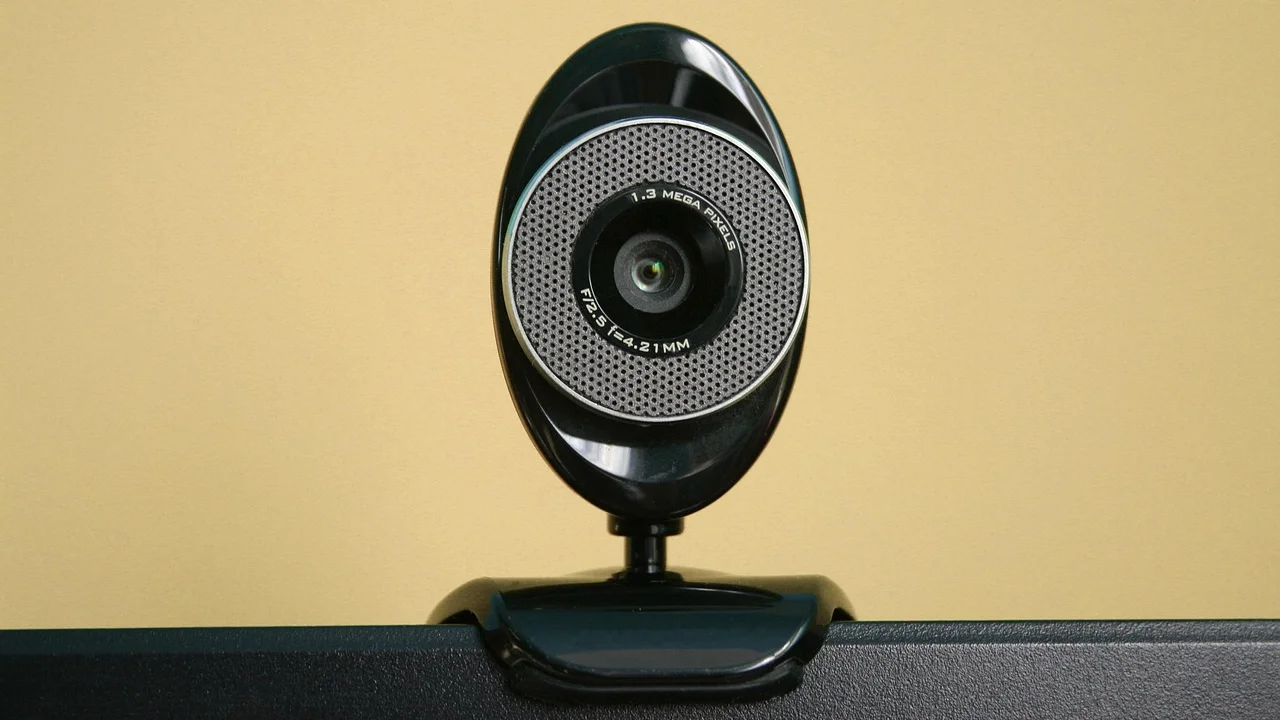
A surprisingly simple issue can produce a dim image: fingerprints, dust, or a partially closed privacy shutter. Turn off the camera, then gently wipe the lens with a clean microfiber cloth. Do not spray cleaner directly onto the webcam. If needed, lightly dampen the cloth with lens-cleaning solution or distilled water and let the lens dry fully.
For an external USB webcam, make sure its privacy cover is fully open and that the camera is level with your eyes. A camera positioned low can point toward a bright ceiling light or window, forcing the auto-exposure system to darken your face. Try another USB port if the image intermittently dims, freezes, or disconnects.
Check the physical environment
Remove any film, sticker, or case edge that overlaps the laptop camera. On some business laptops, the webcam shutter is a tiny slider above the display and can appear open while still partly blocking the lens. Look closely under good light.
Adjust Camera Settings in Windows and macOS
Camera controls vary by webcam and operating system. If your camera supports them, brightness, exposure, gain, contrast, and white balance can make a substantial difference. Start modestly: overly aggressive brightness or gain will create a pale, grainy image.
Windows camera checks
Open the built-in Camera app to determine whether the problem exists outside your meeting application. If the preview is dark there too, the cause is likely lighting, hardware, or a system-level driver setting. In Windows, confirm that camera access is enabled under Settings, Privacy & security, Camera. Microsoft provides current instructions in its camera troubleshooting guide.
For an external webcam, install the manufacturer’s current software and driver from its official support page. Those controls often allow manual exposure adjustment. Lower exposure values can help when a bright window is in frame; in a dim room, use a slightly longer exposure only if you can remain reasonably still.
macOS camera checks
Open Photo Booth or FaceTime and compare the preview with the meeting app. If the image is dark everywhere, restart the Mac and disconnect and reconnect an external USB webcam. macOS does not expose many universal manual webcam controls, so your camera manufacturer’s app may be the most useful place to make changes.
Check System Settings, Privacy & Security, Camera, and confirm that the app you are using has permission. If an app does not have access, it may show a black frame rather than a dim one, but permission conflicts can also cause unstable behavior.
Fix Settings Inside Zoom, Teams, and Other Call Apps
Meeting software can change your appearance independently of the operating system. Open the app’s video preview before joining a call. Confirm the correct camera is selected, then turn off visual effects one at a time. Virtual backgrounds, portrait blur, low-light enhancements, and appearance filters can reduce detail or alter exposure on some computers.
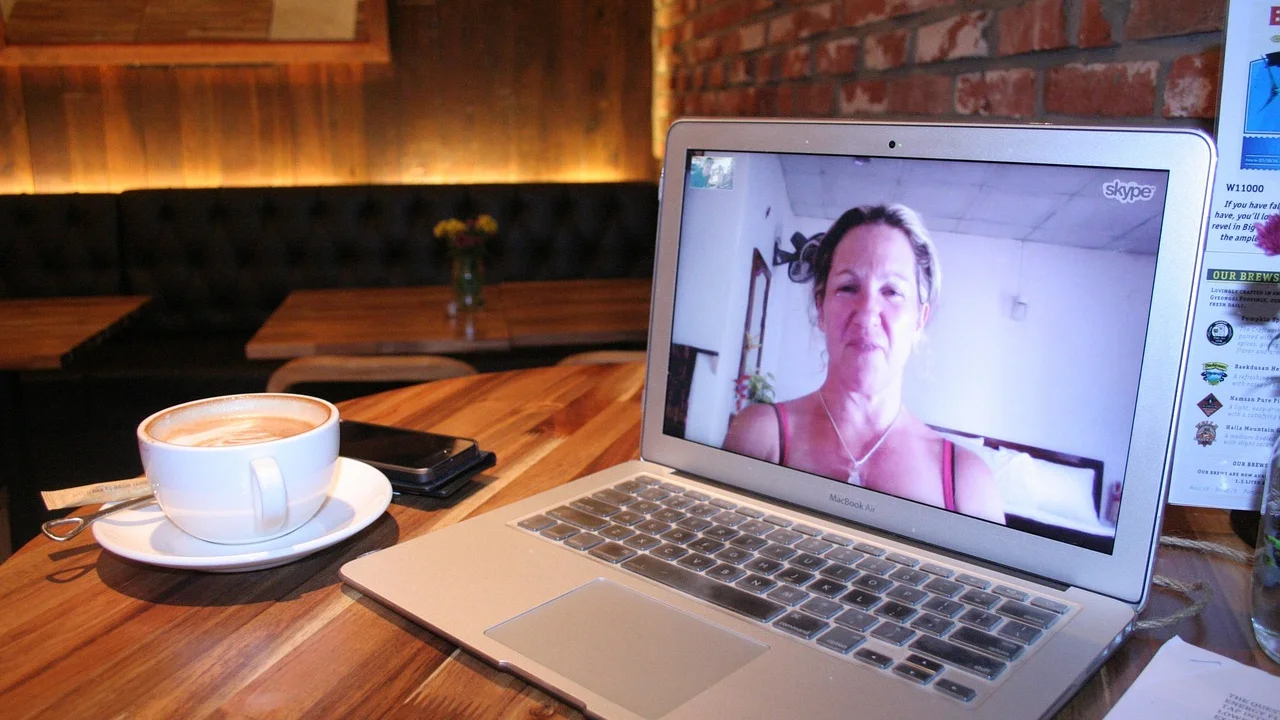
In Zoom, open Settings, Video, and use the preview to inspect lighting and framing. In Teams, open Settings, Devices, then choose the camera and review video effects. Google Meet settings are available from the three-dot menu during a meeting. The labels change over time, but the troubleshooting logic is the same: compare the app preview with your operating system’s camera preview.
Disable competing camera apps
Only one application may be able to control a webcam at a time. Quit streaming tools, browser tabs, recording apps, and vendor camera utilities before launching your meeting software. If your image gets dark only after opening one program, that program may be retaining manual exposure settings or applying an effect.
Set Exposure, Gain, and White Balance Carefully
Manual controls can solve difficult lighting situations, but they should be adjusted in the right order. Exposure determines how long the sensor collects light. Gain amplifies the sensor signal. Brightness is often a digital adjustment applied after capture. For a natural image, use sufficient physical light first, then exposure, and use gain sparingly.
- Turn on your front-facing light and eliminate strong backlight.
- Set white balance to automatic unless colors look consistently too warm or blue.
- Enable auto-exposure and see whether it produces an acceptable image.
- If your face is still dark, slightly increase exposure or reduce the bright background.
- Increase gain only a small amount if exposure cannot go higher without motion blur.
- Check the image while moving your hands and speaking to ensure it does not smear or flicker.
Flicker can occur when lighting and camera shutter timing do not match. In the United States, household power runs at 60 Hz. If your webcam software offers anti-flicker options, select 60 Hz. This is especially helpful with certain LED bulbs and older fluorescent fixtures.
Update Drivers and Rule Out a Hardware Issue
If lighting and settings do not help, update the webcam driver, operating system, and meeting app. Windows users can check Device Manager for camera errors and use Windows Update, while external camera owners should look for manufacturer firmware updates. Avoid random driver-download websites; use Windows Update or the camera maker’s support page.
Test the webcam in a second app and, for an external USB model, on another computer. A dark image in every app and on every device points toward a hardware limitation or failure. A camera that was once bright but has suddenly become dim may have a damaged sensor, a failing cable, or a lens obstruction.
When replacement makes sense
Consider a replacement when the webcam stays noisy and dark under normal front lighting, fails across devices, or cannot maintain a usable image without extreme gain. Look for a model with reliable low-light performance, a wider aperture, 1080p resolution at 30 frames per second, and manual exposure support. Resolution alone does not guarantee a brighter image; sensor quality and lighting remain more important.
A 10-Minute Dark Webcam Troubleshooting Plan
Follow this sequence before an important interview, class, or client meeting. It minimizes the chance of changing several variables at once and losing track of what fixed the problem.

- Open the camera preview in your meeting app.
- Face a window or place a lamp behind your monitor.
- Close blinds or move any bright light out of the background.
- Clean the webcam lens and verify the privacy shutter is fully open.
- Turn off virtual backgrounds, blur, and beauty filters.
- Test the camera in Windows Camera, Photo Booth, or another basic app.
- Restart the meeting app, then restart the computer if necessary.
- Update the camera app or driver from an official source.
- Use manual exposure or gain controls only after improving physical lighting.
- Make a short test recording and review it at normal screen brightness.
For calls involving medical care, legal matters, or work security, avoid installing unverified “webcam enhancer” software. Keep your operating system and conferencing app updated, and review what camera permissions each application has. The Cybersecurity and Infrastructure Security Agency offers general practices for protecting devices and accounts used for online communication.
FAQ: Dark Webcam Image on Video Calls
Why is my webcam dark even though my room looks bright?
Your eyes adapt far better than a webcam sensor. Overhead lighting may make the room feel bright while leaving your face in shadow. Add soft light in front of you and remove bright backlighting.
Why does my webcam get dark when I sit near a window?
The window is likely brighter than your face. Auto-exposure meters the full frame and reduces exposure to avoid blowing out the window. Face the window, close the shade, or add a front-facing light.
Can I fix a dark laptop webcam without buying a ring light?
Yes. Face a window during daylight, reposition an existing desk lamp behind the screen, use a light-colored wall to bounce light, and disable virtual backgrounds. A ring light is optional, not required.
Does increasing webcam brightness improve video quality?
It may make the picture look lighter, but digital brightness cannot restore details lost in poor lighting. Too much brightness can make skin look gray or washed out. Add real light first.
Why is my webcam dark in one app but normal in another?
The affected app may use a different camera, apply effects, lack permission, or have an app-specific video setting. Compare both previews, select the same webcam, and disable effects before reinstalling or resetting the app.
Conclusion
Most dark webcam problems are solved by placing soft light in front of your face and keeping bright windows or lamps out of the background. Once the scene is balanced, clean the lens, compare the camera across apps, and make careful exposure adjustments if your device supports them. Updates and replacement should be later steps, not the first response. A few minutes of setup can make your calls clearer, more professional, and much less tiring for everyone watching.
References
About the author
Stefano Barcellos
Editor jefe de SaberTec
Editor jefe de SaberTec. Coordina la línea editorial, revisa la precisión de los contenidos y supervisa su publicación en 20 idiomas.
View full profile