
Wi-Fi Connected but No Internet: How to Fix It
When Wi-Fi is connected but there is no internet, the problem may be your device, router, modem, DNS settings, or internet provider. Use this practical troubleshooting guide to isolate the cause, restore service safely, and know when to contact support.
Table of contents
- What “Wi-Fi Connected but No Internet” Actually Means
- Use other devices as your first clue
- Common Causes and the Best First Response
- Start With Quick Checks That Do Not Change Settings
- Power-Cycle Your Modem and Router Correctly
- Safe restart sequence
- Fix a Device That Is the Only One Offline
- Forget and rejoin the Wi-Fi network
- Review automatic address and DNS settings
- Handle Public Wi-Fi and Sign-In Pages
- When the Problem Is Your ISP or Equipment
- A 15-Minute Troubleshooting Plan
- Prevent Repeat Wi-Fi and Internet Problems
- Frequently Asked Questions
- Why does my Wi-Fi say connected but no internet?
- Should I reset my router to factory settings?
- Can a VPN cause Wi-Fi to have no internet?
- Why does the internet work on one device but not another?
- How long should I wait after restarting my modem?
- Conclusion
- References
Seeing a full Wi-Fi signal while every webpage, app, and video fails to load is frustrating. The message usually appears as “Wi-Fi connected but no internet,” “No internet connection,” or “Connected, secured.” It means your device can communicate with the local wireless network, but that network cannot successfully reach the wider internet.
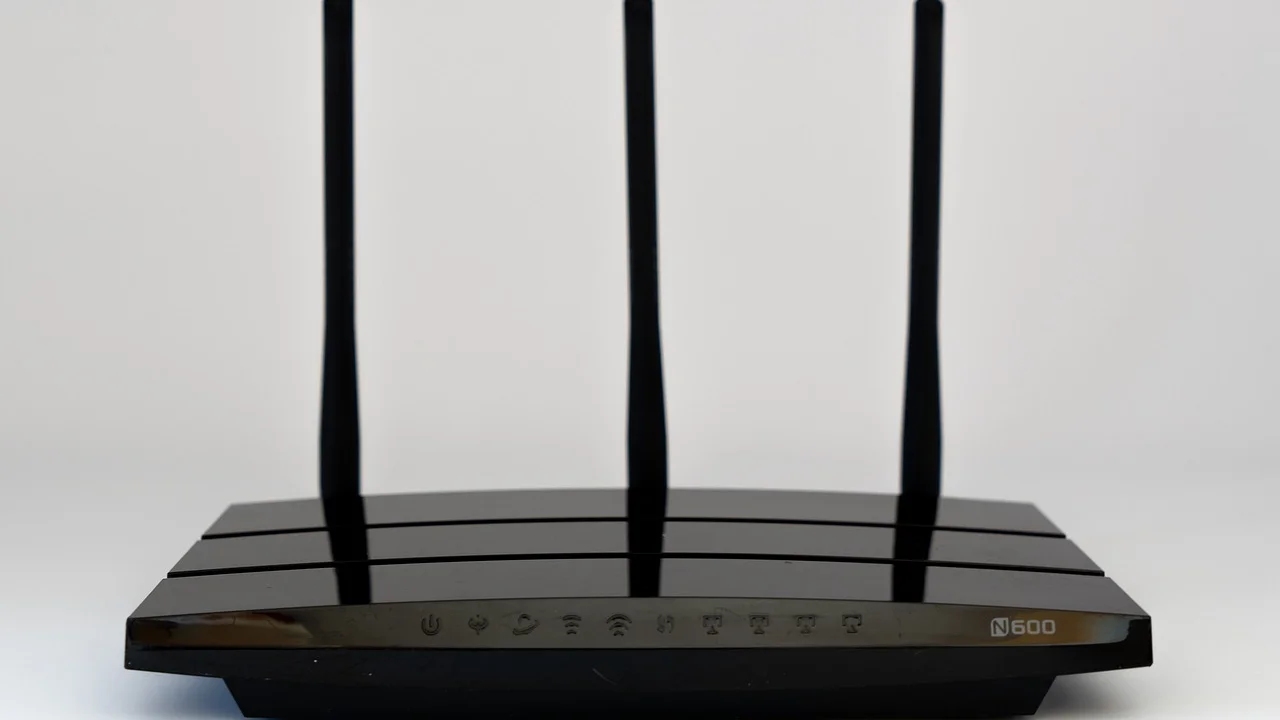
The cause may be temporary and simple, such as a provider outage or a loose modem cable. It can also be isolated to one phone or computer because of a bad IP address, VPN, DNS setting, or sign-in requirement. The fastest approach is not to change everything at once: test a few clues, identify where the connection breaks, and apply the appropriate fix.
This guide is designed for common U.S. home networks, including cable, fiber, fixed wireless, and DSL service. It also covers public Wi-Fi and gives you a clear point at which contacting your internet service provider (ISP) makes sense.
What “Wi-Fi Connected but No Internet” Actually Means
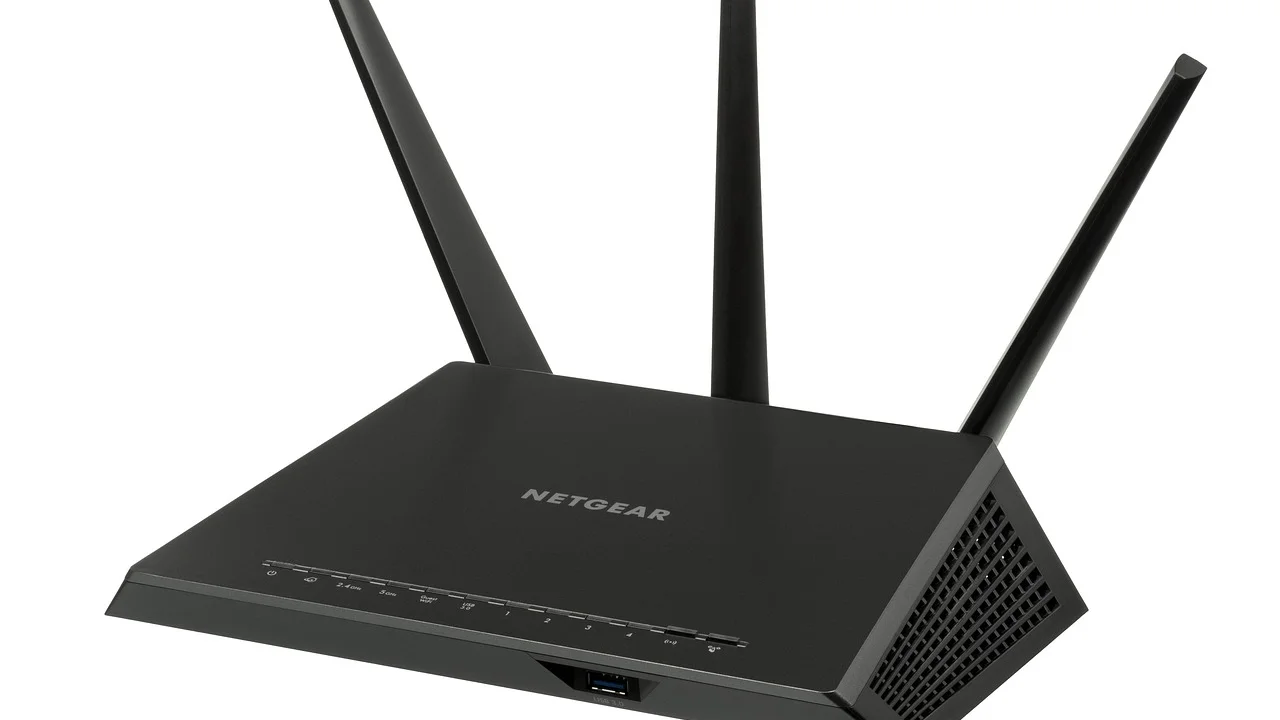
Wi-Fi and internet access are related but separate layers of a connection. Your router broadcasts a local wireless network. When your phone or laptop joins it, the device receives a local network address and can often communicate with the router, printer, smart TV, or other devices in the home.
Internet access requires an additional working path: the router must reach the modem or fiber gateway, the equipment must authenticate with the ISP, and the ISP must have a functioning route to internet services. A failure anywhere in that chain can leave Wi-Fi connected while internet traffic fails.
Use other devices as your first clue
Try a second device on the same Wi-Fi network. If both devices cannot load multiple sites, suspect the router, modem, account, service line, or a neighborhood outage. If only one device has trouble, focus on that device’s network settings instead.
Also try two unrelated websites or apps. A single website can be down even when your connection is fine. If possible, turn off Wi-Fi on your phone and test with cellular data; if the site works on cellular but not Wi-Fi, the issue is likely within the home network or ISP connection.
Common Causes and the Best First Response
| Likely cause | Typical signs | Best first action |
|---|---|---|
| ISP outage | Every device is offline; modem may show a red or blinking status light | Check the ISP’s outage page or support app |
| Router or modem glitch | Service was working recently; all devices are affected | Power-cycle equipment in the correct order |
| Device-specific setting problem | One phone, tablet, or computer is offline while others work | Forget and rejoin the network; restart the device |
| DNS failure | Some apps work, but web addresses do not load reliably | Restart equipment, then review DNS settings |
| Captive portal or account sign-in | Common on hotel, airport, campus, or café Wi-Fi | Open a browser and complete the sign-in page |
| Loose cable or equipment fault | Unexpected outages, damaged cables, or no stable modem connection light | Inspect connections and contact the ISP if signals do not return |
Start With Quick Checks That Do Not Change Settings
Before resetting equipment or editing network settings, rule out the obvious. These checks can save time and avoid losing custom router settings.
- Confirm that airplane mode is off and Wi-Fi is on.
- Check whether the device accidentally joined a neighbor’s network, a guest network, or an old hotspot.
- Look at your modem, optical network terminal, or gateway lights. A light labeled Online, Internet, WAN, or PON should usually be solid or show the normal state described by your provider.
- Make sure coaxial, Ethernet, fiber, and power cables are firmly connected. Do not sharply bend or unplug a fiber cable.
- Check your ISP’s official app, website, or automated phone line for an outage in your area.
- If you recently moved equipment, verify that the modem is connected to the correct wall outlet and that a router’s WAN or Internet port—not a regular LAN port—connects to the modem.
Do not assume signal bars prove internet quality. Bars measure the connection between your device and the Wi-Fi access point, not the health of your ISP line or the availability of online services.
Power-Cycle Your Modem and Router Correctly
A proper restart can clear a stalled connection, renew an address from the provider, and restore communication between equipment. It is different from pressing a tiny recessed Reset button, which may erase configuration details and should be a last resort.
Safe restart sequence
- Unplug the power cable from the router. If you use one combined gateway, unplug only that unit.
- Unplug the modem or fiber gateway if it is a separate device.
- Wait at least 60 seconds. This allows stored electrical charge and temporary connection states to clear.
- Plug in the modem or fiber gateway first. Wait until its normal connection lights return; this can take several minutes.
- Plug in the router and wait another two to five minutes for Wi-Fi to reappear.
- Reconnect a device and test several websites.
If the modem’s Online or Internet light never returns to its usual state, the router is probably not the main issue. Check for an outage, inspect the service cable, and contact the ISP. Avoid repeatedly rebooting equipment during a known regional outage; it will not speed up restoration.
The Federal Communications Commission explains that broadband availability and service quality vary by location, and its consumer resources can help households understand their service options and submit complaints when needed.
Federal Communications Commission, Consumer Guides
Fix a Device That Is the Only One Offline
If another device can browse normally on the same Wi-Fi, preserve the working router configuration and troubleshoot the affected device first. Start with a restart, then disconnect and reconnect to the network.
Forget and rejoin the Wi-Fi network
On a phone, tablet, or computer, select the saved Wi-Fi network and choose “Forget,” “Remove,” or “Forget This Network.” Then select it again and enter the password carefully. This forces the device to request fresh local network information.
On Windows, you can also use the built-in network troubleshooter. On a Mac, verify that the Wi-Fi service is active and that no unusual proxy setting is selected. On any device, temporarily turn off a VPN, private relay service, custom firewall, or security app that may be intercepting traffic. Turn it back on after testing rather than leaving protection disabled indefinitely.
Review automatic address and DNS settings
For most home users, IP address assignment should be set to automatic, often called DHCP. Manually assigned addresses can become invalid after a router replacement or configuration change. DNS should also normally be automatic unless you intentionally use a reputable custom resolver.
If webpages fail while some services still work, DNS may be involved. Restarting the router and device often resolves it. If you choose a custom DNS service, record the original settings first so you can reverse the change. Do not download “internet repair” utilities from unknown sites; they can create security and privacy risks.
Handle Public Wi-Fi and Sign-In Pages
Hotels, airports, libraries, hospitals, universities, and coffee shops often use a captive portal. Your device may say it is connected before you accept terms, enter a room number, provide an email address, or receive a text verification code.
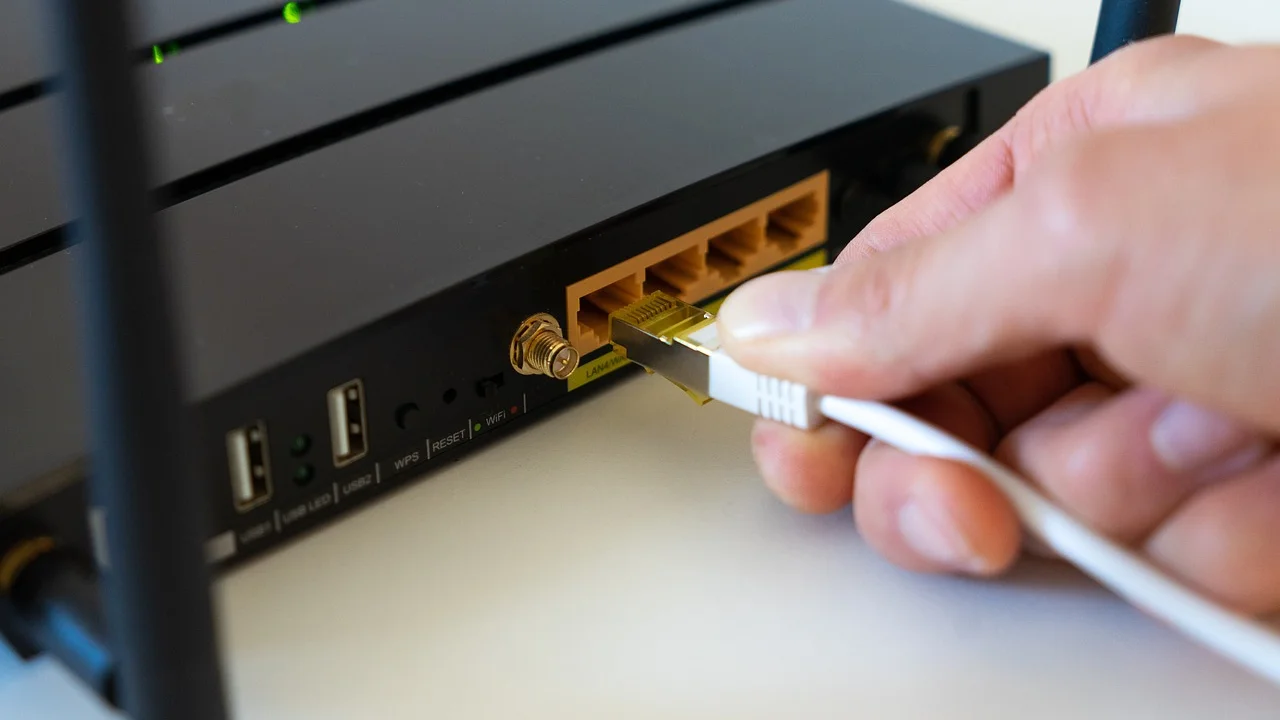
Open a web browser and visit a plain, non-secure address such as http://neverssl.com to prompt the portal. Once the sign-in page appears, follow the venue’s instructions. If it does not appear, disconnect and reconnect to the network, disable any VPN temporarily, and try again.
Treat public Wi-Fi as untrusted. Avoid accessing sensitive financial accounts unless you use secure connections and understand the risks. The Cybersecurity and Infrastructure Security Agency’s secure online guidance offers practical habits for protecting accounts and devices on shared networks.
When the Problem Is Your ISP or Equipment
Contact your ISP when every device is offline, the modem cannot establish its normal connection, an outage is not resolved within the expected window, or the service drops repeatedly. Have useful details ready: your account address, the time the issue began, modem light patterns, whether Wi-Fi remains visible, and whether you tested with more than one device.
Ask the representative to check signal levels, provisioning, account status, and known outages. If you use your own modem, confirm that it is approved for your plan and service type. Aging modems, overheating gateways, damaged coaxial lines, and failing power adapters can all create intermittent service.
If billing or service-quality problems remain unresolved after you work with the provider, the FCC Consumer Complaint Center provides a formal channel for telecommunications and broadband complaints in the United States. Keep service tickets, dates, screenshots, and a brief log of outages.
A 15-Minute Troubleshooting Plan
Use this sequence when you need a disciplined response instead of guessing. Stop when service returns, and make a note of what solved the issue for future reference.
- Test two websites or apps on the affected device.
- Test a second device on the same Wi-Fi network.
- Check for a provider outage through the ISP’s official channel.
- Inspect power, coaxial, Ethernet, or fiber connections without forcing cables.
- Power-cycle the modem or gateway, then the router, following the correct order.
- If only one device remains offline, restart it, forget the Wi-Fi network, and reconnect.
- Temporarily disable a VPN or proxy and check that IP and DNS settings are automatic.
- For public Wi-Fi, open a browser to trigger the sign-in portal.
- Contact the ISP with your observations if the modem still cannot get online.
Prevent Repeat Wi-Fi and Internet Problems
Place the router in an open, central location rather than inside a cabinet, behind a television, or next to a microwave. Keep firmware current using the manufacturer’s official administration page or app, and change the default administrator password. Use WPA2 or WPA3 security with a unique Wi-Fi passphrase.
For homes with many devices, restart behavior, placement, and equipment capacity matter. A five-year-old entry-level router may struggle with streaming, video calls, smart-home devices, and remote work at the same time. An upgraded router or mesh system can improve coverage, but it cannot fix a provider outage or a failing modem signal.
Keep a simple record of the router model, modem model, service plan, Wi-Fi name, and ISP support number. That preparation makes outages less stressful and helps support staff diagnose recurring issues more quickly.
Frequently Asked Questions
Why does my Wi-Fi say connected but no internet?
Your device has joined the local wireless network, but the router or gateway cannot reach the internet. Common reasons include an ISP outage, a modem connection failure, a router glitch, a captive portal, or a device-specific configuration problem.
Should I reset my router to factory settings?
Not as a first step. First power-cycle the equipment. A factory reset can erase your Wi-Fi name, password, custom DNS settings, parental controls, and ISP-specific setup. Use it only if the manufacturer or ISP directs you to do so after other steps fail.
Can a VPN cause Wi-Fi to have no internet?
Yes. A VPN can fail to connect, use an unavailable server, conflict with a captive portal, or block traffic through a kill-switch setting. Disconnect it briefly to test the underlying connection, then reconnect or adjust its settings if internet access returns.
Why does the internet work on one device but not another?
The router and ISP connection are likely working. The affected device may have a stale network profile, incorrect DNS or IP settings, VPN or proxy interference, outdated software, or a temporary hardware issue. Forgetting and rejoining the network is a useful first fix.
How long should I wait after restarting my modem?
Many cable and fiber connections return within two to 10 minutes, but the exact time varies by provider and equipment. Wait until the modem or gateway displays its normal Online, Internet, or PON status before judging whether the restart worked.
Conclusion
Wi-Fi connected but no internet is easier to solve when you separate a local Wi-Fi connection from the internet service behind it. Test another device, check for an outage, restart the modem and router in order, and then focus on device settings only if the problem is isolated. If the modem cannot reconnect or outages recur, document the details and involve your ISP.
References
About the author
Stefano Barcellos
Editor jefe de SaberTec
Editor jefe de SaberTec. Coordina la línea editorial, revisa la precisión de los contenidos y supervisa su publicación en 20 idiomas.
View full profile