
DNS Error When Opening Websites: Fix It Fast
A DNS error can make every browser look broken even when your internet connection is active. Learn what DNS does, how to isolate router, device, and provider issues, and use a safe, ordered troubleshooting plan to get websites loading again.
Table of contents
- Recognize the Signs of a DNS Problem
- DNS failure versus other connection problems
- Do a Quick Scope Check Before Changing Settings
- Watch for sign-in pages and filtering
- Restart the Connection in the Right Order
- Clear Local DNS and Browser Data
- Windows
- macOS, iPhone, and Android
- Compare DNS Server Options
- Where to make the change
- Check VPNs, Security Apps, and Custom Network Settings
- When the Router or ISP Is the Likely Cause
- Useful details to collect for support
- A 15-Minute DNS Recovery Checklist
- FAQ: DNS Errors When Opening Websites
- Can a DNS error affect only one website?
- Is it safe to use public DNS servers?
- Will changing DNS make my internet faster?
- Why does restarting the router sometimes solve the problem?
- Should I reset my router to factory settings for a DNS error?
- Conclusion
- References
A DNS error when opening websites can be confusing because the symptoms often look like a total internet outage. Your Wi-Fi may show a strong signal, streaming apps may still work, and yet your browser says that a site cannot be reached or that its server address cannot be found. In many cases, the connection itself is fine; the problem is that your device cannot translate a website name into the numeric address needed to reach it.
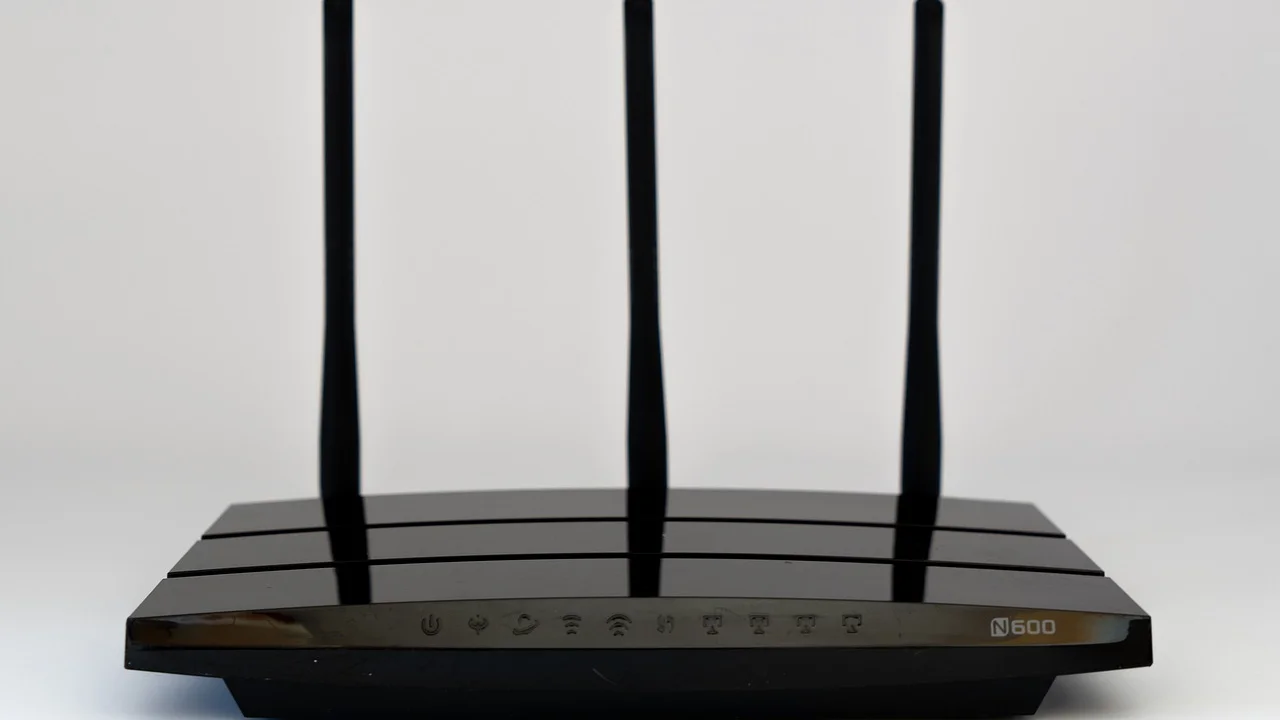
Domain Name System, or DNS, works much like a contact list for the internet. When you type a name such as example.com, DNS finds the corresponding IP address and directs your browser to the right server. A failure can occur on one device, throughout your home network, at your internet service provider, or at the website’s own DNS provider. The fastest fix comes from identifying which of those layers is failing before changing random settings.
This guide focuses on practical troubleshooting for households and small home offices in the United States. Start with the least disruptive checks, then move to device, router, and DNS-server changes only when the evidence points that way.
Recognize the Signs of a DNS Problem
Common browser messages include “DNS_PROBE_FINISHED_NXDOMAIN,” “server DNS address could not be found,” “This site can’t be reached,” or “We can’t reach this page.” Exact wording differs among Chrome, Edge, Firefox, Safari, and mobile browsers, but the pattern matters more than the phrase.
DNS failure versus other connection problems
A DNS issue is likely when website names fail but some internet services continue working. For example, an email app may keep syncing because it already knows its mail server address, while a browser cannot find a new website. A different cause is more likely if every online service fails, your router’s internet light is off, or multiple devices have no connection at all.
- Only one website fails: the website may be down, blocked, moved, or misconfigured.
- One device fails while another works on the same Wi-Fi: investigate that device’s browser, VPN, security software, DNS cache, or network settings.
- Every device on your home Wi-Fi fails: check the modem, router, ISP service status, and router DNS settings.
- Wi-Fi works but cellular data works differently: compare the two networks to narrow down whether the home connection is involved.
Do a Quick Scope Check Before Changing Settings
Before flushing caches or changing DNS servers, test the problem in a way that produces useful clues. Open two or three well-known sites in a second browser. Then try the same sites from another device connected to the same Wi-Fi. If possible, turn off Wi-Fi on your phone and test over cellular data.
If a site fails only on home Wi-Fi but opens on cellular data, the issue is likely in the home network, its DNS path, or an ISP-related routing problem. If the site fails everywhere, it may be a problem with the site itself. Checking a service-status page or asking someone on another network can prevent unnecessary changes.
Watch for sign-in pages and filtering
Hotels, airports, apartments, libraries, and some workplaces use captive portals that require you to accept terms or sign in. Open a plain, non-HTTPS web address if the network does not automatically show its login page. Also consider whether parental controls, workplace filtering, a security suite, or a custom router rule may be blocking a domain. Those situations are not usually DNS failures, even though the browser can display a similar error.
Restart the Connection in the Right Order
Restarting equipment is not a cure-all, but it is a sensible early step because it renews local network leases and clears temporary router problems. Do it in sequence rather than pressing every reset button you can find.
- Close and reopen the browser. Try a private or incognito window to rule out a bad extension or stale browser data.
- Disconnect and reconnect Wi-Fi on the affected device. On a laptop, forget and rejoin the network only if you know the Wi-Fi password.
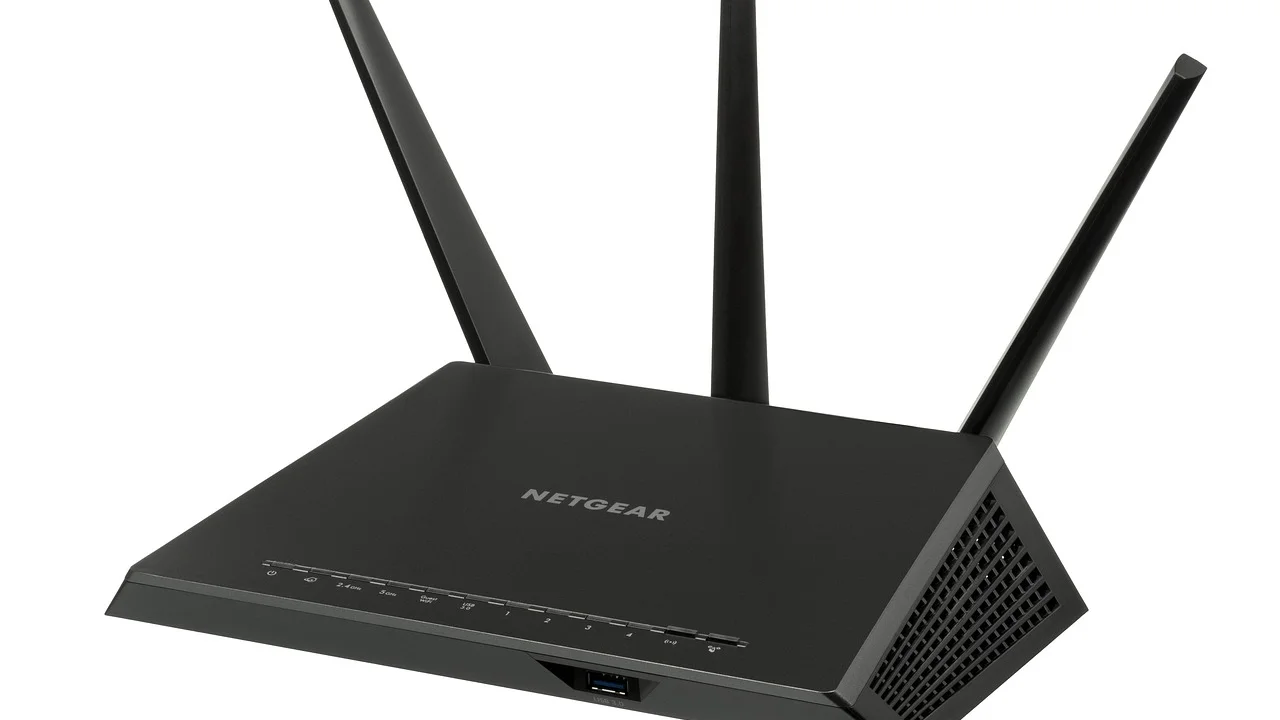
- Power off the modem and router. If they are separate devices, turn off both.
- Wait at least 60 seconds. This gives the equipment and some ISP connections time to release the previous session.
- Turn on the modem first and wait until it is fully online. Then turn on the router and wait a few minutes for Wi-Fi to return.
- Test several websites again on more than one device.
Avoid using the recessed factory-reset button unless you have exhausted other options. A factory reset removes customized network names, passwords, parental controls, port settings, and other configuration choices.
Clear Local DNS and Browser Data
Devices keep a temporary DNS cache to make repeat visits faster. If that stored information is outdated or corrupted, clearing it can help. This is especially useful when a site recently changed hosting or when only one computer has the problem.
Windows
Open Command Prompt as an administrator, type ipconfig /flushdns, and press Enter. You should see a confirmation that the DNS Resolver Cache was successfully flushed. Then close and reopen your browser. If the problem persists, restarting the computer can renew the network connection as well.
macOS, iPhone, and Android
On macOS, a restart is the simplest reliable consumer-level step, since the command can vary by version. You can also disconnect and reconnect Wi-Fi. On iPhone and Android, toggling Airplane Mode on briefly and then off, followed by reconnecting to Wi-Fi, can refresh network state. If one browser alone fails, clear that browser’s browsing data or temporarily disable extensions and content blockers.
Be cautious with “PC cleaner” apps that promise one-click network repairs. They may remove useful data, alter settings, or bundle unwanted software. Built-in operating-system tools are usually safer.
Compare DNS Server Options
Your router or device typically receives DNS servers automatically from your ISP. That is convenient, but a temporary ISP DNS outage, a poorly configured router, or slow resolver performance can cause lookups to fail. Testing a reputable public DNS resolver is a reasonable diagnostic step and can be a lasting choice if it improves reliability.
| DNS option | Common IPv4 addresses | Best use case | Important consideration |
|---|---|---|---|
| Automatic ISP DNS | Assigned automatically | Simple default setup | May be affected by local ISP resolver outages |
| Google Public DNS | 8.8.8.8 and 8.8.4.4 | Widely supported troubleshooting option | Review provider privacy documentation |
| Cloudflare 1.1.1.1 | 1.1.1.1 and 1.0.0.1 | Fast public resolver option | May interact differently with filtering tools |
| Quad9 | 9.9.9.9 and 149.112.112.112 | Users seeking malware-domain blocking | Blocking can occasionally affect legitimate domains |
For a source-controlled explanation of the underlying protocol, see the Internet Engineering Task Force standards, which include the technical specifications that guide DNS operation. A public DNS service does not fix a disconnected cable, expired internet account, regional service outage, or website that no longer exists.
Where to make the change
Changing DNS on one device is best for testing. If it resolves the issue, you can decide whether to leave that device as-is or set DNS in the router so most devices use the same resolver. Router menus vary by manufacturer, but the setting is commonly under Internet, WAN, DHCP, or Network settings. Record the original automatic setting before making changes, and use the provider’s official support documentation for your exact router model.
“The DNS is a distributed database that maps domain names to IP addresses and other data.”
Internet Corporation for Assigned Names and Numbers (ICANN), DNS overview
Check VPNs, Security Apps, and Custom Network Settings
VPNs, antivirus suites, encrypted-DNS tools, ad blockers, and parental-control apps can install network filters or route DNS requests through their own services. These can be useful protections, but they also add another possible point of failure.
Temporarily disconnect a VPN and test again. If websites load normally, update the VPN app, change its server, or contact its support team rather than leaving protection disabled indefinitely. Similarly, check whether your browser has Secure DNS turned on and whether it is set to a specific provider. Try returning it to the default setting for a test.
On a work-managed computer, do not override organization network settings without permission. Corporate DNS and VPN configurations may be required for security, internal sites, or regulatory compliance. Contact your IT help desk with the exact error, affected websites, time of occurrence, and whether the issue happens on another network.
When the Router or ISP Is the Likely Cause
If all devices on the same home network show DNS errors after a proper restart, focus on the shared equipment and service. Check whether your ISP reports an outage through its app, service-status page, or customer support line. A neighborhood outage may affect DNS, authentication, or routing while your Wi-Fi network continues broadcasting normally.
Useful details to collect for support
- The exact error message and the time it appeared.
- Whether the issue affects all devices or only one.
- Whether websites work over cellular data.
- The status lights on the modem and router.
- Whether a public DNS test changed the result.
- Any recent equipment, billing, move, or service-plan changes.
If you rent the gateway from your provider, ask whether the device needs a remote refresh, a firmware update, or replacement. For a personally owned modem, confirm it is still supported for your service tier. Cable and fiber providers sometimes change provisioning requirements after network upgrades.
A 15-Minute DNS Recovery Checklist
Use this sequence when you want a disciplined approach rather than repeated trial and error. Stop when the websites load consistently; there is no need to complete every step.
- Test two additional websites and a second browser.
- Test another device on the same Wi-Fi.
- Test the affected site on cellular data or another network.
- Reconnect Wi-Fi and restart the affected device.
- Restart modem and router in the proper order.
- Flush the DNS cache on Windows or restart the device on other platforms.
- Disable a VPN or browser extension briefly for testing.
- Set a reputable public DNS server on one device as a temporary comparison.
- If every device still fails, check ISP outage information and contact support.
For broader household cybersecurity guidance, including safer router and device practices, consult the Cybersecurity and Infrastructure Security Agency’s Secure Our World resources. Keeping router firmware current and using a strong, unique Wi-Fi password reduces the chance that unauthorized changes contribute to connection problems.
FAQ: DNS Errors When Opening Websites
Can a DNS error affect only one website?
Yes. The site’s domain records may be unavailable, recently changed, expired, or incorrectly configured. First test other websites and try the affected site from another network. If only that site fails everywhere, the issue is likely outside your device.
Is it safe to use public DNS servers?
Well-known public DNS services are commonly used, but they have different privacy practices, filtering behavior, and performance characteristics. Read the provider’s policies, use addresses from official documentation, and avoid random DNS addresses found in forums or pop-up ads.
Will changing DNS make my internet faster?
It can make the initial lookup of a domain faster if your current resolver is slow or unreliable, but it does not increase the speed of your internet plan. Download and streaming performance mostly depend on your connection, Wi-Fi signal, device, and the destination server.
Why does restarting the router sometimes solve the problem?
A restart can renew the router’s connection to the ISP, request fresh network information, clear a temporary fault, and restore normal communication between the router and its configured DNS servers. It will not permanently solve recurring service or equipment problems.
Should I reset my router to factory settings for a DNS error?
Usually not as a first response. Factory resets erase your configuration and can create more work. Use one only when the router is misconfigured, inaccessible, or directed by your ISP or router manufacturer after simpler steps fail.
Conclusion
A DNS error does not automatically mean your internet is broken. By checking whether the issue affects one site, one device, or the entire network, you can choose an appropriate fix instead of changing settings blindly. Start with browser and connection checks, restart shared equipment, clear local cached data, and test an established public DNS resolver when needed. If the issue spans all devices after those steps, your ISP or router hardware is the most likely next area to investigate.
References
About the author
Stefano Barcellos
Editor jefe de SaberTec
Editor jefe de SaberTec. Coordina la línea editorial, revisa la precisión de los contenidos y supervisa su publicación en 20 idiomas.
View full profile