
Internet Keeps Dropping Every Few Minutes: Fixes
If your internet disconnects every few minutes, the cause may be Wi-Fi interference, aging equipment, cable damage, overloaded networks, or an ISP outage. Use this practical troubleshooting plan to isolate the source and decide when to contact your provider.
Table of contents
- First, identify the type of connection failure
- Common reasons an internet connection drops repeatedly
- Weak or crowded Wi-Fi signals
- Router or modem trouble
- Loose, damaged, or poorly connected cables
- ISP maintenance, outages, or local congestion
- Start with safe, high-value checks
- Improve Wi-Fi coverage and reduce interference
- Move the router before buying new hardware
- Use the appropriate band
- Know when a mesh system is appropriate
- Restart and update equipment correctly
- Rule out problems on a specific device
- Build evidence before contacting your ISP
- When replacement or professional help makes sense
- Frequently Asked Questions
- Why does my internet disconnect for a few seconds and come back?
- Will restarting my router fix recurring internet drops?
- How can I tell whether my router or modem is the problem?
- Can too many devices make the internet disconnect?
- Should I buy a Wi-Fi extender?
- Conclusion
- References
An internet connection that drops every few minutes can interrupt video calls, gaming, streaming, schoolwork, and smart-home devices. The frustrating part is that the visible symptom is the same whether the problem starts with your Wi-Fi signal, your router or modem, the wiring inside your home, or your internet service provider (ISP).
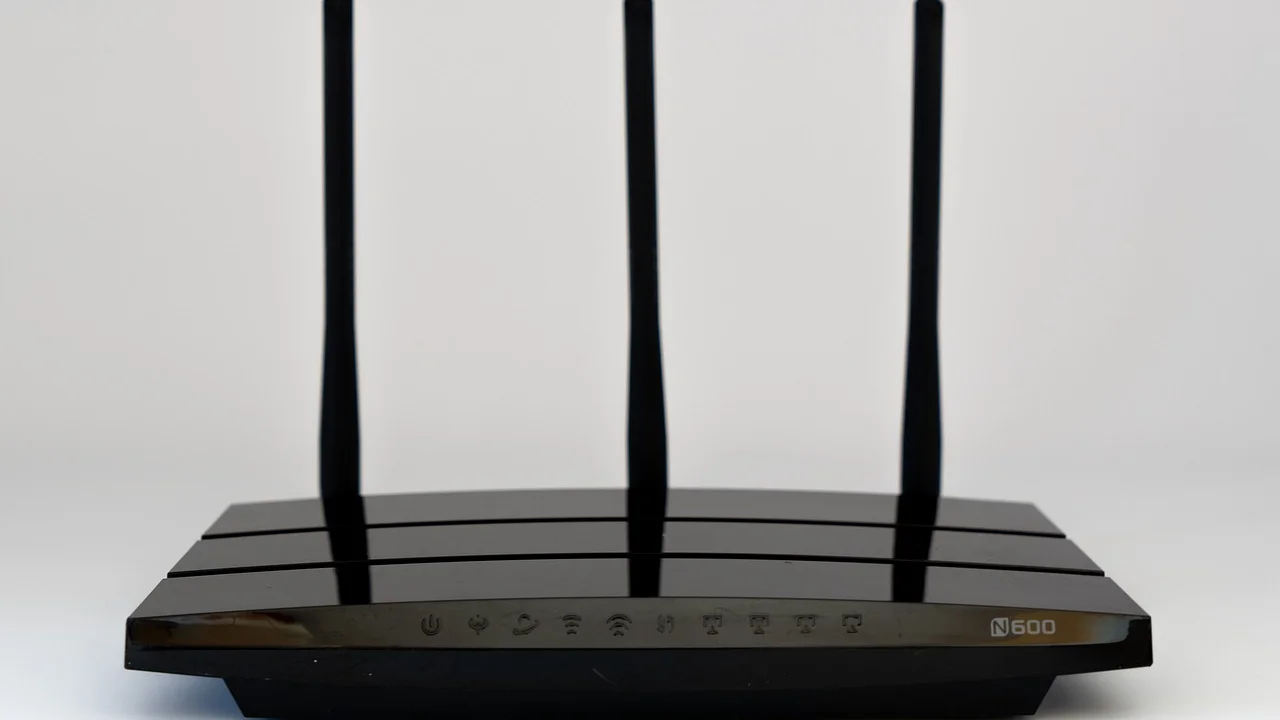
The fastest way to fix an intermittent connection is to identify what is actually disconnecting. A laptop losing Wi-Fi is different from every wired and wireless device losing access at once. This guide helps U.S. households test the likely causes in a sensible order, avoid unnecessary equipment purchases, and collect useful evidence if an ISP technician is needed.
First, identify the type of connection failure
Before restarting everything repeatedly, notice the pattern. It can narrow the issue dramatically. Check whether one device loses service or whether all devices do. If you can, compare a device connected by Ethernet with one on Wi-Fi when the next interruption happens.
| What you observe | Most likely source | Best first test |
|---|---|---|
| Only one phone, computer, or tablet disconnects | Device settings, drivers, or hardware | Connect a second device in the same room |
| Wi-Fi devices fail, but Ethernet still works | Router Wi-Fi settings, placement, or interference | Move close to the router and test another band |
| All wired and wireless devices fail together | Modem, incoming line, ISP, or power issue | Check modem lights and service-status notices |
| Connection fails mainly during evenings | Neighborhood congestion or interference | Log times and run tests at several hours |
| Connection drops when using a microwave or Bluetooth device | 2.4 GHz wireless interference | Switch compatible devices to 5 GHz or 6 GHz |
Also distinguish between a Wi-Fi disconnect and a loss of internet access. Your phone may still show that it is connected to the router even when websites and apps cannot reach the internet. In that case, the router’s wireless network is working, but its connection to the ISP may not be.
Common reasons an internet connection drops repeatedly
Weak or crowded Wi-Fi signals
Wi-Fi has limited range and must pass through walls, floors, appliances, pipes, and furniture. Apartments, condos, and dense neighborhoods can have dozens of nearby wireless networks competing for the same channels. The 2.4 GHz band travels farther but is more congested; 5 GHz generally offers more capacity at shorter range. Wi-Fi 6E and Wi-Fi 7 equipment may also use 6 GHz, which can be less crowded but has a shorter practical range.
Signal problems are especially likely if the dropouts occur only in a distant bedroom, garage, basement, or backyard. They may also happen when a router is placed in a closed cabinet, behind a television, beside a large metal object, or on the floor.
Router or modem trouble
Routers and modems can become unstable from overheating, old firmware, failing power adapters, or simply years of continuous use. A combined gateway supplied by an ISP handles both jobs, while other homes use a standalone modem plus a separate router. Either arrangement can fail intermittently.
Look for warning indicators. A modem light that repeatedly blinks, changes from solid to red or amber, or goes dark during an outage points beyond ordinary Wi-Fi range. Keep in mind that light labels and colors vary by manufacturer, so use the device’s manual or the provider’s support page before interpreting them.
Loose, damaged, or poorly connected cables
For cable internet, a loose coaxial connector, a worn splitter, or damage to the cable entering the home can cause brief signal loss. For fiber, a bent or damaged fiber cable can create service problems; do not sharply bend fiber or look into its connector. DSL service may be affected by aging phone wiring, filters, or line noise.
Inspect accessible connections without disassembling provider-owned equipment. A coax connector should be finger-tight, not cranked down with tools. Replace visibly frayed Ethernet cables and avoid running cables where pets, doors, or furniture can crush them.
ISP maintenance, outages, or local congestion
Brief maintenance windows, damaged utility lines, weather events, and overloaded neighborhood infrastructure can all create intermittent outages. Cable systems can be more sensitive to shared local capacity at busy times, although any access technology can have faults. Check your ISP’s official service-status page using cellular data if your home connection is down.
When the issue affects the service entering your home, restarting the router may temporarily mask the timing but will not repair the underlying line or network fault. A detailed outage log is much more useful when you contact support.
Start with safe, high-value checks
These checks solve many interruptions without changing advanced settings. Work through them one at a time so you know what helped.
- Check another device. If a second phone or computer remains online, focus on the device that disconnects rather than the whole network.
- Test close to the router. Bring a laptop or phone within a few feet of it. Stable service nearby but not farther away strongly suggests a coverage issue.
- Try Ethernet. Connect a computer directly to the router with a known-good Ethernet cable. If Ethernet stays stable while Wi-Fi fails, troubleshoot wireless settings and placement.
- Check the equipment temperature. Ensure the modem and router are upright if designed that way, uncovered, and in a ventilated area. Let overheated equipment cool before retesting.
- Inspect cables and power. Reseat Ethernet and coaxial cables. If the power adapter is loose, damaged, unusually hot, or buzzing, use an approved replacement.
- Review the provider’s outage information. Confirm whether a known outage or maintenance event is affecting your address.
The Federal Communications Commission notes that broadband performance can be affected by factors such as the consumer’s equipment, the home network, and congestion. In other words, an advertised plan speed alone does not identify the source of a recurring dropout.
Paraphrase of guidance from the Federal Communications Commission
For a broader explanation of how to measure and understand home broadband performance, consult the FCC’s Measuring Broadband America program.
Improve Wi-Fi coverage and reduce interference
Move the router before buying new hardware
Place the router as centrally as practical, elevated on a shelf or table, and out in the open. Avoid placing it beside a microwave, cordless-phone base, baby monitor, aquarium, large speaker, or metal filing cabinet. In a multistory home, a central location on the main floor often works better than a far corner of the basement.
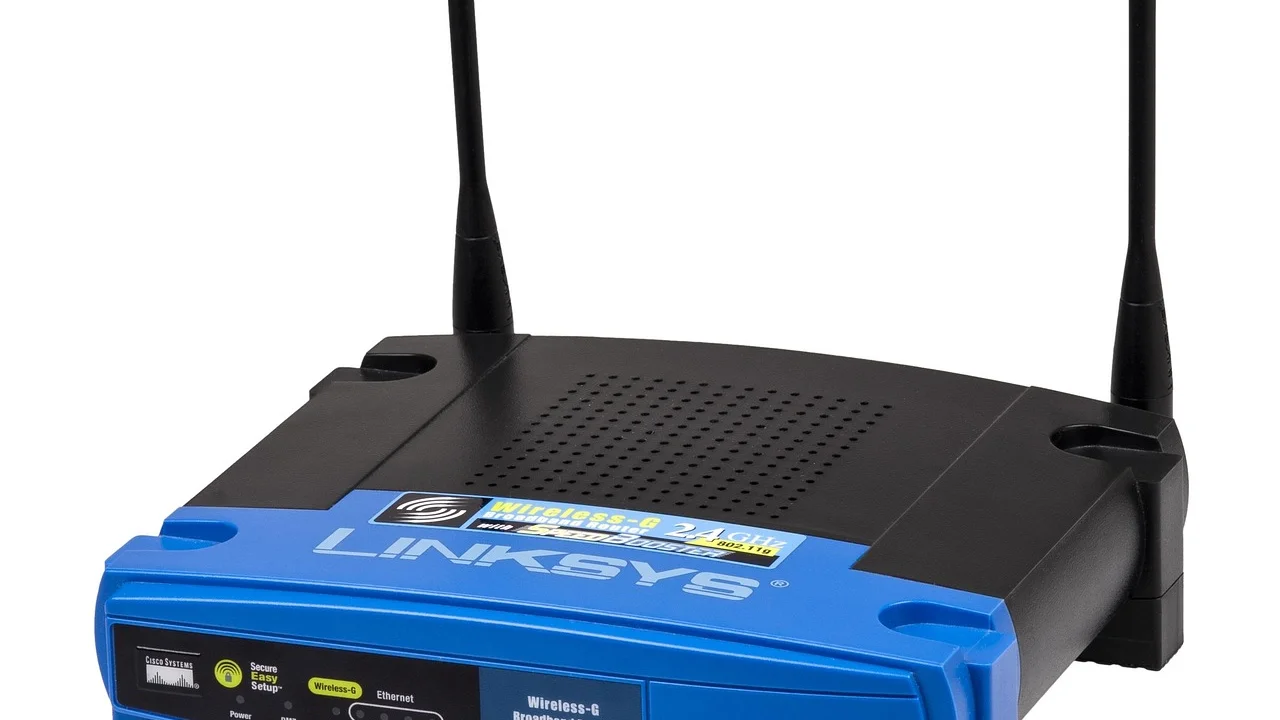
For routers with external antennas, try positioning one vertically and one horizontally. This can help devices held in different orientations. Do not assume more antennas automatically solve a coverage problem; placement and building materials often matter more.
Use the appropriate band
If your router uses separate network names, connect nearby high-demand devices to 5 GHz or 6 GHz and reserve 2.4 GHz for distant devices or smart-home products that only support that band. If it uses one combined network name, the router may steer devices automatically. A device that continually switches bands can sometimes benefit from separate names during troubleshooting.
Changing wireless channels can help in crowded areas, but use the router’s automatic channel setting first unless you have identified a specific interference pattern. Firmware updates may improve channel selection, security, and stability.
Know when a mesh system is appropriate
A mesh system or wired access point can improve coverage in a large, long, or multistory house. It is less useful if the actual failure is an ISP line dropping out. If you add mesh nodes, place them where each node still receives a strong signal from the previous node; putting a node in a dead zone usually extends the problem rather than fixing it.
Restart and update equipment correctly
A power cycle can clear a temporary fault, but it should be performed in the right sequence. Unplugging devices for only a second may not fully reset them.
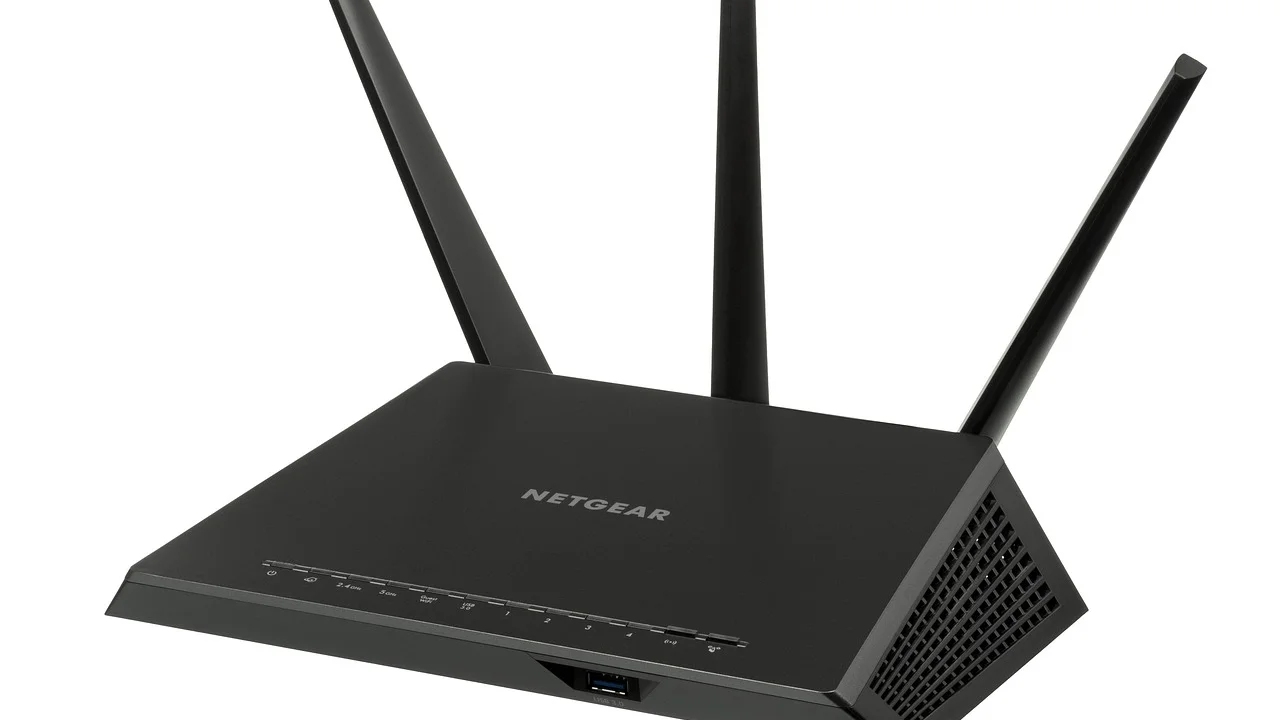
- Unplug the modem and router or gateway from power.
- Wait at least 60 seconds.
- If you have separate units, power on the modem first and wait until it finishes reconnecting, which may take several minutes.
- Power on the router and wait for its normal status indicators.
- Test with one device near the router, then test the locations where failures occurred.
Check for firmware updates through the router manufacturer’s app or administration page. Use only the official interface and keep the router connected to reliable power during an update. If your ISP manages the gateway, it may push updates automatically; ask support whether the gateway is current.
Do not factory-reset equipment as an early step. A reset erases custom Wi-Fi names, passwords, parental controls, port settings, and sometimes provider-specific configuration. Use it only after documenting your settings and following your ISP or manufacturer’s instructions.
Rule out problems on a specific device
If only one computer or mobile device disconnects, restart that device and forget then rejoin the Wi-Fi network. Confirm that its operating system and Wi-Fi driver are current. On a laptop, turn off aggressive power-saving options for the wireless adapter if they are causing it to sleep or disconnect.
VPN applications, security software, private DNS tools, and browser extensions can also make it appear that the internet is failing when the underlying connection is intact. Temporarily disable one service at a time for a controlled test, then re-enable it if it is not the cause. Never leave security protection disabled longer than necessary.
For a neutral technical overview of wireless networking concepts and standards, the National Institute of Standards and Technology is a reliable public resource. However, your router maker’s documentation remains the best source for device-specific menus and features.
Build evidence before contacting your ISP
If every device loses access, especially while an Ethernet-connected computer also fails, contact the provider after completing basic checks. Support agents can see signal levels and error histories that are not visible from your home. Clear records make it easier to move beyond generic restart instructions.
- Write down the date, start time, and duration of each interruption.
- Note which devices were affected and whether Ethernet failed too.
- Record modem light changes or error messages exactly as shown.
- Save speed-test results taken when the connection is working, but prioritize outage timing over a single speed number.
- List troubleshooting steps already completed, including cable replacement, power cycling, and firmware updates.
- Ask whether the provider sees line errors, packet loss, maintenance activity, or an area outage affecting your address.
If the provider dispatches a technician, show the log and explain whether the problem is time-specific. Ask them to inspect the signal path to the home, connectors, splitters, and outside drop line when relevant. If rented equipment is old or has recurring errors, request a replacement gateway, modem, or optical network terminal as appropriate.
When replacement or professional help makes sense
Consider replacing a personal router when it is no longer receiving security updates, repeatedly overheats, cannot support the number of household devices, or loses Wi-Fi despite a stable wired connection. Replace a suspect Ethernet cable first because it is inexpensive and easy to test. For cable modems, verify compatibility with your provider before purchasing; an unapproved model may not activate.
Professional help is appropriate for damaged exterior lines, fiber concerns, repeated modem signal loss, electrical problems, or outages that affect all devices after basic isolation. Do not open sealed provider equipment or attempt to repair utility-side wiring yourself.
Frequently Asked Questions
Why does my internet disconnect for a few seconds and come back?
Short interruptions can result from Wi-Fi interference, a router changing channels, a modem briefly losing synchronization, or an ISP network event. Test an Ethernet connection during the next dropout. If Ethernet remains online, the likely cause is Wi-Fi rather than the incoming service.
Will restarting my router fix recurring internet drops?
It can resolve a temporary software or memory issue, but repeated drops usually need further diagnosis. If the same issue returns after a correct power cycle, check cables, heat, Wi-Fi coverage, device behavior, and ISP status.
How can I tell whether my router or modem is the problem?
If wired devices work but Wi-Fi devices drop, suspect the router’s wireless function, configuration, or placement. If both wired and wireless devices lose service and the modem shows warning lights, suspect the modem, incoming line, or ISP. A provider can often check modem signal history remotely.
Can too many devices make the internet disconnect?
Many active devices can overload an older router or consume available bandwidth, especially during high-resolution streaming, cloud backups, and gaming. It more commonly causes slow performance than a complete outage, but weak hardware can become unstable under heavy demand.
Should I buy a Wi-Fi extender?
An extender may help a single weak area, but it will not fix ISP outages or a failing modem. First improve router placement and test coverage. In larger homes, a properly placed mesh system or wired access point often provides more dependable results than a basic extender.
Conclusion
When your internet keeps dropping every few minutes, start by determining whether the failure affects one device, Wi-Fi only, or the entire home connection. Test close to the router, compare Wi-Fi with Ethernet, inspect cables and equipment heat, and document the timing. Those steps reveal whether a simple home-network adjustment is enough or whether the ISP needs to investigate the line and service equipment.
References
About the author
Stefano Barcellos
Editor jefe de SaberTec
Editor jefe de SaberTec. Coordina la línea editorial, revisa la precisión de los contenidos y supervisa su publicación en 20 idiomas.
View full profile