
Computer Not Connecting to 5 GHz Wi-Fi? Fix It
A computer that will not join a 5 GHz Wi-Fi network may have a compatibility limit, outdated drivers, router configuration problem, or weak signal. Use this practical guide to identify the cause, restore access, and improve wireless performance.
Table of contents
- Understand What 5 GHz Wi-Fi Does Differently
- Check Whether Your Computer Supports 5 GHz
- Check on Windows
- Check on a Mac
- Rule Out Distance and Signal Problems
- Verify the Network Name and Password
- Update the Wireless Adapter and Operating System
- Review Router Band, Channel, and Security Settings
- Make sure the 5 GHz radio is enabled
- Choose a compatible channel
- Use compatible security during diagnosis
- Use a Safe Troubleshooting Plan
- When the 5 GHz Network Connects but Performs Poorly
- FAQ
- Why can my phone connect to 5 GHz Wi-Fi but my computer cannot?
- Why is my 5 GHz Wi-Fi network not showing up?
- Should I split 2.4 GHz and 5 GHz into separate network names?
- Will resetting network settings fix a 5 GHz connection problem?
- Is 5 GHz always better than 2.4 GHz?
- Conclusion
- References
A computer not connecting to 5 GHz Wi-Fi is frustrating, especially when other devices in the house can use the network without a problem. A 5 GHz connection often delivers higher speeds and faces less congestion than 2.4 GHz Wi-Fi, making it useful for video calls, game downloads, 4K streaming, and busy households.
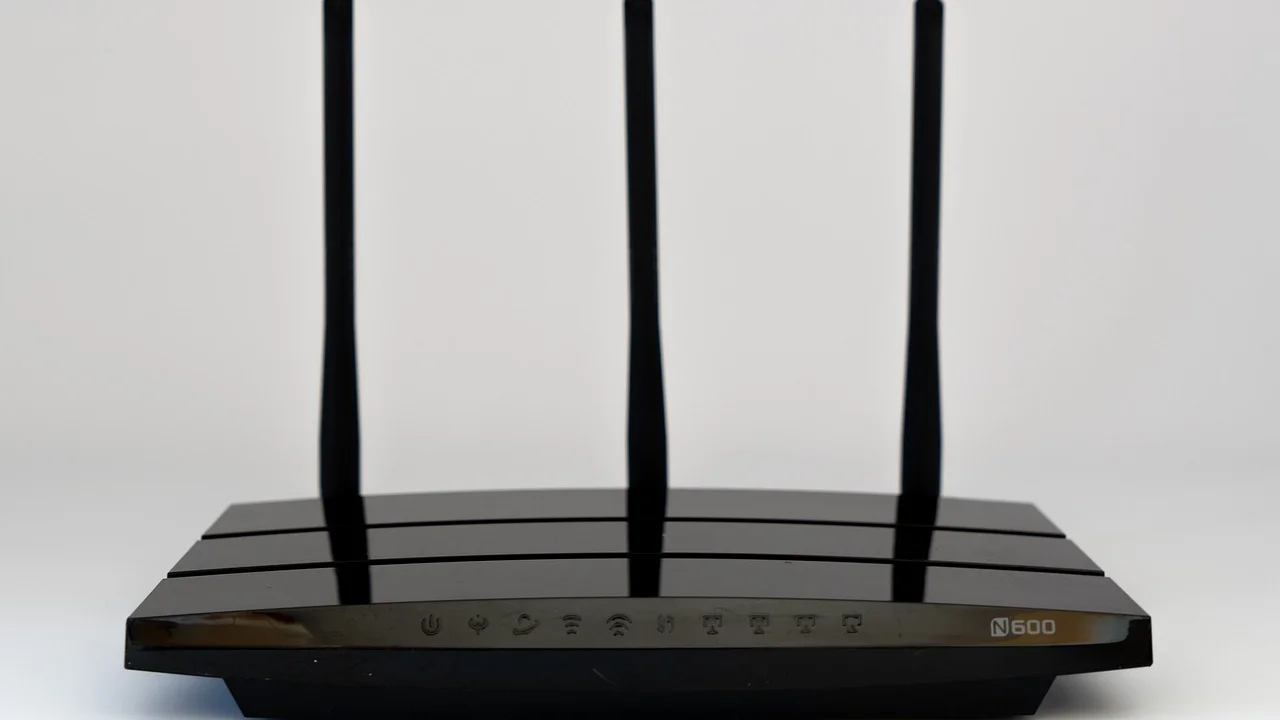
The cause is not always the router. Your computer may lack 5 GHz hardware support, be too far from the access point, have an outdated wireless driver, or be encountering a router setting it cannot use. Work through the checks below in order. They begin with simple, low-risk fixes and move toward configuration changes that need more care.
Understand What 5 GHz Wi-Fi Does Differently
Most modern home routers are dual-band: they broadcast on both 2.4 GHz and 5 GHz frequencies. The 2.4 GHz band usually reaches farther and passes through walls better, but it is commonly crowded by nearby networks and household devices. The 5 GHz band has more available channels and can offer faster real-world performance at shorter distances.
That tradeoff matters. A computer can connect successfully to 5 GHz beside the router yet fail in a back bedroom, basement, or detached office. The network is not necessarily broken; the signal may simply be too weak at that location.
| Feature | 2.4 GHz Wi-Fi | 5 GHz Wi-Fi |
|---|---|---|
| Typical range | Better through walls and over longer distances | Shorter range, more affected by obstacles |
| Potential speed | Usually lower | Usually higher near the router |
| Interference | More likely from neighboring networks and devices | Often less congested |
| Best use | Farther rooms and smart-home devices | Streaming, gaming, and work near an access point |
Check Whether Your Computer Supports 5 GHz
Older laptops, desktop adapters, and low-cost USB Wi-Fi dongles may support only 2.4 GHz. In that case, the 5 GHz network will not appear at all, regardless of how often you restart the router.
Check on Windows
Open Command Prompt and enter netsh wlan show drivers. Look for “Radio types supported.” Support for 802.11a, 802.11ac, 802.11ax, or 802.11be generally indicates the adapter can use 5 GHz. If the list shows only 802.11b, 802.11g, or 802.11n, do not jump to conclusions: some 802.11n adapters support 5 GHz, while others do not. Search the adapter model on the manufacturer’s support page to confirm its bands.
Check on a Mac
Hold the Option key and select the Wi-Fi menu in the menu bar. Connection details can show the current channel and band. You can also open System Information, select Wi-Fi, and review the supported PHY modes. Most Macs released in the last decade support 5 GHz, although a local signal or router security setting can still prevent a connection.
If the hardware is 2.4 GHz-only, the practical choices are to use the 2.4 GHz network, install a compatible PCIe adapter in a desktop, or use a reputable dual-band USB adapter. For laptops, confirm operating-system compatibility before buying an adapter.
Rule Out Distance and Signal Problems
Bring the computer within 10 to 15 feet of the router and try joining the 5 GHz network again. If it connects nearby but drops or disappears farther away, you have identified a coverage issue rather than a credential or driver issue.
- Place the router in an open, central location rather than inside a cabinet or behind a television.
- Keep it away from metal shelving, large appliances, aquariums, and dense masonry walls.
- Raise the router off the floor when possible.
- Use a mesh Wi-Fi node or wired access point for large homes, long floor plans, and rooms with difficult construction.
- Use Ethernet for stationary computers that need the most consistent speed and lowest latency.
The Federal Communications Commission explains basic home wireless considerations and device interference in its Wi-Fi home networking guide. Physical placement is often more valuable than repeatedly changing advanced settings.
Verify the Network Name and Password
Many routers use band steering, which combines 2.4 GHz and 5 GHz under one network name. Others broadcast separate names, such as “HomeWiFi” and “HomeWiFi-5G.” Be sure you are selecting the intended wireless network, not a similarly named neighbor’s network or an old saved network.
If the computer sees the network but says it cannot connect, remove the saved profile and enter the password again. On Windows, go to Settings, Network & internet, Wi-Fi, Manage known networks, select the network, and choose Forget. Then reconnect. On macOS, remove the network from the known networks list in Wi-Fi settings and join it again.
Passwords are case-sensitive. A router label may show an original password that no longer works if someone changed it during setup. Check with the person who manages the network rather than resetting the router immediately.
Update the Wireless Adapter and Operating System
An outdated, damaged, or generic driver can make a 5 GHz network invisible or cause repeated connection failures. Windows Update may provide a driver, but the computer maker or adapter manufacturer may have a newer version designed for your hardware.
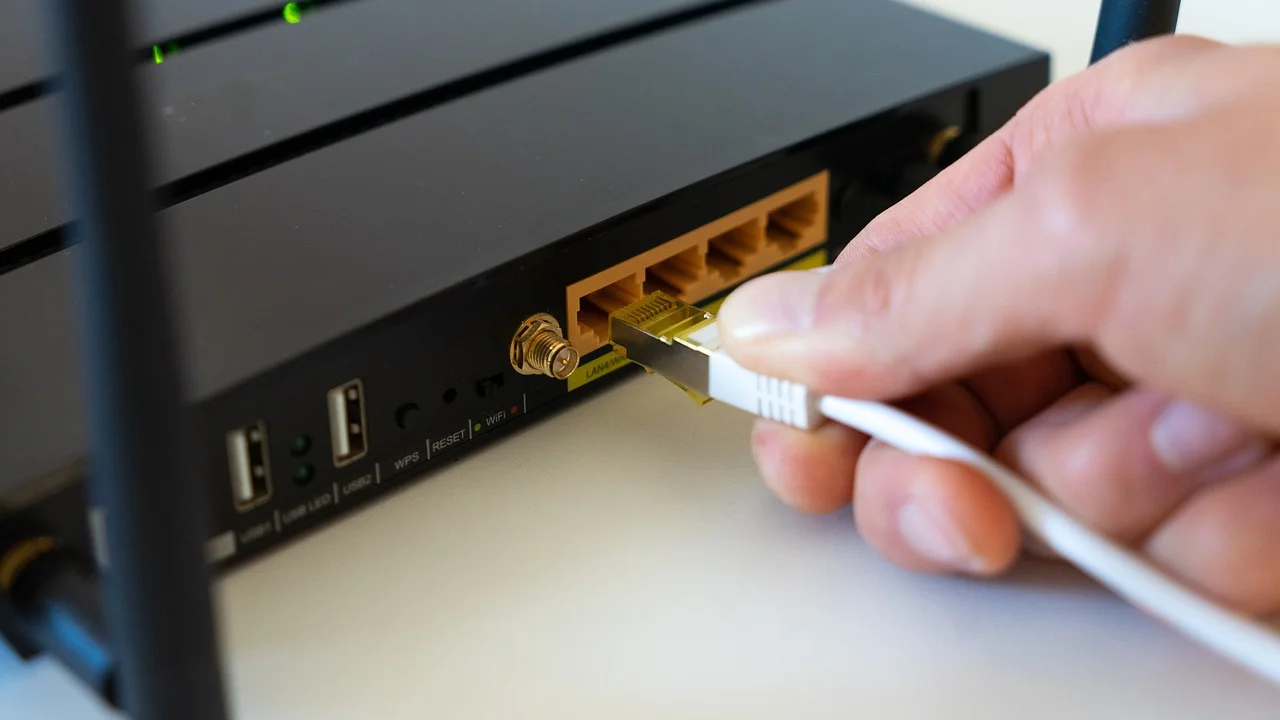
- Identify the Wi-Fi adapter in Windows Device Manager under Network adapters.
- Write down its exact manufacturer and model number.
- Download the current driver from the computer maker or adapter maker’s official support site.
- Install the driver, restart the computer, and test the 5 GHz network again.
- If the problem began immediately after a driver update, use Device Manager to roll back the driver if that option is available.
Also install current Windows or macOS updates. These updates can include wireless compatibility and security fixes. Avoid third-party “driver updater” utilities; they may bundle unwanted software or install an incorrect driver.
Review Router Band, Channel, and Security Settings
If other modern devices also cannot find or join the 5 GHz network, sign in to the router’s administration page or use the internet provider’s official app. The exact menu names differ, but the essential settings are similar.
Make sure the 5 GHz radio is enabled
Confirm that the 5 GHz wireless band is on and broadcasting its network name. A router reset, firmware update, or previous troubleshooting session may have disabled it. If you use separate network names, temporarily give the 5 GHz network a clear name so you can identify it during testing.
Choose a compatible channel
Try Auto first. If the computer still cannot see the network, manually test a common non-DFS 5 GHz channel such as 36, 40, 44, or 48. Some older adapters cannot use certain channels, especially Dynamic Frequency Selection (DFS) channels that routers may select automatically. Channel availability also varies by country, so use the settings intended for the United States.
Use compatible security during diagnosis
WPA3 is a strong modern security option, but some older computers cannot join a WPA3-only network. For troubleshooting, a WPA2/WPA3 transition mode may allow both new and older devices to connect. Do not use WEP or open security; they are unsafe. The Cybersecurity and Infrastructure Security Agency’s Wi-Fi security guidance recommends strong encryption, a unique passphrase, and router software updates.
“Use WPA3 encryption whenever possible. If WPA3 is not available, use WPA2 encryption.”
Cybersecurity and Infrastructure Security Agency, Secure Your Wi-Fi Network
After changing router settings, save the configuration and allow the router to restart fully. Test with one computer before changing several settings at once, so you can tell which adjustment helped.
Use a Safe Troubleshooting Plan
Follow this short sequence to avoid unnecessary resets and preserve a working configuration.
- Test nearby: Move close to the router and reconnect to determine whether range is the issue.
- Compare devices: Check whether a current phone or another laptop can see and join the 5 GHz network.
- Confirm capability: Verify the computer’s Wi-Fi adapter supports 5 GHz.
- Forget and rejoin: Delete the saved network profile and carefully re-enter the password.
- Restart in order: Restart the computer, then power-cycle the router for about 30 seconds if needed.
- Update software: Install official operating system, router firmware, and Wi-Fi driver updates.
- Adjust router compatibility: Verify 5 GHz is enabled, try a non-DFS channel, and review WPA2/WPA3 settings.
- Expand coverage or replace hardware: Add a mesh node, access point, or supported adapter when testing points to a hardware or range limitation.
Do not factory-reset a router unless you know the setup details from your internet service provider and have exhausted simpler steps. A reset can erase custom network names, passwords, parental controls, port forwarding, and ISP-specific settings.
When the 5 GHz Network Connects but Performs Poorly
A successful connection does not guarantee a good one. If speeds are slow only on one computer, compare it in the same room with another device. Disable any active VPN temporarily for the test, pause large downloads, and check that the computer is not connected through a weak extender link.
Run a speed test near the router, then repeat it in the problem room. A major decline points to coverage. If every device is slow at every distance, the issue may be the broadband service, modem, or router rather than the 5 GHz band. Internet providers can test the line, while router manufacturers can help interpret diagnostic logs or firmware behavior.
FAQ
Why can my phone connect to 5 GHz Wi-Fi but my computer cannot?
Your phone may have a newer Wi-Fi chip, while the computer’s adapter may support only 2.4 GHz or lack support for the router’s channel or security mode. Check the computer adapter specifications and update its driver.
Why is my 5 GHz Wi-Fi network not showing up?
The usual causes are an unsupported adapter, weak signal, a disabled 5 GHz radio, or an incompatible channel. Test close to the router, then verify the router is broadcasting 5 GHz on Auto or a common channel such as 36 through 48.
Should I split 2.4 GHz and 5 GHz into separate network names?
It can make troubleshooting easier because you can explicitly choose a band. After resolving the issue, combined naming and band steering can be convenient for many households, but separate names remain a valid choice when you need predictable device behavior.
Will resetting network settings fix a 5 GHz connection problem?
It can help when saved profiles or network configuration are corrupted, but it also removes remembered Wi-Fi networks and other settings. Try forgetting and rejoining the affected network, updating the driver, and checking router settings first.
Is 5 GHz always better than 2.4 GHz?
No. 5 GHz is often faster near the router, but 2.4 GHz can be more reliable across longer distances and through several walls. Use the band that delivers the better connection where you actually use the computer.
Conclusion
Most 5 GHz connection problems come down to one of four causes: unsupported computer hardware, poor range, outdated software, or an incompatible router setting. Start with capability and distance checks, then refresh the saved network and update the wireless driver. If multiple devices are affected, focus on the router’s 5 GHz radio, channel, security mode, and firmware. A methodical approach can restore a stable connection without risking an unnecessary factory reset.
References
About the author
Stefano Barcellos
Editor jefe de SaberTec
Editor jefe de SaberTec. Coordina la línea editorial, revisa la precisión de los contenidos y supervisa su publicación en 20 idiomas.
View full profile