
Windows Disk Usage at 100%: Causes and Fixes
Windows disk usage at 100% can make a PC feel frozen even when CPU and memory use are low. Learn how to identify the process behind the bottleneck, apply safe fixes for HDDs and SSDs, check drive health, and decide when hardware replacement is the right move.
Table of contents
- What 100% Disk Usage Actually Means
- Look beyond the percentage
- Common Causes of 100% Disk Usage in Windows
- Identify the Process and the Type of Disk
- Use Resource Monitor for better detail
- Safe Fixes to Try First
- Restart and complete pending maintenance
- Free meaningful storage space
- Reduce unnecessary startup activity
- Check Updates, Security Scans, and Indexing
- Schedule security scans at a better time
- Limit search indexing only when necessary
- Repair File System Problems and Assess Drive Health
- Run a file-system check carefully
- Address Memory Pressure and Heavy Apps
- When an SSD Upgrade Is the Real Fix
- A Step-by-Step Plan for Persistent Disk Activity
- Frequently Asked Questions
- Is 100% disk usage always a problem?
- Can I disable SysMain to fix high disk usage?
- Will deleting temporary files fix the problem?
- How do I know whether my HDD is failing?
- Does an SSD ever show 100% disk usage?
- Conclusion
- References
A computer can feel unusable when Windows disk usage stays at 100%. Apps take a long time to open, File Explorer stops responding, the pointer may stutter, and even simple tasks such as opening the Start menu can lag. This problem is especially common on older PCs with mechanical hard disk drives (HDDs), but it can also occur on systems with solid-state drives (SSDs).
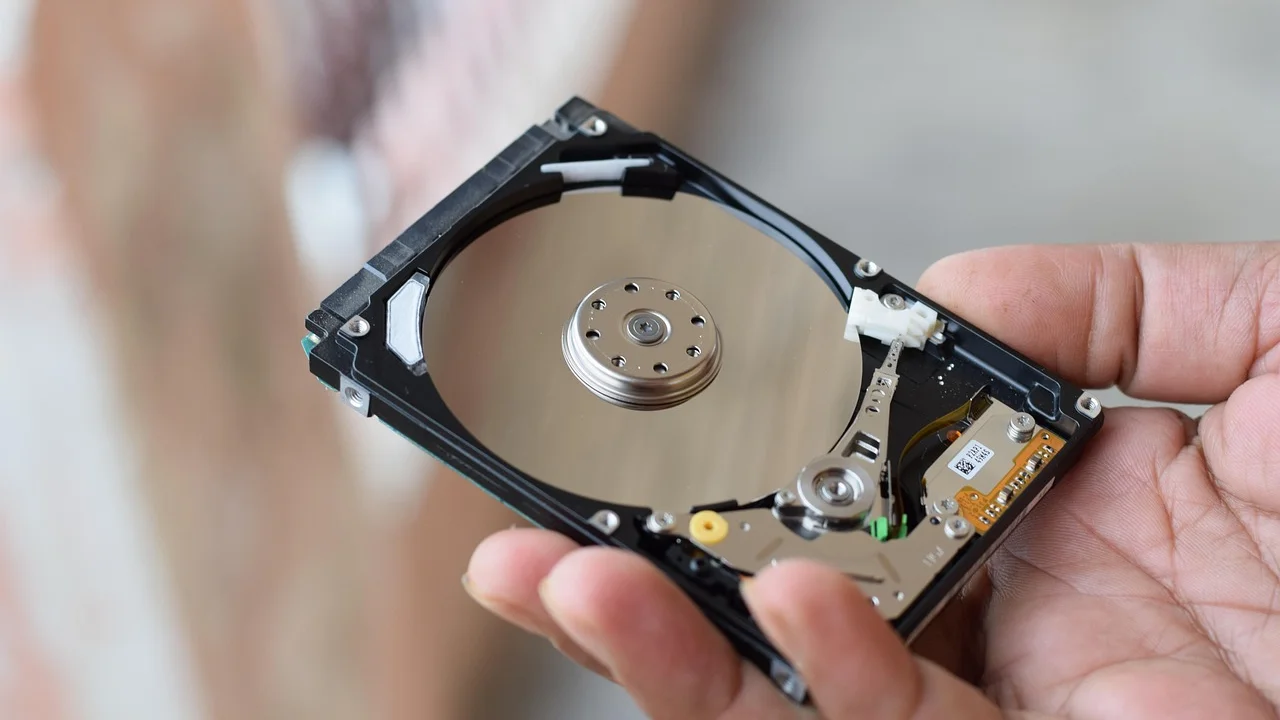
The number shown in Task Manager is not simply how full your drive is. It represents how busy the drive is handling read and write requests. A disk can be only half full yet remain at 100% active time because Windows, a program, a driver, or a failing device is overwhelming it. The goal is to find the workload first, then apply the fix that matches the actual cause.
This guide focuses on safe, practical troubleshooting for Windows 10 and Windows 11. Start with the least disruptive checks, avoid random “registry fixes,” and back up important files before making changes that affect storage or system settings.
What 100% Disk Usage Actually Means
Open Task Manager with Ctrl + Shift + Esc, select Processes, and click the Disk column to sort it from highest to lowest use. The percentage is the drive’s active time: how continuously it is working on input/output operations. It is different from capacity, which you can view in File Explorer under This PC.
On a healthy SSD, brief spikes to 100% during startup, game loading, large file copies, Windows updates, or antivirus scans are normal. The concern is sustained high activity while the PC is idle or while one modest application is open. On an HDD, the issue can be more noticeable because random reads and writes take far longer than on an SSD.
Look beyond the percentage
In Task Manager, note the process name and its read/write rate. Then open the Performance tab, choose the affected disk, and check the average response time. High active time paired with very low transfer rates, such as a few hundred KB/s or a few MB/s, can point to a struggling HDD, excessive small-file activity, or a driver problem.
Microsoft advises users to keep sufficient free space available because low storage can affect system performance and the ability to install updates.
Microsoft Support, Windows storage guidance
Common Causes of 100% Disk Usage in Windows
Several causes can produce the same symptom, so it helps to treat Task Manager as evidence rather than assuming one service is always responsible. The most common possibilities include:
- Windows Update: downloading, unpacking, or installing updates can generate heavy disk activity.
- Microsoft Defender or another security tool: scheduled or real-time scans may read thousands of files.
- Search indexing: Windows Search can work intensively after an update, a large file transfer, or a new user profile.
- Cloud-sync applications: syncing a large folder creates frequent reads, writes, and file metadata operations.
- Browser tabs and background apps: downloads, cached data, and extensions can cause persistent activity.
- Low RAM and paging: when memory is tight, Windows relies more on the page file, increasing disk work.
- Storage drivers or firmware: outdated components may cause poor performance or repeated retries.
- Drive errors: a degrading drive can slow down dramatically while Windows attempts to read damaged areas.
Identify the Process and the Type of Disk
Before disabling a service or changing settings, identify whether the drive is an HDD or SSD. In Task Manager, select Performance, click the disk, and look for its media type. An HDD that is several years old has different limits and risks than an SSD.

Use Resource Monitor for better detail
From Task Manager, choose Performance and then open Resource Monitor, or search for “Resource Monitor” from the Start menu. On the Disk tab, review processes with disk activity, disk queue length, and the individual files being accessed. This can reveal that a backup program, game launcher, update package, or sync client is responsible rather than Windows itself.
If a named application is the clear source, update it, pause its current task, reduce its sync scope, or uninstall it if you no longer use it. Do not end unfamiliar Windows processes permanently just because they appear near the top of the list; first confirm what they are doing.
| Symptom | Likely explanation | Best first action |
|---|---|---|
| High disk use after restarting | Updates, indexing, startup apps, or security scans | Leave the PC powered on for 30–60 minutes and check Task Manager again |
| One app dominates the Disk column | App download, cache, sync, or corrupted installation | Pause the task, update the app, and review its settings |
| 100% active time with low MB/s on an HDD | Random I/O, paging, drive wear, or read retries | Back up files and run drive diagnostics |
| Disk activity rises with many browser tabs | Insufficient memory and page-file use | Close tabs, disable unneeded extensions, and assess RAM |
| Recurring stalls plus file errors or noises | Possible hardware failure | Back up immediately and plan drive replacement |
Safe Fixes to Try First
Work through these fixes in order, checking disk activity after each one. Make only one meaningful change at a time so you can tell what helped.
Restart and complete pending maintenance
A proper restart clears many temporary workloads. Select Restart rather than shutting down and turning the machine back on, since Windows Fast Startup can preserve portions of a session. After restarting, connect to power, leave the PC awake, and allow updates and security scans to finish if they are actively progressing.
Free meaningful storage space
Storage that is nearly full can leave Windows little room for temporary files, updates, and virtual memory. Open Settings, go to System and Storage, and remove temporary files you recognize. Move large personal videos or archives to an external drive or reputable cloud storage service. Avoid deleting files manually from system folders.
Microsoft provides built-in guidance for managing storage and temporary files through its Windows Support center. As a practical target, keep at least 15% to 20% of an HDD free when possible; SSDs also benefit from adequate free space for normal maintenance and wear leveling.
Reduce unnecessary startup activity
In Task Manager, open Startup apps and disable software you do not need immediately after sign-in, such as game launchers, chat apps, and vendor utilities. Do not disable security software or hardware-related software unless you understand its role. Fewer startup tasks mean fewer simultaneous reads and writes when Windows is trying to become responsive.
Check Updates, Security Scans, and Indexing
Windows components often deserve patience rather than permanent shutdown. If Windows Update is responsible, verify your internet connection, let the process complete, and restart when prompted. If an update repeatedly fails, use Windows Update troubleshooting rather than repeatedly forcing a shutdown.
Schedule security scans at a better time
Microsoft Defender can briefly use substantial disk resources, particularly on an HDD with many small files. Let a one-time scan finish. If scans interfere with work on a regular basis, schedule them for a time when the computer is on but not in use. Keep real-time protection enabled; disabling protection to improve performance exposes the system to a much larger risk.
Limit search indexing only when necessary
Search indexing makes results faster by cataloging files. If Resource Monitor shows it is constantly working for days, review indexed locations and exclude folders containing large, frequently changing files that you do not need to search. For example, an archive folder of installers or a large project output folder may not need indexing. Avoid broadly disabling Windows Search unless testing confirms it is the cause and you accept slower file searches.
Repair File System Problems and Assess Drive Health
Repeated freezes, corrupted files, clicking sounds from an HDD, or disk warnings deserve urgent attention. Back up personal documents, photos, and other irreplaceable files before running repairs. A repair tool can help with logical file-system errors, but it cannot make failing hardware reliable.
Run a file-system check carefully
Open Terminal or Command Prompt as an administrator and run chkdsk C: /scan to perform an online scan of the system drive. If Windows reports errors that require repair, follow its instructions for a scheduled repair after restart. Do not interrupt a disk repair once it starts. On a computer with a suspected failing HDD, prioritize copying data first because an intensive scan may place extra stress on the drive.
Also review the drive manufacturer’s diagnostic utility when available. For general signs of an aging drive and storage maintenance, the Cybersecurity and Infrastructure Security Agency offers broader guidance on protecting data and maintaining resilient systems. If diagnostics report problems, replace the drive rather than relying on repeated software fixes.
Address Memory Pressure and Heavy Apps
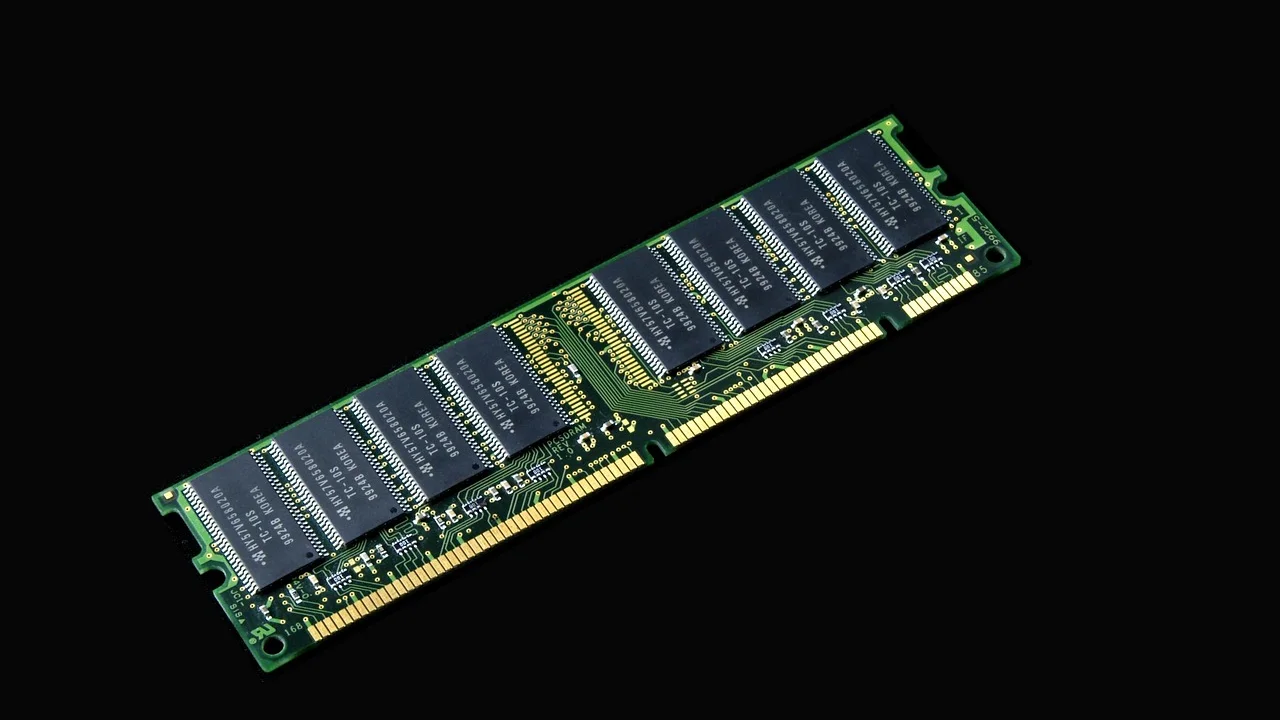
Disk activity is sometimes a memory problem in disguise. When installed RAM is nearly full, Windows moves data between RAM and the page file on the disk. This is dramatically slower on an HDD and can make disk usage appear pinned at 100%.
Check the Memory column in Task Manager during a slowdown. Close applications you are not using, reduce browser tabs, remove extensions that consume resources, and restart programs with unusually high memory use. If this pattern happens during normal work, more RAM may be a better upgrade than changing Windows services. For many everyday Windows PCs, 8 GB is a practical minimum, while 16 GB provides more comfortable room for multitasking, video calls, modern browsers, and creative work.
When an SSD Upgrade Is the Real Fix
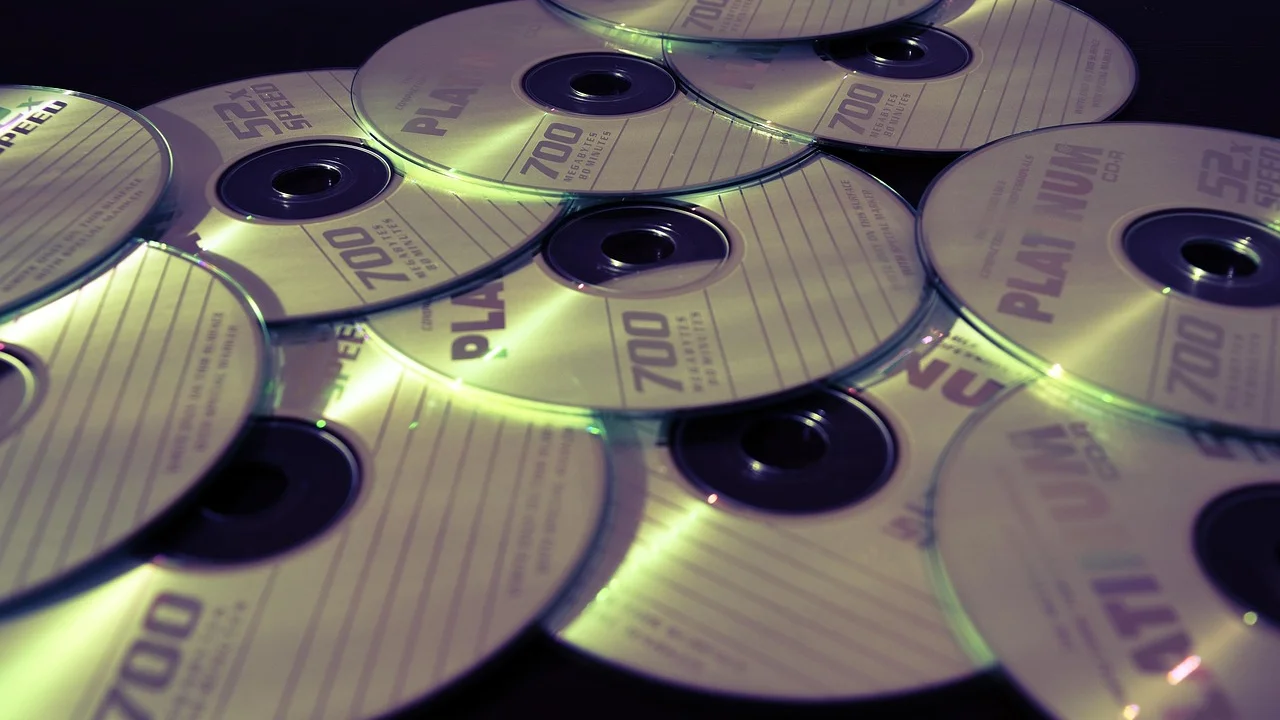
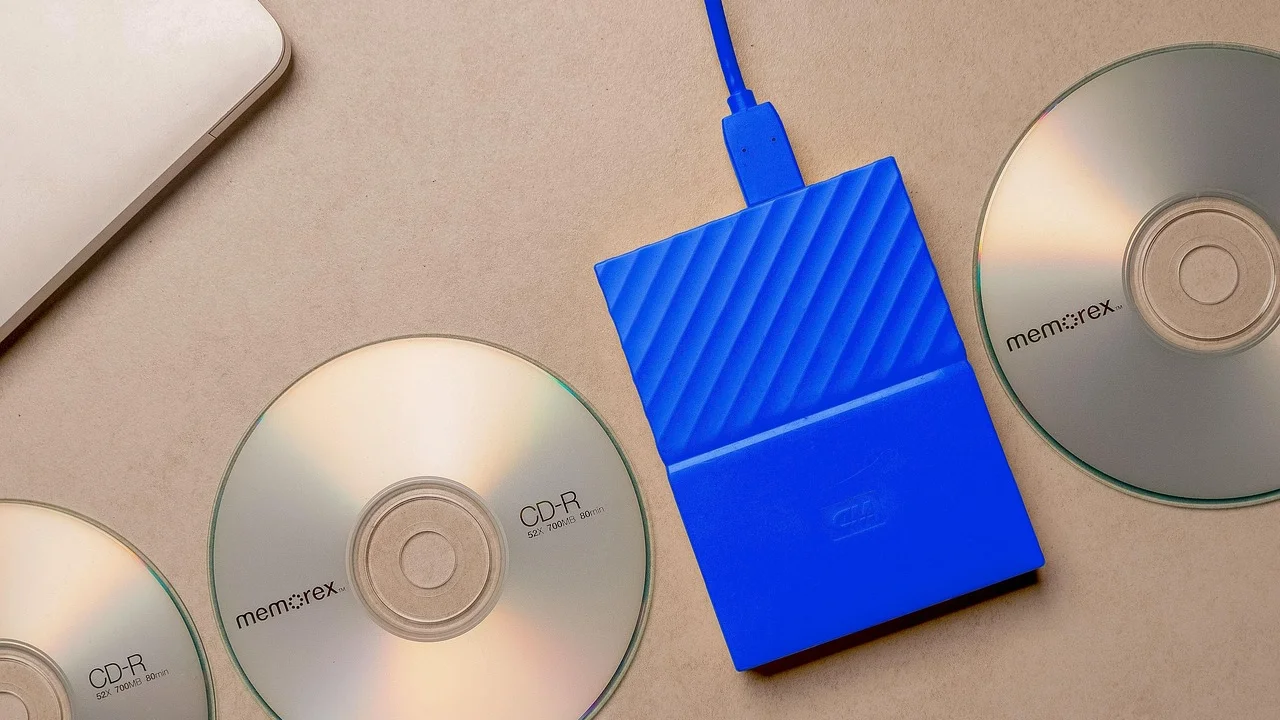
If your computer uses an HDD and the drive is healthy, replacing it with an SSD is often the most noticeable upgrade available. SSDs handle random reads and writes much faster, which improves boot time, application launches, updates, and general responsiveness. A basic 500 GB SATA SSD commonly costs roughly $30 to $60 in the United States, while larger capacities and NVMe models cost more depending on performance and sales.
Before buying, check whether your PC accepts a 2.5-inch SATA drive, an M.2 SATA drive, or an M.2 NVMe drive. Back up your data, create recovery media, and decide whether to clone the existing drive or perform a clean Windows installation. A clean installation can remove accumulated software issues, but it requires reinstalling programs and restoring files.
A Step-by-Step Plan for Persistent Disk Activity
- Save open work and restart the computer.
- Open Task Manager and sort processes by Disk after the desktop has settled.
- Use Resource Monitor to identify the specific process and files creating activity.
- Pause or complete obvious workloads, such as a cloud sync, download, update, or scan.
- Free storage space and remove unnecessary startup apps.
- Check memory usage and close memory-heavy apps or browser tabs.
- Back up important files if performance remains poor, especially on an HDD.
- Run an online file-system scan and the drive maker’s diagnostic test.
- Replace a drive that reports errors, makes unusual noises, or repeatedly stalls.
- Consider an SSD and, if needed, additional RAM for a lasting improvement.
This sequence avoids the common mistake of changing many services at once. It also keeps data protection at the center of troubleshooting, which matters more than squeezing a little more speed from a questionable drive.
Frequently Asked Questions
Is 100% disk usage always a problem?
No. Brief spikes during updates, startup, gaming, file transfers, or scans are normal. It is a problem when it remains high for long periods and makes the computer unresponsive without a clear workload.
Can I disable SysMain to fix high disk usage?
SysMain can contribute to activity on some systems, particularly older HDD-based PCs, but it is not a universal cause. Test other evidence first. If you temporarily disable it for diagnosis and see no improvement, restore the normal setting rather than leaving services altered without a reason.
Will deleting temporary files fix the problem?
It can help when free space is low or an update cache is unusually large, but it will not repair a failing drive, insufficient RAM, or a demanding application. Treat cleanup as one step in diagnosis, not a guaranteed cure.
How do I know whether my HDD is failing?
Warning signs include repeated freezes, unusual clicking or grinding sounds, file corruption, disappearing files, slow transfers with low throughput, and diagnostic warnings. Back up data immediately if you see these signs.
Does an SSD ever show 100% disk usage?
Yes. SSDs can briefly reach 100% active time during intensive work, and software or driver issues can affect them too. However, an SSD usually recovers faster than an HDD, so persistent stalls merit investigation.
Conclusion
Windows disk usage at 100% is a symptom, not a diagnosis. Task Manager and Resource Monitor can distinguish a normal temporary workload from a problematic app, memory shortage, configuration issue, or failing drive. Start with observation, give legitimate maintenance time to finish, protect your files, and favor targeted fixes over broad changes. For an older HDD-based computer, an SSD upgrade is often the most reliable long-term answer.
References
About the author
Stefano Barcellos
Editor jefe de SaberTec
Editor jefe de SaberTec. Coordina la línea editorial, revisa la precisión de los contenidos y supervisa su publicación en 20 idiomas.
View full profile