
Windows Update Installation Error: Fix It Step by Step
A Windows Update installation error can stem from low storage, damaged system files, service problems, driver conflicts, or a faulty update. Follow a practical, low-risk sequence to identify the cause, restore update components, and install Windows updates safely.
Table of contents
- Understand What a Windows Update Installation Error Means
- Common symptoms and likely causes
- Start With Basic Checks Before Repairing Anything
- Power, internet, time, and storage
- Disconnect nonessential hardware
- Use Windows' Built-In Update Troubleshooter
- Repair System Files With DISM and SFC
- Run the commands in the right order
- Reset Windows Update Components Safely
- Manual cache reset
- Which method fits the problem?
- Install a Specific Update or Address Driver Conflicts
- Check drivers and security software
- Use a Clean Boot for Persistent Installation Failures
- How to perform a clean boot
- When to Use Advanced Recovery Options
- A Practical Recovery Checklist
- Frequently Asked Questions
- Why does Windows Update keep failing with the same error?
- Is it safe to delete the SoftwareDistribution folder?
- Can I skip a failed Windows update?
- Will resetting Windows Update delete my files?
- Should I use a registry cleaner to fix Windows Update?
- Conclusion
- References
A Windows Update installation error is frustrating because the message often gives little detail beyond a code, a failed restart, or a download that repeatedly returns to zero. The good news is that most update failures are recoverable without reinstalling Windows. They usually involve limited disk space, a temporary service issue, corrupted update files, damaged system components, or software that interferes with the installation process.
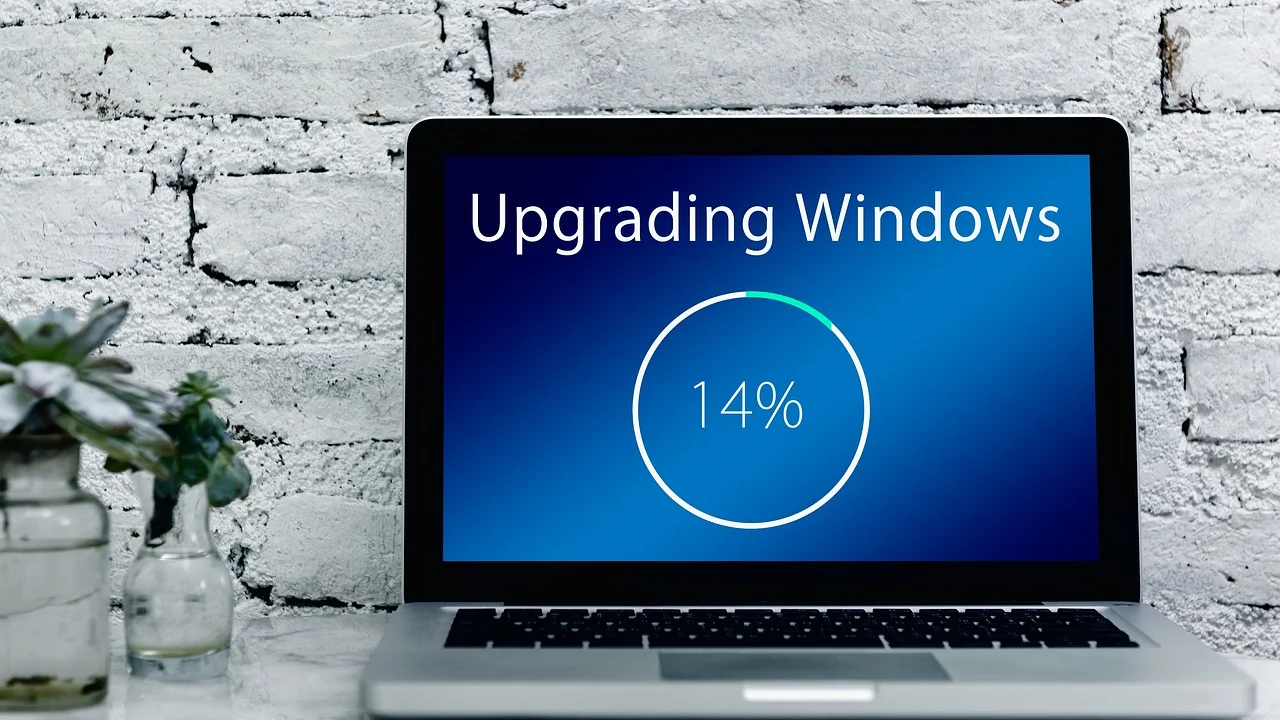
This guide uses a cautious troubleshooting order for Windows 11 and Windows 10. Start with the least disruptive checks, then move to repairs only if the update continues to fail. Before changing system settings, save open work and back up important files. Major updates can require several restarts and may take longer on older computers or slower connections.
Understand What a Windows Update Installation Error Means
Windows Update handles several types of downloads: monthly security updates, cumulative quality updates, driver updates, optional previews, and feature upgrades. A failure can occur while downloading, preparing files, installing, restarting, or cleaning up after a restart. The point at which it fails offers useful clues.
Common symptoms and likely causes
- Download stays at 0% or pauses indefinitely: network connectivity, update services, or the update cache may be the issue.
- Installation reaches a percentage and then fails: corrupted system files, storage limits, a driver, or a specific package may be involved.
- The PC restarts and says updates could not be completed: a startup driver, third-party security software, or incompatible hardware may have blocked the change.
- The same update keeps reappearing: Windows may have rolled it back, or its local installation record may be damaged.
- An error code appears: record the exact code and the KB number, if shown. Those details narrow the investigation.
A single failed update does not automatically mean your computer is compromised or broken. However, security updates should not be ignored for long. If Windows reports an active issue affecting your device, wait for Microsoft to lift the compatibility hold rather than forcing a feature update.
Start With Basic Checks Before Repairing Anything
Simple conditions can prevent an otherwise healthy PC from completing an update. Complete these checks first, then try Windows Update again.
Power, internet, time, and storage
Use a stable internet connection, connect a laptop to AC power, and avoid shutting down the device while an update is underway. Confirm that the date, time, and time zone are correct; inaccurate time settings can interfere with secure connections. If you use a metered connection, Windows may postpone some downloads until you allow them.
Storage is especially important. Feature updates can need significant working space, while monthly cumulative updates need less but still require room for temporary files and recovery operations. Aim to keep at least 20 GB free on the system drive before a major upgrade. Empty the Recycle Bin, remove unneeded temporary files, or move large personal files to external storage if space is tight.
Disconnect nonessential hardware
Remove external drives, printers, docks, cameras, game controllers, and other nonessential USB accessories before retrying a failed update. Leave the keyboard, mouse, monitor, and essential network connection in place. Peripheral drivers can occasionally interfere with restart-based installation phases.
Use Windows' Built-In Update Troubleshooter
Windows includes a guided tool that checks common Update configuration problems and attempts basic repairs. In Windows 11, open Settings, select System, choose Troubleshoot, open Other troubleshooters, and run the Windows Update troubleshooter. In Windows 10, go to Settings, Update & Security, Troubleshoot, Additional troubleshooters, and then Windows Update.
When it finishes, restart the computer even if it says it fixed nothing. Then return to Settings and select Check for updates. Microsoft also maintains current guidance through its Windows support center, where you can search an error code or update KB number.
“The Windows Update Troubleshooter is designed to diagnose and resolve common problems with Windows Update.”
Microsoft Support, Windows Update troubleshooting guidance
If the same package fails after the troubleshooter and a restart, do not keep clicking Retry repeatedly. Move on to system-file checks and update-cache repair so you can address the underlying condition.
Repair System Files With DISM and SFC
Windows relies on a protected component store to service updates. If that store or related system files are corrupted, update installation may fail. The Deployment Image Servicing and Management tool (DISM) can repair the component store, and System File Checker (SFC) can restore protected files.
Run the commands in the right order
- Open Start, type Command Prompt, right-click it, and choose Run as administrator.
- Enter DISM /Online /Cleanup-Image /RestoreHealth and press Enter.
- Wait for it to finish. It may appear stuck at times; keep the PC online and let it complete.
- Enter sfc /scannow and press Enter.
- Restart the PC, then try Windows Update again.
DISM may use Windows Update to obtain replacement components, so a working internet connection matters. If SFC reports that it repaired files, restart even if Windows does not prompt you. If both commands complete without finding issues, the problem may be isolated to the update cache, a specific update package, or a driver conflict.
Reset Windows Update Components Safely
Windows stores downloaded update files in a local cache. Clearing that cache does not remove installed updates or personal documents; it simply makes Windows download the needed files again. This is useful when a download is incomplete, corrupted, or trapped in a retry loop.
Manual cache reset
Open Command Prompt as administrator and run the following commands one at a time:
net stop wuauserv
net stop bits
ren C:\Windows\SoftwareDistribution SoftwareDistribution.old
ren C:\Windows\System32\catroot2 catroot2.old
net start bits
net start wuauserv
Restart the computer afterward and check for updates. Windows will create fresh SoftwareDistribution and catroot2 folders as needed. If a command says a service was not started, continue with the remaining commands; the important result is that Windows Update can rebuild its working folders.
Which method fits the problem?
| Symptom | Best first action | Why it helps |
|---|---|---|
| Update will not download | Check connection, run troubleshooter, reset cache | Addresses services and damaged download files |
| Install fails after downloading | Run DISM and SFC | Repairs the component store and protected files |
| Failure after restart | Disconnect peripherals and update key drivers | Reduces startup and driver conflicts |
| One KB update always fails | Use Microsoft Update Catalog | Lets you install the specific standalone package |
| Feature upgrade repeatedly rolls back | Free space, remove conflicts, consider in-place repair | Targets upgrade compatibility and system health |
Install a Specific Update or Address Driver Conflicts
If Windows identifies the failed item with a KB number, such as KB followed by digits, you can download the standalone package from the Microsoft Update Catalog. Search the exact KB number, choose the package matching your Windows version and system architecture, download it, and run the installer. Do not install a package intended for a different architecture or Windows release.

Check drivers and security software
For failures during reboot or feature upgrades, update essential drivers from your PC manufacturer’s support site, especially graphics, storage, chipset, Wi-Fi, and BIOS or UEFI firmware when applicable. Avoid random driver-download sites and avoid “driver updater” utilities that bundle unwanted software.
Third-party antivirus, endpoint protection, disk-encryption utilities, and system-tuning tools can also affect update installation. If your organization manages the computer, ask the IT team before changing security software. On a personal device, temporarily uninstalling—not merely disabling—a problematic third-party security suite may help, but only if you can reinstall it from a trusted source afterward. Microsoft Defender remains built into Windows for basic protection while it is active.
Use a Clean Boot for Persistent Installation Failures
A clean boot starts Windows with Microsoft services and a minimal set of startup programs, which helps identify conflicts from background software. This is more targeted than resetting or reinstalling Windows.
How to perform a clean boot
- Press Windows key + R, type msconfig, and press Enter.
- On the Services tab, select Hide all Microsoft services.
- Select Disable all.
- Open the Startup tab and choose Open Task Manager.
- Disable nonessential startup apps, restart the computer, and try the update.
If the update succeeds, re-enable services and startup items gradually to find the conflicting program. When you are done troubleshooting, return to System Configuration and choose Normal startup so your usual services resume. Do not leave security-critical software disabled longer than necessary.
When to Use Advanced Recovery Options
If a feature update fails repeatedly after the steps above, first verify that your device meets the current requirements and that enough free storage is available. You can also use an in-place repair installation, which reinstalls Windows system files while preserving personal files and installed apps when you select the appropriate option. Use installation media only from Microsoft, and create a current backup first.

Consider professional or manufacturer support if the PC has disk errors, repeated blue-screen crashes, unexplained boot failures, or a failing solid-state drive. If the device is managed by an employer, school, or government agency, update policies may be intentionally controlled. In that case, local repairs could conflict with organizational configuration.
A Practical Recovery Checklist
Work through this sequence in order. After each major step, restart if requested and try the update once before continuing.
- Record the error code, update name, and KB number.
- Back up important files and connect the device to power.
- Free storage space and disconnect nonessential peripherals.
- Run the Windows Update troubleshooter and restart.
- Run DISM, then SFC, from an elevated Command Prompt.
- Reset the Windows Update cache and retry.
- Install the individual KB package from Microsoft Update Catalog if applicable.
- Update key manufacturer drivers and perform a clean boot if failure continues.
- Use an in-place repair installation or seek qualified support for persistent feature-update failures.
Frequently Asked Questions
Why does Windows Update keep failing with the same error?
The same error often repeats because Windows retries the same damaged download, unresolved service issue, incompatible driver, or corrupted system component. Clearing the update cache and running DISM and SFC are practical next steps after basic troubleshooting.
Is it safe to delete the SoftwareDistribution folder?
Renaming the folder after stopping Windows Update services is generally safe. Windows recreates it and downloads needed update files again. Do not delete random folders in the Windows directory or remove installed update packages manually.
Can I skip a failed Windows update?
You can temporarily pause updates, but regularly installed security updates are important. If one optional preview update fails, waiting for the next cumulative release may be reasonable. For a required security update, troubleshoot the failure or seek help rather than leaving it unresolved.
Will resetting Windows Update delete my files?
No. Resetting update services and the download cache does not delete documents, photos, installed applications, or user accounts. An in-place repair install is also designed to preserve data when the correct keep-files-and-apps option is selected, but a backup is still wise.
Should I use a registry cleaner to fix Windows Update?
No. Registry cleaners are not a recommended Windows Update repair method and can create additional stability problems. Use Windows tools, Microsoft-provided installation packages, and drivers from the computer manufacturer instead.
Conclusion
A Windows Update installation error usually responds to a disciplined process: confirm storage and connectivity, use the built-in troubleshooter, repair system files, rebuild the update cache, and isolate driver or software conflicts. Keep notes on the error code and KB number as you work. If a major upgrade still rolls back after these steps, protect your data and use trusted Microsoft or manufacturer support rather than applying unverified fixes.
References
About the author
Stefano Barcellos
Editor jefe de SaberTec
Editor jefe de SaberTec. Coordina la línea editorial, revisa la precisión de los contenidos y supervisa su publicación en 20 idiomas.
View full profile