
Windows Update Stuck at a Percentage: Fix It Safely
A Windows update that stops at 0%, 27%, 88%, or another number can be frustrating, but it is often recoverable. Learn what to do first, when to wait, how to use Windows tools, reset update components, and protect your files.
Table of contents
- First, determine whether Windows is actually stuck
- Signs the update may still be progressing
- Signs it is more likely frozen
- Quick checks that solve many stalled updates
- Check power, internet, date, and storage
- Remove temporary external devices
- Run the Windows Update troubleshooter
- Reset the Windows Update download cache
- Use an elevated Command Prompt
- What this step does and does not do
- Repair Windows system files before retrying
- When a PC is stuck during restart or boot
- Choose the least disruptive recovery option
- Common causes and how to prevent another stall
- A practical recovery plan
- Frequently asked questions
- How long should I wait when Windows Update is stuck?
- Is it safe to turn off a computer during an update?
- Will resetting SoftwareDistribution delete my files?
- Why is Windows Update stuck at 100%?
- Should I use a registry cleaner or third-party update fixer?
- Conclusion
- References
Seeing a Windows update sit at 0%, 27%, 88%, or 100% for a long time is unnerving—especially when a restart is pending and you need your computer. A stalled percentage does not always mean the installation has failed. Large cumulative updates, feature updates, driver changes, limited storage, and slow disks can all make the progress display appear motionless while Windows is still working in the background.
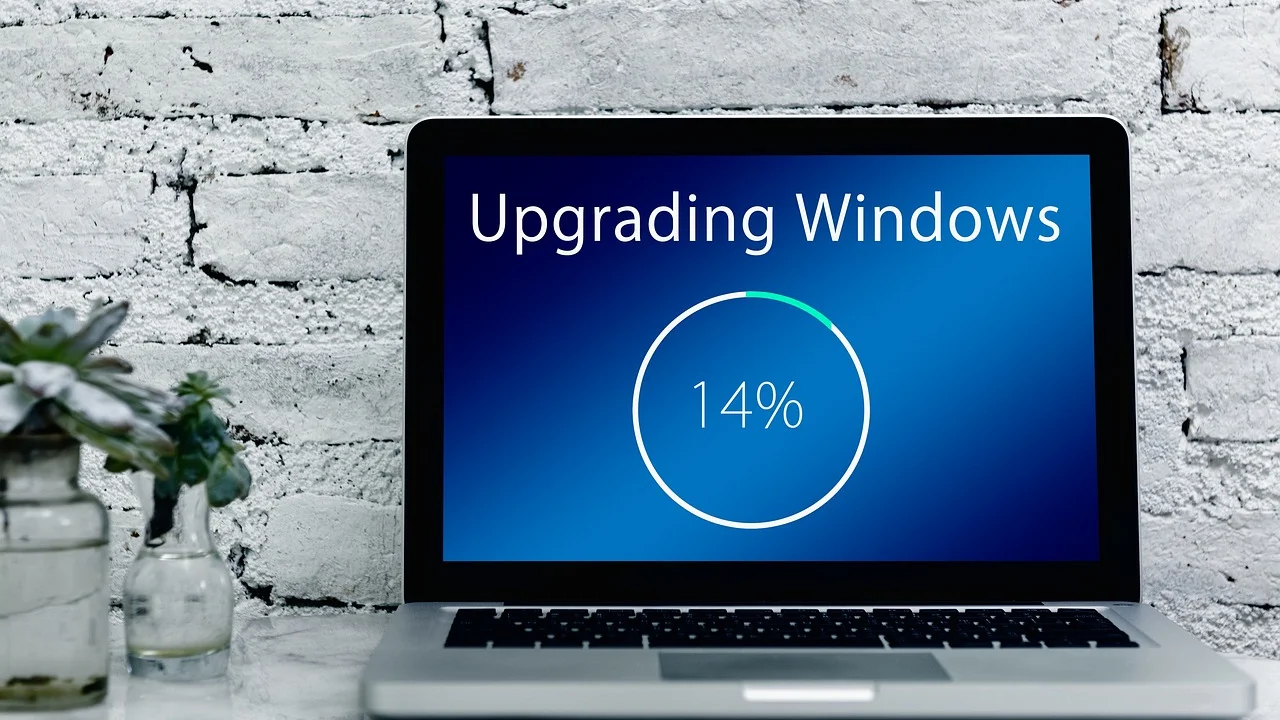
The safest response is deliberate rather than immediate. Interrupting an update during a critical installation stage can create startup problems or leave system files incomplete. This guide explains how to tell a slow update from a genuinely stuck one, use Windows’ built-in repair tools, reset the update cache, and choose an appropriate recovery path for a PC in the United States.
Before making any repair, save work if Windows still lets you sign in, and back up important files to an external drive or trusted cloud service. Most of the steps below preserve personal files, but a backup is still the best protection against an unexpected hardware or software issue.
First, determine whether Windows is actually stuck
A percentage is only a rough status indicator. It may remain unchanged while Windows prepares files, verifies a digital signature, services the component store, or waits for a device driver. This is particularly common on older laptops with hard disk drives, systems with little free space, and PCs receiving a major version upgrade.
Signs the update may still be progressing
- The spinning dots, disk activity light, or fan behavior changes periodically.
- The percentage has been unchanged for less than two hours during a major update.
- The computer has a slow hard drive, low-end processor, or nearly full system drive.
- The screen message changes occasionally, even if the percentage does not.
Signs it is more likely frozen
- The same screen and percentage have remained unchanged for three hours or more with no visible activity.
- The system repeatedly restarts and returns to the same percentage.
- Windows starts normally, but the download or install status in Settings never advances after several attempts.
- You receive a specific error code or see a message that updates could not be completed.
If you are on the “Working on updates” screen, connect the laptop to its charger and give it time before taking action. Avoid closing the lid or forcing a shutdown during the first waiting period.
Microsoft advises users to run the Windows Update troubleshooter when they encounter update problems, then restart the device and check for updates again.
Microsoft Support, “Troubleshoot problems updating Windows”
Quick checks that solve many stalled updates
When you can reach the Windows desktop, start with low-risk checks. These resolve many download and installation failures without changing system folders or using commands.
Check power, internet, date, and storage
Use a reliable home or work connection, not a metered hotspot if possible. Disconnect a VPN temporarily unless your organization requires it. Confirm that the date, time, and time zone are correct; incorrect clock settings can interfere with secure connections to update services.
Free space also matters. For ordinary quality updates, keeping at least 15 to 20 GB free on the C: drive is a sensible target. Feature updates can require considerably more temporary space. Empty the Recycle Bin, remove unneeded temporary files, or move large personal files to external storage.
In Windows 11, open Settings > System > Storage to review space. In Windows 10, use Settings > System > Storage as well. Then restart the computer normally and return to Settings > Windows Update to select Check for updates.
Remove temporary external devices
Disconnect nonessential USB accessories before trying again: printers, external drives, docking stations, game controllers, card readers, and extra displays. Leave only the keyboard, mouse, charger, and network connection if needed. A problematic driver or removable drive assignment can sometimes derail an update.
Run the Windows Update troubleshooter
The built-in troubleshooter checks common settings and services, clears some temporary issues, and can apply repairs automatically. It is a sensible next step because it is supported by Windows and does not remove your personal data.

- Open Settings.
- In Windows 11, go to System > Troubleshoot > Other troubleshooters.
- Find Windows Update and select Run.
- Follow the on-screen prompts, accepting recommended fixes when appropriate.
- Restart the PC, then check Windows Update again.
On Windows 10, go to Settings > Update & Security > Troubleshoot > Additional troubleshooters, select Windows Update, and choose Run the troubleshooter.
If Windows reports an error code, write it down exactly. That code can distinguish a connection issue from a driver conflict, insufficient storage, or corrupted update files. Microsoft’s Windows Update troubleshooting guidance is the best starting point for interpreting common symptoms and supported recovery options.
Reset the Windows Update download cache
If a download is stuck at a percentage in Settings, the local update cache may be incomplete or damaged. Resetting it makes Windows download fresh copies. This does not uninstall Windows or delete your documents, but it does remove downloaded update files and update history entries from the Settings display.
Use an elevated Command Prompt
Search for Command Prompt, select Run as administrator, and approve the User Account Control prompt. Enter each command below separately, pressing Enter after each one:
net stop wuauserv
net stop bits
ren C:\Windows\SoftwareDistribution SoftwareDistribution.old
net start bits
net start wuauserv
Restart the computer after the commands finish, then check for updates again. Windows automatically creates a new SoftwareDistribution folder when needed. If a command says that a service was not started, continue with the remaining commands unless another error prevents you from doing so.
What this step does and does not do
| Action | Best for | Effect on personal files | What to expect |
|---|---|---|---|
| Restart and retry | Brief or one-time slowdown | No effect | Fastest, lowest-risk option |
| Run troubleshooter | Common service or configuration issues | No effect | Automated diagnostics and repairs |
| Reset update cache | Stuck download or corrupt temporary files | No effect | Updates download again |
| System file repair | Repeated installation failures | No effect | Can take 10 minutes or longer |
| Repair install or reset | Persistent system-level damage | Depends on chosen option | Requires preparation and backup |
Repair Windows system files before retrying
When the same update repeatedly fails after downloading, Windows component files may need repair. Use the Deployment Image Servicing and Management tool first, followed by System File Checker. Keep the PC online for the first command because it may obtain replacement components through Windows Update.

Open Command Prompt as administrator and run:
DISM /Online /Cleanup-Image /RestoreHealth
Wait for it to complete. The percentage may pause for a while; do not close the window. Next, run:
sfc /scannow
Restart once both tools have finished. Then try Windows Update again. These utilities are designed to repair protected operating system files; they are not a substitute for checking a failing drive or backing up important data.
When a PC is stuck during restart or boot
If Windows is frozen on a full-screen update message and there has been no visible change for several hours, a forced shutdown may be the only practical path. Hold the power button until the device turns off, wait about 30 seconds, and turn it back on. Do this only after allowing a reasonable amount of time, not after a few minutes.
Windows may detect the interrupted startup and open Automatic Repair. If it does, choose Advanced options, then Troubleshoot. Useful choices include Startup Repair, Uninstall Updates, and Startup Settings for Safe Mode.
Choose the least disruptive recovery option
- Startup Repair: Try this when Windows cannot reach the sign-in screen.
- Uninstall latest quality update: Use this if a recent monthly update triggered the boot failure.
- Uninstall latest feature update: Consider this after a major Windows version upgrade causes the issue.
- Safe Mode: Helpful for removing a recently installed third-party driver, antivirus suite, or utility that may be conflicting.
Do not select a full reset as your first response. It is more disruptive than uninstalling the most recent update, and it may require reinstalling applications even when you choose an option to keep personal files.
Common causes and how to prevent another stall
Updates can fail for reasons unrelated to Microsoft’s servers. Third-party security suites, disk errors, outdated storage or graphics drivers, low free space, and abrupt power loss are frequent contributors. If the problem began after connecting a new accessory or installing a device utility, disconnect or uninstall that item temporarily.
Keep the system drive reasonably free, restart occasionally instead of leaving the PC running for weeks, and install manufacturer-approved firmware and driver updates for your exact model. For business devices, follow your organization’s IT policy; corporate management tools can intentionally delay, stage, or block updates.
Windows 10 reached end of support on October 14, 2025 for most editions. If you are still using it, understand the security implications and review Microsoft’s current lifecycle information. The Microsoft Lifecycle page for Windows 10 provides the official support-status details.
A practical recovery plan
Use this sequence to avoid jumping immediately to invasive repairs:
- Wait up to two or three hours if the update is on a restart screen and the PC shows signs of activity.
- Connect power, verify internet access, remove unnecessary USB devices, and make at least 15 to 20 GB of free space.
- Restart normally if you can access Windows, then run the Windows Update troubleshooter.
- Retry the update once after restarting.
- If the download still will not move, reset the SoftwareDistribution cache with the administrator commands above.
- If installation repeatedly fails, run DISM and SFC, restart, and retry.
- If the PC cannot boot, use Windows Recovery Environment to try Startup Repair or uninstall the latest update.
- Back up files and seek qualified local support if failures continue, the drive makes unusual noises, or you see repeated blue-screen errors.
Frequently asked questions
How long should I wait when Windows Update is stuck?
For a small update, 30 to 60 minutes may be enough. For a feature update or an older computer with a hard disk drive, waiting two to three hours is more reasonable. If nothing changes after that and there is no sign of activity, begin the recovery steps.
Is it safe to turn off a computer during an update?
It is not ideal because an interruption can leave Windows in an incomplete state. However, if the same screen has been unchanged for several hours and normal recovery is impossible, holding the power button to shut down may be necessary. Let Windows attempt Automatic Repair after restarting.
Will resetting SoftwareDistribution delete my files?
No. It removes locally downloaded Windows Update files and refreshes the update cache. Your documents, photos, installed applications, and Windows activation are not deleted.
Why is Windows Update stuck at 100%?
At 100%, Windows may still be finalizing installation, cleaning up temporary files, or preparing a restart. Wait before acting. If it remains unchanged for hours, restart if possible, then use the troubleshooter and system file repair tools.
Should I use a registry cleaner or third-party update fixer?
No. Registry cleaners and unverified “fixer” tools can introduce new problems or unwanted software. Use Windows’ built-in troubleshooting and recovery tools first, and obtain assistance from a reputable technician if needed.
Conclusion
A Windows update stuck at a percentage is usually recoverable without reinstalling Windows. Start with time, power, storage, and the built-in troubleshooter. Then reset the update cache or repair system files if the failure persists. Reserve forced shutdowns, update removal, and reset options for situations where Windows cannot complete startup or repeats the same failure after safer steps.

References
About the author
Stefano Barcellos
Editor jefe de SaberTec
Editor jefe de SaberTec. Coordina la línea editorial, revisa la precisión de los contenidos y supervisa su publicación en 20 idiomas.
View full profile