
Bluetooth Headphones Connected but No Sound? Fix It
When Bluetooth headphones show as connected but remain silent, the cause is usually the selected audio output, media volume, a pairing glitch, or an app setting. Use these targeted troubleshooting steps for Android, iPhone, Windows, Macs, and TVs.
Table of contents
- Start With the Most Likely Causes
- Check the audio output while something is playing
- Raise media volume, not just ringtone volume
- Identify Whether the Problem Is the Headphones or the Source Device
- Fix Bluetooth Headphones With No Sound on Phones
- iPhone and iPad checks
- Android phone checks
- Fix No Audio on Windows and Mac Computers
- Windows output and profile settings
- Mac sound settings
- TVs, Streaming Devices, and Game Consoles Have Different Limits
- Remove a Bad Pairing and Pair Again Correctly
- App, Accessibility, and Multipoint Issues
- Manage multipoint connections
- A 10-Minute Recovery Plan
- FAQ: Bluetooth Headphones Connected but No Sound
- Why are my Bluetooth headphones connected but sound is still coming from my phone?
- Why do my headphones work for calls but not music?
- Can low battery cause Bluetooth headphones to connect with no sound?
- Will forgetting a Bluetooth device delete anything important?
- When should I contact the manufacturer?
- Conclusion
- References
It is frustrating when your Bluetooth headphones say they are connected, the battery looks fine, and yet you hear nothing. In most cases, the headphones are not broken. The device may be sending sound to its built-in speakers, a different paired accessory, or a call-only Bluetooth profile instead of the stereo media profile.
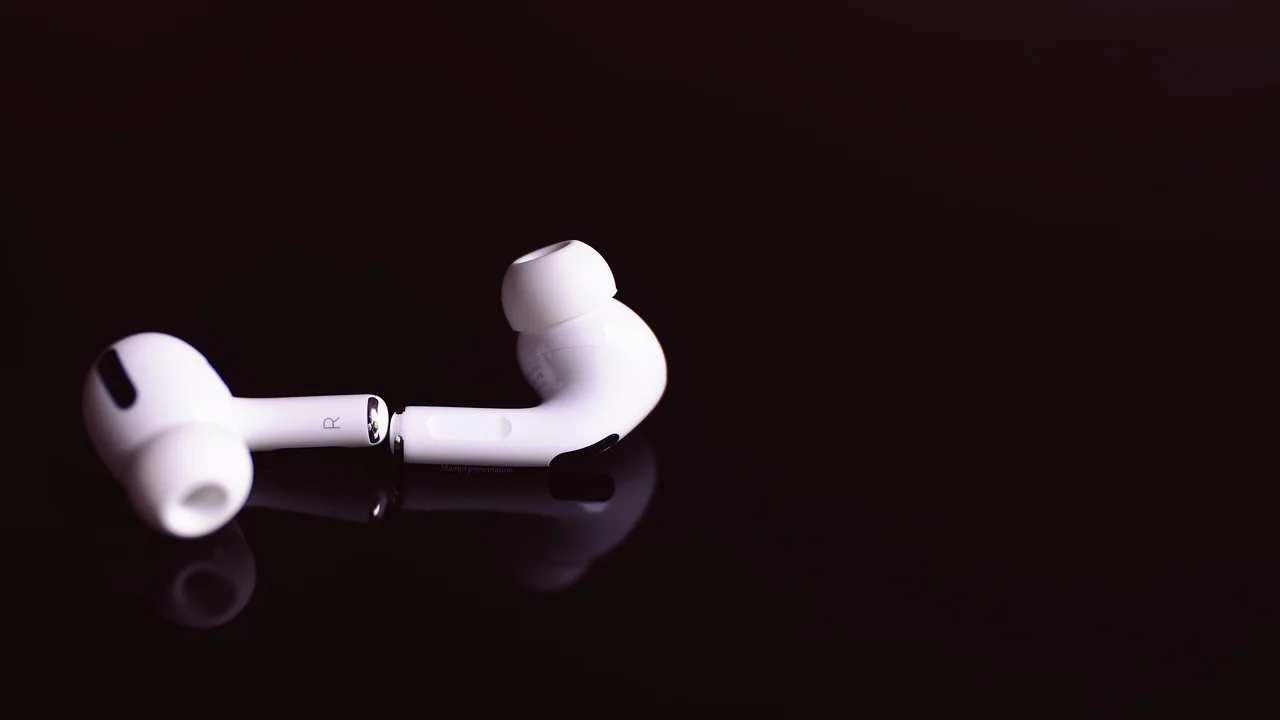
The fastest solution is to check the active audio output and media volume, then reconnect the headphones. If that does not work, systematically rule out app settings, stale Bluetooth pairings, software issues, and device-specific limitations. The steps below apply to common headphones, earbuds, speakers, phones, computers, and TVs used in the United States.
Start With the Most Likely Causes
A Bluetooth connection is not the same as an active sound path. Bluetooth devices can connect for calls, microphone access, buttons, or battery reporting while media playback continues elsewhere. A device may also reconnect automatically to a nearby laptop or tablet and leave your current phone without a usable audio route.
Check the audio output while something is playing
Play a song, video, or podcast first. Then open the device’s audio output selector rather than relying only on the Bluetooth menu. On an iPhone, open Control Center and tap the AirPlay/audio output button in the Now Playing panel. On Android, open the media output picker from Quick Settings or the volume panel; wording varies by manufacturer. On Windows, select the speaker icon on the taskbar and choose the headphones. On a Mac, open Control Center, choose Sound, and select the Bluetooth device.
If your headphones appear in the list, select them directly. If the selection immediately changes back, another connection or an app may be taking control.
Raise media volume, not just ringtone volume
Many phones manage ringtone, alarms, calls, and media separately. Start media playback and press Volume Up several times. Check the headphone’s own volume controls too; some models maintain an independent level. Also make sure the headphones are not muted by a touch gesture or companion app setting.
- Confirm the headphones have enough battery and are powered on.
- Turn off airplane mode unless you deliberately re-enable Bluetooth afterward.
- Disconnect nearby phones, tablets, and computers that may be claiming the headphones.
- Try one different app, such as a web video, to determine whether the problem is app-specific.
- Test the headphones with another device before assuming the original device has failed.
Identify Whether the Problem Is the Headphones or the Source Device
A short cross-test prevents unnecessary resets. Pair the headphones with a second phone, tablet, or computer and play a familiar audio file. Then test the original source with another wired or Bluetooth audio device if available.
| What you observe | Most likely cause | Best next action |
|---|---|---|
| No sound on any paired device | Headphone battery, hardware, or firmware problem | Charge fully, reset the headphones, check manufacturer support |
| Sound works on a second device | Original phone, computer, TV, or app setting | Check output selection and forget/re-pair on the original device |
| Calls work but music does not | Media audio profile is disabled or output is wrong | Enable Media Audio or choose the stereo output |
| Music works but calls are silent | Call routing or microphone profile issue | Choose the headset option during a call and review permissions |
| Audio is silent in one app only | App volume, permissions, downloads, or playback setting | Force-close, update, and test another title or app |
This distinction matters because Bluetooth troubleshooting can otherwise become a long sequence of changes that does not address the actual failure point.
Fix Bluetooth Headphones With No Sound on Phones
iPhone and iPad checks
First, select the headphones from Control Center while audio is playing. Next, go to Settings > Bluetooth, tap the information button next to the device, and disconnect or forget it if it will not route sound correctly. Restart both the iPhone or iPad and the headphones, then pair them again.
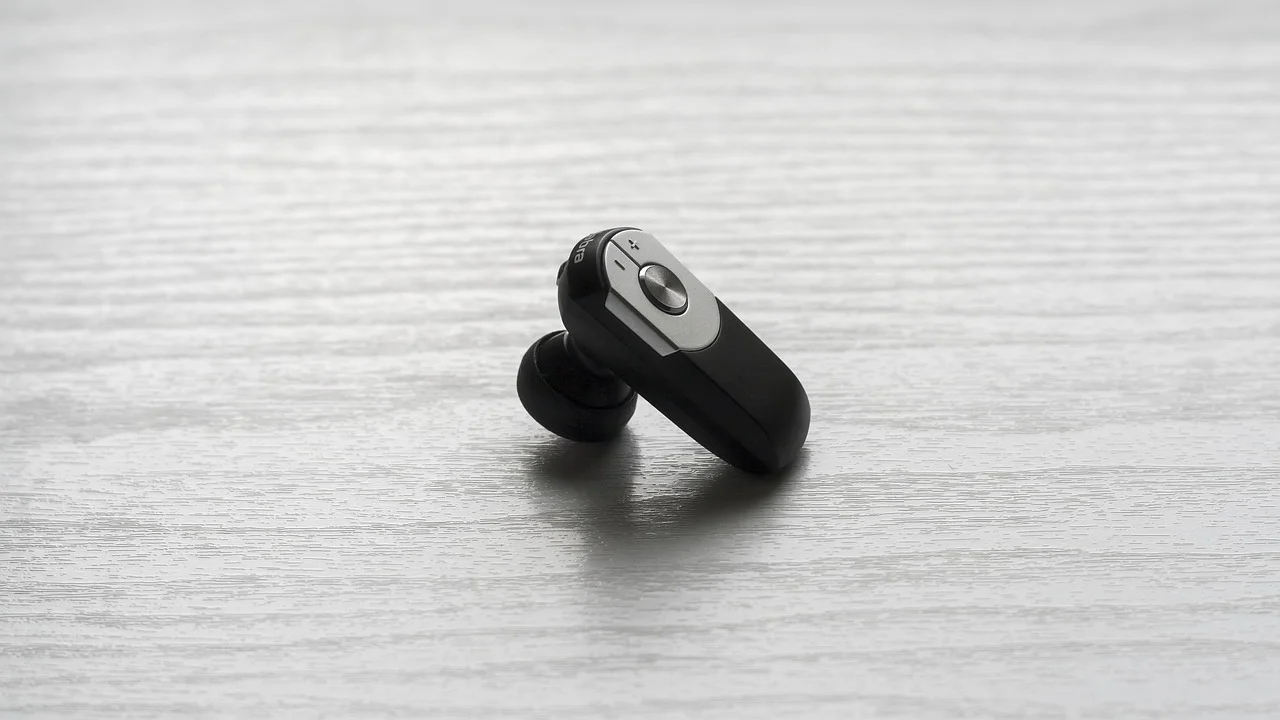
Also look for competing audio routes. A car system, smart speaker, hearing device, or another set of earbuds can remain available and receive playback instead. If a specific music or video app is silent, close it from the app switcher, reopen it, and test a different audio source.
Android phone checks
Open Settings > Connected devices or Bluetooth, select the gear icon next to the headphones, and confirm that Media audio is enabled. Some Android versions show separate toggles for phone calls, media audio, contacts, and input devices. Calls can function even when media audio is switched off.
While playing audio, use the phone’s media output control to choose the headphones. On some phones, the Bluetooth volume setting can also affect how the phone and headset volume controls interact. If levels behave oddly, temporarily disable and re-enable Bluetooth, then reconnect.
For an overview of current mobile-device Bluetooth behavior and compatibility concepts, consult the Bluetooth Special Interest Group, the standards organization behind Bluetooth technology.
Fix No Audio on Windows and Mac Computers
Windows output and profile settings
Windows may expose a Bluetooth headset as more than one sound device. One option is typically stereo headphones for music and video; another may be a hands-free headset intended for calls. For normal listening, choose the stereo headphones output in Settings > System > Sound or from the taskbar sound menu.
If sound is still missing, open the app that is playing audio and verify its output device. Browsers, meeting apps, games, and recording software can each retain an independent output selection. In Sound settings, set the Bluetooth headphones as the output device, then test the volume meter. Update Windows and, if applicable, the computer maker’s Bluetooth driver.
Mac sound settings
On a Mac, choose Apple menu > System Settings > Sound > Output, then select the headphones. If the level meter moves but you hear no sound, disconnect and reconnect the device. For call apps, check the app’s separate speaker and microphone settings because it may switch to a lower-bandwidth headset mode when the microphone is active.
Apple’s official Mac sound output guidance is useful when the selected device does not match where audio is actually playing.
TVs, Streaming Devices, and Game Consoles Have Different Limits
Televisions and streaming players often handle Bluetooth audio differently from phones. Some TVs support only one Bluetooth audio device at a time, while others do not support Bluetooth headphones at all without an external transmitter. A soundbar connected through HDMI ARC or optical audio can also override the TV’s Bluetooth output.
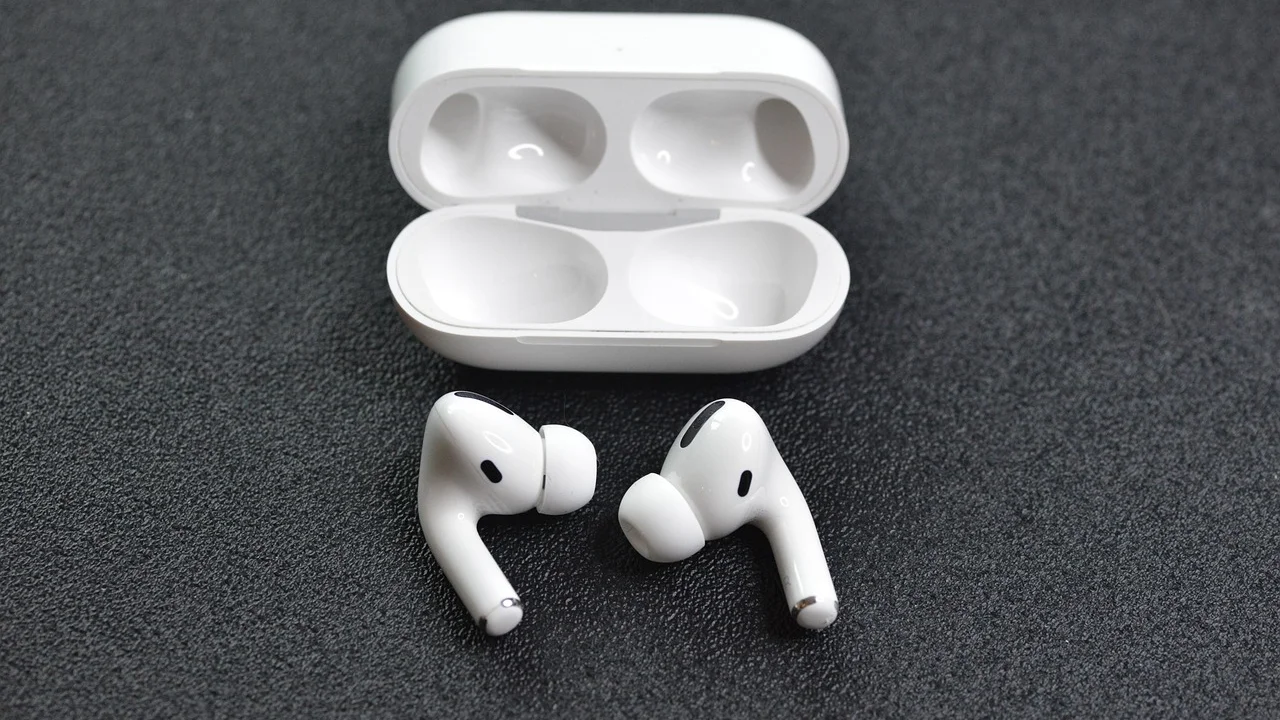
Open the TV’s Sound or Audio Output menu during playback and choose Bluetooth headphones. If the TV reports that the device is paired but audio remains on the speakers, remove the pairing and add it again. Check whether a soundbar, receiver, or console is currently selected as the output.
On game consoles, voice chat settings may independently control game audio, chat audio, and microphone routing. Some consoles require a headset designed for that platform or a USB wireless adapter rather than standard Bluetooth headphones. Consult the console maker’s support pages before buying an adapter; compatibility is not universal.
Remove a Bad Pairing and Pair Again Correctly
Forgetting and re-pairing is more effective than repeatedly tapping Connect. It clears stored connection details that can become corrupted after an operating-system update, a firmware update, or use with multiple devices.
- Turn Bluetooth off on the source device, then turn the headphones off.
- In Bluetooth settings, choose the headphones and select Forget, Remove, or Unpair.
- Restart the phone, computer, or TV.
- Charge the headphones for at least 15 to 30 minutes if the battery level is uncertain.
- Put the headphones into true pairing mode. This often requires holding the power or Bluetooth button until an indicator flashes.
- Turn Bluetooth back on, select the headphones from the available devices list, and complete pairing.
- Play media and explicitly select the headphones from the audio output menu.
Be cautious with factory resets. They are useful after ordinary re-pairing fails, but reset steps vary by model and can erase equalizer settings, multipoint connections, and saved controls. Use the manufacturer’s instructions for your exact headphones.
App, Accessibility, and Multipoint Issues
If silence occurs in only one service, the Bluetooth connection is probably not the core issue. Check whether the app is paused, muted, using downloaded content with a licensing error, or sending audio to an internal cast device. Close and reopen the app, sign out and back in if needed, and install its latest update.
Accessibility options can affect audio routing as well. On phones, inspect settings related to hearing devices, mono audio, call audio routing, or balance. An extreme left-right balance setting may make one earbud seem silent. On a computer, inspect per-app volume and output controls.
Manage multipoint connections
Multipoint headphones can stay connected to two devices, such as a work laptop and a phone. That convenience can lead to unexpected silence when the laptop begins a notification, call, or browser tab playback. Temporarily disable Bluetooth on the second device, or disconnect the headphones from it, and then retest. Once sound is restored, reconnect devices one at a time and review the headphone app’s multipoint settings.
“Bluetooth is a short-range wireless technology standard that is used for exchanging data between fixed and mobile devices over short distances.” This basic design helps explain why nearby devices, stored pairings, and active profiles can influence where sound goes.
Bluetooth overview, Encyclopaedia Britannica
A 10-Minute Recovery Plan
Use this sequence when you need sound quickly and do not want to dig through every menu.
- Play a song or video and raise the media volume.
- Select your headphones in the active audio output picker.
- Turn the headphones off and on, then reconnect them.
- Disable Bluetooth on other nearby devices that may have paired automatically.
- Test a second app and a second audio track.
- Check the headphones with another device.
- Forget the pairing, restart the source device, and pair again.
- Only then reset the headphones or update system software and firmware.
After each step, test with the same short audio clip. This creates a clear record of which change resolved the issue and avoids making many changes at once.
FAQ: Bluetooth Headphones Connected but No Sound
Why are my Bluetooth headphones connected but sound is still coming from my phone?
The phone’s built-in speakers are likely still selected as the playback output. Start media, open the audio output picker, and choose the headphones. On Android, also confirm that Media audio is enabled for that device.
Why do my headphones work for calls but not music?
The call profile can connect separately from stereo media audio. Enable Media audio in Bluetooth settings, choose the stereo headphones output on a computer, and reconnect the device if the setting is already enabled.
Can low battery cause Bluetooth headphones to connect with no sound?
Yes. A weak battery can produce unstable behavior, including incomplete connections, dropouts, and absent audio. Charge the headphones and their case fully before deeper troubleshooting.
Will forgetting a Bluetooth device delete anything important?
It removes the saved pairing relationship, not your music, files, or apps. You will need to pair the headphones again, and some headphone-specific settings may need to be restored through the companion app.
When should I contact the manufacturer?
Contact support when the headphones produce no sound on multiple fully updated devices after charging, re-pairing, and following the documented reset procedure. Physical damage, moisture exposure, or a failed speaker driver may require repair or replacement.
Conclusion
When Bluetooth headphones are connected but no sound plays, begin with the current audio output and media volume. Then isolate the fault by trying another app and another device. Re-pairing resolves many stubborn connection problems, while profile settings and multipoint connections explain many cases where calls work but music does not. A deliberate test sequence will usually restore audio faster than repeatedly toggling Bluetooth.

References
About the author
Stefano Barcellos
Editor jefe de SaberTec
Editor jefe de SaberTec. Coordina la línea editorial, revisa la precisión de los contenidos y supervisa su publicación en 20 idiomas.
View full profile