
Headphones Not Recognized by Computer: Fixes That Work
When a computer does not recognize headphones, the cause may be a muted output, faulty port, outdated driver, Bluetooth pairing issue, or damaged cable. This guide explains how to diagnose the problem safely on Windows and Mac, with practical steps and repair options.
Table of contents
- Start With the Fastest Checks
- Check the connector type
- Choose the Correct Audio Output
- Windows 11 and Windows 10
- Mac computers
- Fix Wired Headphone and USB Problems
- Test the port and cable
- Inspect adapters
- Repair Windows Audio Drivers and Services
- Use the built-in troubleshooter
- Check Device Manager
- Check Windows audio services
- Reconnect Bluetooth Headphones
- Understand Bluetooth profile problems
- Compare Common Causes and Solutions
- A Practical Ten-Minute Troubleshooting Plan
- When Hardware Repair Is the Better Option
- FAQ
- Why does my computer recognize headphones but play sound through speakers?
- Why are my headphones missing from Windows Sound settings?
- Why do Bluetooth headphones connect but have no audio?
- Can an audio driver update fix headphones that are not detected?
- Why does my headset microphone work poorly or not at all?
- Conclusion
- References
When headphones are not recognized by a computer, the problem is usually caused by a wrong audio output, a loose connection, a disabled device, an outdated driver, or a damaged port. The good news is that most cases can be diagnosed without special tools or advanced technical knowledge.
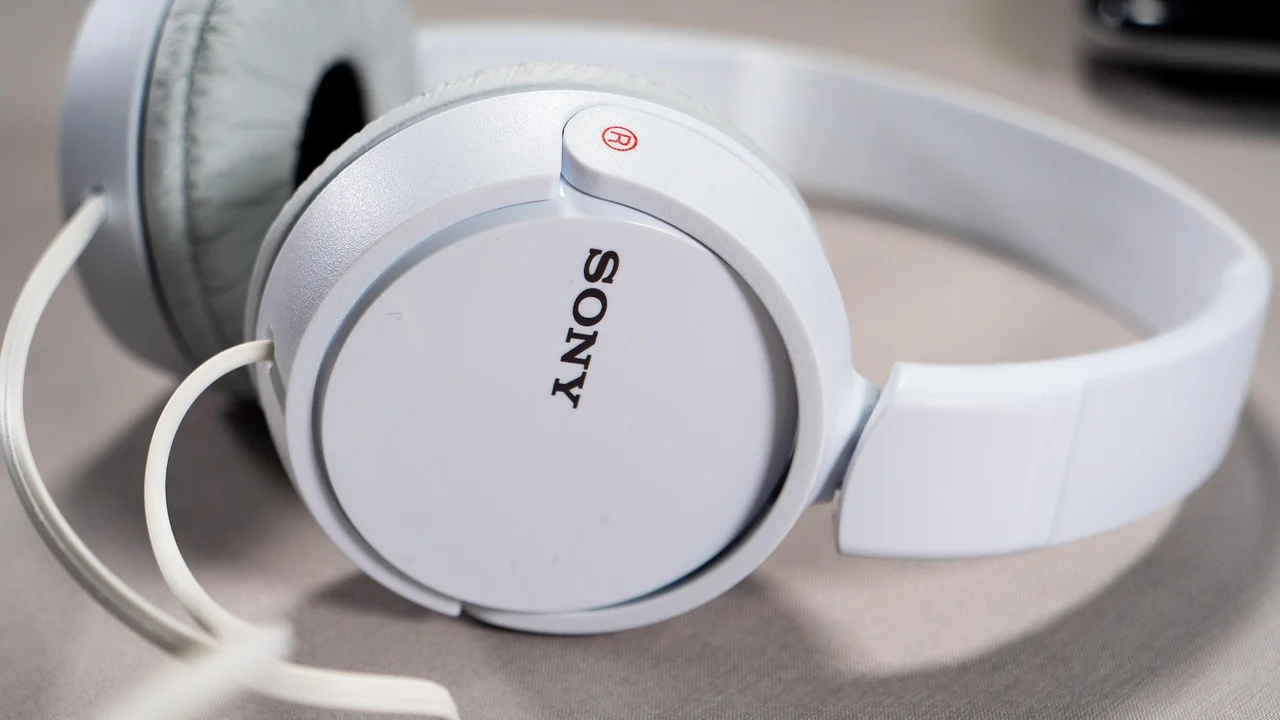
This guide covers wired headphones, USB headsets, and Bluetooth models on Windows PCs and Macs. Start with the simplest checks, then move through software settings and hardware tests. Avoid changing several settings at once, because identifying the exact cause is easier when you test one possibility at a time.
Start With the Fastest Checks
Before reinstalling drivers or changing system settings, confirm that the headphones and computer are actually communicating. A basic connection problem can look like a complicated operating-system failure.
- Unplug and reconnect the headphones firmly.
- Try a different headphone port or USB port.
- Test the headphones with a phone, tablet, or another computer.
- Restart the computer with the headphones connected.
- Check whether the headphones have a physical mute switch or volume control.
- Remove dust or lint from a headphone jack using compressed air, not sharp metal tools.
If the headphones work on another device, the computer is probably the source of the issue. If they fail everywhere, the headphones, cable, adapter, or battery may need replacement.
Check the connector type
Many laptops use a single 3.5-millimeter combo jack for both headphones and microphones. Desktop computers may have separate headphone and microphone ports. A headset with a four-contact TRRS plug may not work correctly with every desktop jack or adapter.
USB-C headphones can also be confusing. Some USB-C ports support audio accessories, while others provide charging or data only. If a USB-C headset is not detected, test another compatible port or use the manufacturer’s approved adapter.
Choose the Correct Audio Output
A computer may recognize headphones but continue sending sound to built-in speakers, a monitor, a docking station, or a television. This is one of the most common causes of “no sound” reports.
Windows 11 and Windows 10
- Open Settings and select System, then Sound.
- Under Output, select the headphones or headset.
- Raise the output volume and confirm that the device is not muted.
- Open the selected device’s properties and check that it is enabled.
- Disconnect external monitors, docks, and speakers temporarily to simplify the test.
If the headphones appear under a disabled or disconnected section, open the available device options and enable them. Windows may label a headset by its manufacturer, a generic name, or the audio chipset instead of simply calling it “Headphones.”
Mac computers
- Open System Settings and choose Sound.
- Select the Output tab.
- Choose the connected headphones, USB headset, or Bluetooth device.
- Adjust the output volume and make sure mute is off.
- Close and reopen the app that is playing audio.
For a 3.5-millimeter connection, macOS may show an option such as “Headphones” or “External Headphones.” For USB devices, the name may identify the headset or its audio controller.
Apple explains that sound output can be selected in the Mac’s Sound settings. You can review the official guidance through the Apple Support website.
Fix Wired Headphone and USB Problems
Wired headphones do not require pairing, but they still depend on a functioning physical connection and a correctly selected audio device.
Test the port and cable
Gently move the plug while audio is playing. If sound cuts in and out, the plug, cable, or jack may be worn. Do not force the connector or repeatedly bend the cable, since that can worsen internal damage.
With USB headsets, connect directly to the computer instead of through a hub, monitor, or docking station. Some hubs do not provide enough power or may have compatibility problems. Try both USB-A and USB-C ports when appropriate, and wait several seconds for the operating system to install the device.
Inspect adapters
A 3.5-millimeter-to-USB adapter contains its own audio electronics. If that adapter fails, the headphones may work normally when connected directly to another device. Low-quality or incompatible adapters can also support audio output but not the microphone.
For gaming headsets, check whether the computer needs a separate splitter for headphone and microphone plugs. A splitter designed for a laptop combo jack may not be suitable for a desktop with independent ports.
Repair Windows Audio Drivers and Services
Drivers allow the operating system to communicate with the computer’s audio hardware. A faulty update, incomplete installation, or disabled device can prevent headphones from appearing.
Use the built-in troubleshooter
In Windows, open Settings, choose System, and select Troubleshoot. Run the audio troubleshooter and follow its recommended actions. It may detect a muted output, incorrect default device, disabled service, or driver problem.
Microsoft maintains troubleshooting information for Windows audio problems through its official support center.
Check Device Manager
- Right-click the Start button and open Device Manager.
- Expand Sound, video and game controllers.
- Look for a warning symbol or a device marked as disabled.
- Right-click the audio device and choose Enable device if available.
- Choose Update driver, then restart the computer.
If updating does not help, open the device’s properties and review the driver information. You can also uninstall the device and restart Windows so it can reinstall the driver. Download drivers only from the computer manufacturer, motherboard manufacturer, or a well-known hardware vendor. Avoid random driver-download websites.
Check Windows audio services
Press the Windows key, search for Services, and open the application. The Windows Audio and Windows Audio Endpoint Builder services should be running. If either service has stopped, right-click it and choose Start or Restart.
Reconnect Bluetooth Headphones
Bluetooth headphones can be connected for calls but unavailable for music, paired with another device, or visible to the computer without being selected as the output.
- Charge the headphones and place them near the computer.
- Turn Bluetooth off and on again on the computer.
- Remove the headphones from the saved Bluetooth device list.
- Put the headphones into pairing mode.
- Pair them again and select them as the audio output.
Turn off Bluetooth on nearby phones, tablets, and televisions during testing. Many headphones automatically reconnect to the last device they used, which can make the computer appear to ignore them.
On Windows, check whether the Bluetooth device is connected for audio rather than only paired. On a Mac, open Sound settings after pairing and select the headphones manually.
Understand Bluetooth profile problems
Some headsets switch between a high-quality stereo mode and a hands-free calling mode. When an application opens the microphone, the system may change profiles, reducing sound quality or causing unusual behavior. Close video-call and voice-chat applications temporarily while testing music playback.
Compare Common Causes and Solutions
| What you observe | Likely cause | Best first action |
|---|---|---|
| Headphones work on a phone but not the computer | Output selection, driver, or port issue | Select the headphones in Sound settings and try another port |
| They do not appear anywhere | Connection, disabled device, or hardware failure | Test another cable, port, or computer |
| Bluetooth shows paired but no sound plays | Wrong output or incomplete connection | Reconnect and select the Bluetooth headset as output |
| Sound cuts out when the plug moves | Worn cable or jack | Test another headset and arrange repair or replacement |
| Headphones work but microphone does not | Wrong plug, splitter, permission, or input selection | Choose the headset under Input and check microphone permissions |
A Practical Ten-Minute Troubleshooting Plan
Use this sequence when you need a clear, repeatable method rather than trying random fixes.
- Play a familiar audio file at a moderate volume.
- Confirm that the headphones work with another device.
- Reconnect them directly to the computer.
- Disconnect monitors, docks, speakers, and USB hubs temporarily.
- Open Sound settings and select the headphones as output.
- Check volume, mute status, and application-specific volume controls.
- Restart the computer with wired headphones connected or Bluetooth enabled.
- Run the operating system’s audio troubleshooter.
- Inspect Device Manager on Windows or Audio MIDI Setup on Mac if the device remains missing.
- Test a second pair of headphones to determine whether the computer or headset is at fault.
Write down what changes after each step. For example, if a second headset works in the same port, the original headphones or adapter are probably defective. If no headset works, focus on the computer’s settings, drivers, or port.
When Hardware Repair Is the Better Option
Software troubleshooting cannot repair a broken cable, bent connector, liquid damage, or worn headphone jack. Signs of a hardware problem include intermittent sound when the plug moves, visible damage, heat around a USB connector, a port that feels loose, or failure across several computers.
Stop using a device that becomes unusually hot, smells burned, sparks, or shows signs of liquid exposure. Unplug it and seek professional service. For a laptop still covered by a manufacturer warranty or protection plan, check service terms before opening the case.
Replacing inexpensive wired headphones may cost less than repairing a port. For a premium headset, laptop, or studio device, repair may be worthwhile. Keep the receipt and note the exact symptoms before contacting the manufacturer or a local repair shop.
FAQ
Why does my computer recognize headphones but play sound through speakers?
The computer may still be using the internal speakers or an HDMI monitor as the default output. Open Sound settings and manually select the headphones. Also check the volume controls inside the specific app playing audio.
Why are my headphones missing from Windows Sound settings?
They may not be connected correctly, the port may be faulty, or the audio device may be disabled. Try another port, restart Windows, inspect Device Manager, and test a second headset.
Why do Bluetooth headphones connect but have no audio?
Pairing does not always mean that the headset is the active output. Select it under Sound settings, remove and re-add the device, and temporarily disable Bluetooth on nearby devices that may be claiming the connection.
Can an audio driver update fix headphones that are not detected?
Yes, especially after a Windows update or hardware change. Use Device Manager or the computer manufacturer’s support page. Do not install drivers from untrusted download sites.
Why does my headset microphone work poorly or not at all?
The computer may be using the wrong input, the plug may require a splitter, or microphone permissions may be blocked. Select the headset under Input and check privacy settings and physical mute controls.
Conclusion
When a computer does not recognize headphones, begin with the connection, test the headphones on another device, and select the correct output manually. Then check ports, Bluetooth pairing, drivers, audio services, and microphone settings. A second headset is one of the fastest ways to separate a computer problem from a failed accessory.
If the issue follows the headphones, replace or repair the cable, adapter, or headset. If every headset fails, focus on the computer’s audio settings, drivers, ports, or professional service. A careful, step-by-step process usually identifies the cause without unnecessary software downloads or hardware changes.
References
About the author
Stefano Barcellos
Editor jefe de SaberTec
Editor jefe de SaberTec. Coordina la línea editorial, revisa la precisión de los contenidos y supervisa su publicación en 20 idiomas.
View full profile